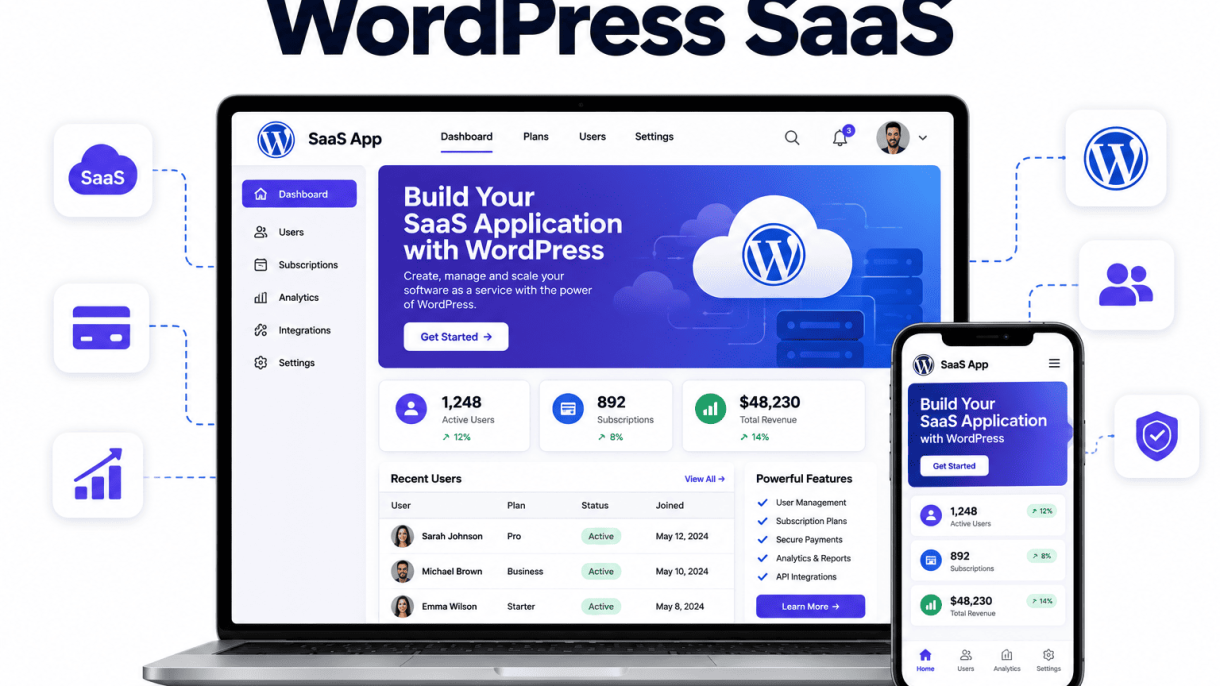

Introduction: What Is a WordPress SaaS Application?
A WordPress SaaS application is a software product built on the WordPress platform that is delivered to users on a subscription basis, typically via the web. Unlike traditional WordPress websites that are static or content-focused, a SaaS application uses WordPress as a development foundation to provide dynamic, functionality-driven services—such as membership management, automated reporting, or e-learning portals—where users pay a recurring fee for access. This model leverages WordPress’s inherent flexibility, including its plugin architecture, user role system, and database structure, to create scalable, multi-tenant software solutions that can be customized for diverse industries.
Understanding the SaaS Model
The Software as a Service (SaaS) model centers on delivering software over the internet, eliminating the need for users to install or maintain local applications. Key characteristics include:
- Subscription-based pricing: Users pay a monthly or annual fee, providing predictable revenue for the provider.
- Centralized hosting: The software runs on the provider’s servers, ensuring consistent updates and security.
- Multi-tenancy: A single instance of the software serves multiple customers, with data isolated per user.
- Scalability: The infrastructure can handle growing numbers of users without degrading performance.
In a WordPress context, the SaaS model often involves creating a plugin or theme that extends WordPress core to deliver subscription-based features, such as customer portals, API integrations, or automated workflows.
Why WordPress Is a Viable Foundation for SaaS
WordPress powers over 40% of all websites, but its viability as a SaaS foundation stems from several technical and practical advantages:
| Advantage | Explanation |
|---|---|
| Open-source flexibility | WordPress’s GPL license allows full customization of code, enabling developers to build proprietary features without licensing restrictions. |
| Robust user management | Built-in roles and capabilities (e.g., subscriber, editor) can be extended to manage subscription tiers and permissions. |
| Extensive plugin ecosystem | Thousands of existing plugins (e.g., WooCommerce, LearnDash) provide ready-made modules for payments, memberships, and learning management. |
| REST API | The WordPress REST API enables headless or decoupled architectures, allowing a JavaScript frontend to interact with WordPress as a backend service. |
| Low entry cost | WordPress is free, and hosting for SaaS applications can start under $50 per month, reducing initial investment. |
However, developers must address challenges like scaling database queries for multi-tenant setups and ensuring consistent performance under load. With careful planning, WordPress can serve as a reliable backend for SaaS products, particularly for small to medium-sized applications.
Common Examples of WordPress-Powered SaaS Products
Several successful SaaS products are built on WordPress, demonstrating its versatility:
- MemberPress: A membership plugin that functions as a SaaS by offering subscription management, content dripping, and payment gateways—all within a WordPress site.
- LearnDash: An LMS plugin that powers e-learning platforms with course creation, quizzes, and student progress tracking, often sold as a subscription service.
- WP ERP: A human resources and CRM plugin that provides enterprise resource planning features, delivered as a subscription with ongoing updates and support.
- Easy Digital Downloads: A plugin for selling digital products, which can be extended with subscriptions for recurring access to files or services.
These examples show how WordPress can be extended to deliver subscription-based functionality without requiring a completely custom backend, making it an accessible choice for entrepreneurs and developers building their first SaaS application.
Planning Your SaaS Product and Business Model
Before writing a single line of code or installing a plugin, you must define the foundation of your WordPress SaaS application. This phase determines whether your product solves a real problem, reaches the right users, and generates sustainable revenue. In a WordPress environment, where plugins and themes compete for attention, careful planning separates successful SaaS ventures from abandoned projects. Start by narrowing your focus, then build your feature set and pricing structure around a clear value proposition.
Identifying a Niche and Target Audience
A broad idea like “a project management tool for WordPress” is too vague. Instead, identify a specific, underserved niche within the WordPress ecosystem. For example, target real estate agents who need a custom property listing manager, or freelance writers who require a content calendar with client approval workflows. To validate your niche:
- Analyze existing WordPress plugins in your chosen area. Look for gaps in features, poor user experience, or outdated code.
- Survey potential users in relevant forums (e.g., WPBeginner, Advanced WordPress Facebook groups) or on platforms like Reddit’s r/WordPress.
- Create a minimum viable audience of at least 20–30 people who express willingness to pay for a solution.
Your target audience dictates technical decisions. For instance, if you serve non-technical small business owners, your SaaS must offer a guided setup wizard and minimal configuration. If you target developers, prioritize API access and hooks.
Defining Core Features vs. Premium Add-Ons
In a WordPress SaaS, the core plugin provides essential functionality that solves the primary pain point. Premium add-ons extend value for specific use cases. This modular approach keeps the base product lean and affordable while allowing upsells. Consider this example for a custom form builder SaaS:
| Feature Category | Core (Free or Basic Tier) | Premium Add-On |
|---|---|---|
| Form fields | Text, email, textarea, select | File upload, signature, payment fields |
| Integrations | Email notification | Mailchimp, Slack, Zapier |
| Spam protection | Basic honeypot | reCAPTCHA v3, Akismet |
| Templates | 5 starter templates | 50+ industry-specific templates |
To implement a basic add-on system, you can use WordPress action hooks. For example, in your main plugin file, define a filter to register add-ons:
// In your main plugin file (e.g., my-saas-app.php)
function my_saas_register_add_ons( $add_ons ) {
    $add_ons['file_upload'] = array(
        'name' => 'File Upload Field',
        'price' => 29,
        'slug' => 'my-saas-file-upload'
    );
    return $add_ons;
}
add_filter( 'my_saas_add_ons', 'my_saas_register_add_ons' );
Then, in your license validation system, check if the user’s subscription includes the add-on before loading its functionality.
Choosing a Pricing Model (Tiered, Usage-Based, or Flat Rate)
WordPress SaaS pricing must account for hosting, plugin updates, and support overhead. Three common models work well:
- Tiered pricing: Offer 3–4 plans (e.g., Basic, Pro, Agency) with escalating features. This suits most WordPress tools because it aligns with user scale. Example: Basic includes 10 active forms, Pro includes 50, Agency includes unlimited.
- Usage-based pricing: Charge per active site, per API call, or per stored record. Best for services like analytics, backup, or CDN integrations. Example: $5/month for 1 site, $20/month for 5 sites, custom pricing for 20+ sites.
- Flat rate: A single price for all features. Works for niche tools with limited feature scope, but risks leaving money on the table or alienating small users.
For most WordPress SaaS products, a tiered model with a free trial (14–30 days) is optimal. Include a “Lifetime” option as a limited-time offer to generate early cash flow. Always test your pricing with a small group before public launch, and monitor churn after the trial period ends.
Setting Up a Secure and Scalable Hosting Environment
To successfully execute How to Build a WordPress SaaS Application, your hosting foundation must support high concurrency, rapid data retrieval, and robust isolation between tenants. A traditional shared hosting plan will fail under the load of multiple API calls, scheduled cron jobs, and database transactions. Instead, prioritize infrastructure that offers vertical scaling (CPU/RAM upgrades) and horizontal scaling (load-balanced server clusters). Key requirements include PHP 8.1+, MariaDB 10.6+, Redis object caching, and a CDN for static assets. Your hosting environment must also enforce strict file permissions and disable XML-RPC if not needed, as these are common attack vectors in multi-user setups.
Selecting a Managed WordPress Host or Cloud Provider
Your choice between a managed WordPress host and a raw cloud provider (AWS, Google Cloud, DigitalOcean) depends on your DevOps expertise and budget. Managed hosts reduce operational overhead but limit server-level customizations; cloud providers offer granular control but require sysadmin skills. Below is a comparison of typical options:
| Feature | Managed WordPress Host (e.g., WP Engine, Kinsta) | Cloud Provider (e.g., AWS EC2, DigitalOcean Droplet) |
|---|---|---|
| Server administration | Fully managed (patches, caching, CDN) | Self-managed (you configure Nginx, PHP-FPM, etc.) |
| Scalability approach | Auto-scaling via built-in plans | Manual or auto-scaling groups (requires configuration) |
| WordPress-specific optimization | Pre-configured Redis, object cache, and page cache | Must install and configure caching plugins (e.g., Redis Object Cache) |
| Cost (for 50k monthly visits) | $200–$400/month (includes support) | $50–$150/month (plus DevOps time) |
| Security baseline | WAF, DDoS protection, daily backups included | Requires manual setup of WAF (e.g., ModSecurity) and backup scripts |
For most SaaS builders, a managed host like Kinsta or WP Engine accelerates development by handling server tuning. If you need custom PHP extensions or database sharding, choose a cloud provider and use a tool like ServerPilot or RunCloud to simplify management.
Implementing SSL, Backups, and Firewall Protections
Security is non-negotiable for a SaaS handling user data and payments. Begin by enforcing HTTPS via a Let’s Encrypt SSL certificate (auto-renewed) or a wildcard certificate for subdomains. Configure automated daily backups to an off-server location (e.g., S3 bucket) with a 30-day retention policy. Use a Web Application Firewall (WAF) such as Cloudflare or Sucuri to block SQL injection, XSS, and brute-force login attempts. On the server level, implement a firewall (UFW or iptables) that restricts ports to 22 (SSH), 80 (HTTP), and 443 (HTTPS). Additionally, harden WordPress by disabling file editing in wp-config.php and limiting login attempts with a plugin like Limit Login Attempts Reloaded.
Configuring Staging, Development, and Production Environments
Maintain three separate environments to prevent breaking live user data. Use version control (Git) with a branching strategy: develop features in dev, test in staging, and merge to main for production. Configure staging as an exact replica of production, but with a separate database and restricted access (e.g., VPN or IP whitelist). Use a plugin like WP Migrate DB Pro to sync database changes without exposing sensitive user data. Automate deployments via a CI/CD pipeline (GitHub Actions or DeployBot) that runs tests, clears cache, and updates the production server only after staging passes. For database migrations, use a tool like Bedrock’s wp migrate command to handle table prefixes and serialized data correctly. Never push changes directly to production; always deploy through staging to catch conflicts in custom post types or user roles.
Building the Core Application with Custom Post Types and Meta
WordPress is inherently a content management system, but its true power for SaaS applications lies in its ability to model custom data structures. Instead of forcing your application’s entities—such as subscriptions, invoices, or user projects—into the default “Posts” or “Pages,” you will register custom post types (CPTs) that represent each core business object. This approach ensures your data is organized, queryable, and scalable. Alongside CPTs, custom metadata and taxonomies provide the granular control needed for complex SaaS functionality.
Registering Custom Post Types for SaaS Entities
Begin by defining the primary entities your SaaS application manages. For example, a project management tool might require CPTs for “Projects,” “Tasks,” and “Teams.” Register these using the register_post_type() function, ideally within a custom plugin or your theme’s functions.php file. Each CPT should have a singular and plural label, a slug for URL structure, and capabilities that align with your user roles. Consider the following practical example for a “Subscription” entity:
function create_subscription_cpt() {
    $args = array(
        'public'       => true,
        'label'        => 'Subscriptions',
        'show_in_rest' => true,
        'supports'     => array( 'title', 'editor', 'custom-fields' ),
        'capability_type' => 'post',
        'rewrite'      => array( 'slug' => 'subscriptions' ),
    );
    register_post_type( 'subscription', $args );
}
add_action( 'init', 'create_subscription_cpt' );
This code registers a “Subscription” CPT that is accessible via the WordPress REST API, supports custom fields, and has a clean URL structure. Repeat this process for each core entity, ensuring each CPT has unique slugs and labels to prevent conflicts.
Adding Custom Fields with Advanced Custom Fields (ACF)
Once your CPTs are registered, you need to attach specific data points—like “Plan Type,” “Start Date,” or “Billing Cycle”—to each entity. Advanced Custom Fields (ACF) is the industry-standard tool for this task. It provides a user-friendly interface to create field groups and assign them to one or more CPTs. For a “Subscription” CPT, you might create fields such as:
- Plan Type (Select field: Monthly, Yearly, Lifetime)
- Status (Select field: Active, Paused, Cancelled)
- Start Date (Date Picker field)
- Price (Number field with currency formatting)
After installing and activating ACF, navigate to Custom Fields > Add New. Create a field group named “Subscription Details,” add the fields listed above, and set the location rule to “Post Type is equal to Subscription.” ACF then automatically displays these fields in the WordPress admin when editing a subscription post, and stores the data as post meta. You can retrieve this metadata programmatically using get_field('plan_type', $post_id) in your templates or API endpoints.
Organizing Data with Custom Taxonomies
Custom taxonomies allow you to group and filter your SaaS entities efficiently. For instance, a “Projects” CPT might benefit from a “Project Category” taxonomy (e.g., “Client Work,” “Internal”) or a “Priority” taxonomy (e.g., “High,” “Medium,” “Low”). Taxonomies are hierarchical or non-hierarchical, depending on your needs. Register a taxonomy using register_taxonomy() and attach it to one or more CPTs. Here is a simple example for a “Status” taxonomy attached to the “Subscription” CPT:
function create_subscription_status_taxonomy() {
    $args = array(
        'label'        => 'Subscription Status',
        'public'       => true,
        'hierarchical' => false,
        'show_in_rest' => true,
    );
    register_taxonomy( 'subscription_status', 'subscription', $args );
}
add_action( 'init', 'create_subscription_status_taxonomy' );
Once registered, you can assign terms like “Active” or “Expired” to individual subscriptions. This enables powerful filtering in admin screens, front-end queries, and API calls. For example, you can quickly retrieve all active subscriptions using get_posts(array('post_type' => 'subscription', 'tax_query' => array(array('taxonomy' => 'subscription_status', 'field' => 'slug', 'terms' => 'active')))). Combining CPTs, ACF fields, and taxonomies gives you a robust, database-driven architecture that mirrors traditional SaaS platforms while leveraging WordPress’s familiar interface.
Managing User Roles, Subscriptions, and Access Control
Implementing a robust user management system is the backbone of any WordPress SaaS application. This system must handle user registration, subscription tiers, and granular access control to ensure that each user sees only the features their plan entitles them to. The approach can lean on premium plugins for speed or custom code for full flexibility. Below, we break down the three essential pillars of this implementation.
Integrating Membership and Subscription Plugins (e.g., MemberPress, Paid Memberships Pro)
The quickest route to a subscription-driven SaaS is through a dedicated membership plugin. These tools handle payment gateways, recurring billing, and user level assignment out of the box. Two widely used options are:
- MemberPress: Offers advanced drip content, conditional access rules, and integration with popular LMS and forum plugins. It provides built-in API access for custom development.
- Paid Memberships Pro (PMPro): A free core plugin with powerful paid add-ons. It supports multiple membership levels, discount codes, and detailed reporting. Its codebase is highly extensible for custom SaaS logic.
To integrate either plugin, follow these steps:
- Install and activate the plugin from the WordPress repository or your license.
- Configure payment gateway (Stripe, PayPal) under the plugin’s settings panel.
- Define your subscription tiers (e.g., Basic, Pro, Enterprise) with distinct pricing and billing cycles.
- Assign a default role (e.g., “subscriber”) to new members, which will later be overridden by custom roles.
- Use the plugin’s shortcodes or block widgets to create a membership dashboard and checkout pages.
These plugins also provide hooks and filters (e.g., mepr-checkout-before-submit in MemberPress) that allow you to extend functionality without modifying core files.
Creating Custom User Roles and Capabilities
Standard WordPress roles (Administrator, Editor, Subscriber) are too coarse for a SaaS application. You need custom roles that map directly to your subscription tiers and feature sets. This is best done programmatically, often during plugin activation.
Use the add_role() function in a custom plugin or your theme’s functions.php (though a plugin is preferred for portability). Example snippet:
function saas_add_custom_roles() {
    add_role( 'saas_basic', 'Basic User', array(
        'read' => true,
        'edit_posts' => false,
        'delete_posts' => false,
        'use_saas_feature_analytics' => false,
        'use_saas_feature_reports' => false,
    ) );
    add_role( 'saas_pro', 'Pro User', array(
        'read' => true,
        'edit_posts' => false,
        'delete_posts' => false,
        'use_saas_feature_analytics' => true,
        'use_saas_feature_reports' => true,
        'use_saas_feature_api' => true,
    ) );
}
register_activation_hook( __FILE__, 'saas_add_custom_roles' );
Define your own capabilities (e.g., use_saas_feature_analytics) that are not part of WordPress core. This gives you precise control. When a user upgrades or downgrades their subscription, you can swap their role using a hook from your membership plugin.
Enforcing Feature Access Based on Subscription Level
Once roles and capabilities are set, you must enforce them at every entry point. This involves checking the current user’s capabilities before rendering a feature or executing an action. Use WordPress’s current_user_can() function:
if ( current_user_can( 'use_saas_feature_reports' ) ) {
    // Display the reports dashboard
    echo '<div id="reports-module">...</div>';
} else {
    // Show upgrade prompt
    echo '<p>Upgrade to Pro to access reports.</p>';
}
For more complex scenarios, such as restricting API endpoints or AJAX handlers, perform the same check server-side:
add_action( 'wp_ajax_saas_generate_report', function() {
    if ( ! current_user_can( 'use_saas_feature_reports' ) ) {
        wp_send_json_error( 'Access denied.' );
    }
    // Generate and return report
});
A practical summary of enforcement points includes:
| Access Point | Enforcement Method | Example |
|---|---|---|
| Admin menu items | remove_menu_page() based on role |
Hide “Reports” menu for Basic users |
| Shortcodes / Blocks | Conditional rendering with current_user_can() |
Show “Export” button only for Pro users |
| REST API endpoints | Capability check in callback | Return 403 if user lacks use_saas_feature_api |
| Frontend templates | PHP conditional statements | Display upgrade banner in template file |
By combining a membership plugin for billing and level management, custom roles for granular capabilities, and capability checks throughout your code, you create a secure and scalable access control system that aligns perfectly with your SaaS subscription model.
Developing a Custom Frontend with Shortcodes and REST API
Building a dynamic frontend for your WordPress SaaS application requires a balance of server-side rendering for protected content and client-side interactivity for user dashboards. Shortcodes provide a simple way to embed subscription-gated content directly into posts or pages, while the WordPress REST API enables you to build custom interfaces that react to real-time user actions. By combining these tools with modern JavaScript frameworks, you can create a seamless experience where users manage their subscriptions, view analytics, and interact with premium features without leaving your site.
Using Shortcodes to Display Subscription-Protected Content
Shortcodes act as placeholders that render dynamic content based on user roles or subscription status. To protect content, create a custom shortcode that checks the current user’s capabilities before outputting premium material. For example, a shortcode like [saas_dashboard] can display a personalized dashboard only for active subscribers.
- Registration and callback: Use
add_shortcode('saas_dashboard', 'render_dashboard')in your plugin or theme’s functions.php. - Conditional logic: Inside the callback, verify user subscription via a custom meta field or a membership plugin’s API. Return a login prompt if unauthorized.
- Output buffering: Use
ob_start()to capture complex HTML output, then return it as a string.
This approach keeps your core content static while allowing protected sections to appear dynamically. For instance, a free user might see a teaser, while a premium user sees the full tool.
Leveraging the REST API for Custom Dashboards and Interactions
The WordPress REST API exposes endpoints for posts, users, and custom data, enabling you to build dashboards that update without page reloads. For a SaaS app, you can register custom endpoints to fetch subscription details, usage stats, or billing history. A practical example is creating a route that returns a user’s current plan:
// Register custom REST route
add_action('rest_api_init', function () {
    register_rest_route('saas/v1', '/subscription/(?P<id>d+)', array(
        'methods' => 'GET',
        'callback' => 'get_user_subscription',
        'permission_callback' => function () {
            return is_user_logged_in();
        }
    ));
});

function get_user_subscription($data) {
    $user_id = $data['id'];
    $plan = get_user_meta($user_id, 'saas_plan', true);
    if (empty($plan)) {
        return new WP_Error('no_plan', 'User has no active subscription', array('status' => 404));
    }
    return rest_ensure_response(array('plan' => $plan, 'expires' => get_user_meta($user_id, 'saas_expires', true)));
}
With this endpoint, your frontend can call /wp-json/saas/v1/subscription/123 to display the user’s plan details. Use fetch() or Axios to handle the response and update the UI accordingly.
Integrating React or Vue.js for Advanced UI Components
For complex interfaces like interactive charts, real-time notifications, or multi-step forms, a JavaScript framework like React or Vue.js enhances the user experience. You can embed these components within WordPress pages using shortcodes that mount the framework’s root element. Here’s a typical workflow:
| Step | Action |
|---|---|
| 1 | Create a React or Vue component (e.g., SubscriptionChart) that fetches data via the REST API. |
| 2 | Build the app with a bundler like Webpack or Vite, outputting a single JavaScript file. |
| 3 | Enqueue the script in WordPress using wp_enqueue_script() and add a shortcode that renders a container <div id="saas-chart"></div>. |
| 4 | In your framework’s entry point, mount the component to that container only when the DOM element exists. |
This method ensures your advanced UI only loads on pages where the shortcode is present, keeping performance lean. For example, a Vue.js component for a subscription renewal form can use the REST API to update payment methods without a full page refresh, creating a fluid SaaS experience.
Implementing Payment Gateways and Billing Automation
Integrating a reliable payment system and automating recurring billing is the financial backbone of any WordPress SaaS application. Users expect seamless transactions, secure payment handling, and instant access to their subscriptions. This section walks you through selecting the right gateway, configuring recurring payments with trial periods, and automating invoices and receipts—all within the WordPress ecosystem without leaving your admin dashboard.
Choosing a Payment Gateway (Stripe, PayPal, or Others)
The gateway you choose determines your revenue flow, user trust, and global reach. For a WordPress SaaS, the most common options are Stripe, PayPal, and specialized alternatives. Below is a comparison to help you decide.
| Gateway | Key Strengths | Best For | WordPress Integration |
|---|---|---|---|
| Stripe | Developer-friendly API, built-in subscription management, strong fraud protection | SaaS with complex billing (tiers, metered usage) | Excellent via plugins like WooCommerce Subscriptions or custom code with Stripe PHP library |
| PayPal | Wide brand recognition, buyer protection, global reach in over 200 markets | International audiences, simple recurring plans | Good via PayPal Checkout plugin or Braintree (PayPal’s API) |
| Others (Mollie, Square) | Lower fees in some regions, local payment methods (iDEAL, Bancontact) | European or niche markets | Moderate; often require custom API integration |
For most WordPress SaaS builds, Stripe is the recommended choice because its API handles webhooks, failed payment retries, and prorated upgrades natively. You can connect it via a plugin like Easy Digital Downloads – Recurring Payments or build a custom solution using the Stripe PHP SDK and WordPress cron jobs.
Setting Up Recurring Payments and Trial Periods
Once your gateway is chosen, configure recurring billing to charge users at set intervals (monthly, yearly) and offer trial periods to convert free users. Follow these steps:
- Define your pricing model: Decide on flat-rate, tiered, or usage-based subscriptions. For a typical WordPress SaaS, flat-rate monthly or annual plans work best.
- Create subscription products: In your chosen plugin (e.g., WooCommerce Subscriptions), add a product with a recurring price, billing cycle, and optional sign-up fee.
- Enable trial periods: Set a free trial duration (e.g., 14 or 30 days) directly in the product settings. Ensure the plugin automatically starts billing after the trial ends.
- Handle failed payments: Use Stripe’s Smart Retries or configure a plugin to retry failed charges after 3, 5, and 7 days before canceling the subscription.
- Test thoroughly: Use Stripe’s test mode with card numbers like
4000000000003220(declined after trial) to simulate real scenarios.
For custom code, you can use the WC_Subscription class to create subscriptions programmatically, but plugins reduce development time significantly.
Automating Invoices and Receipts with Plugins or Custom Code
Automated invoicing ensures compliance and user satisfaction. Every successful payment or subscription event should trigger a clear, branded receipt. Here’s how to achieve this in WordPress:
- Use a dedicated invoicing plugin: Plugins like WP Invoice or WooCommerce PDF Invoices & Packing Slips can generate and email PDF invoices automatically upon payment confirmation.
- Leverage Stripe’s built-in receipts: Stripe can automatically send email receipts to customers. Enable this in your Stripe dashboard under “Settings > Email receipts.”
- Custom code with hooks: For full control, hook into WordPress actions like
woocommerce_subscription_payment_completeor use Stripe webhooks to trigger custom functions that generate invoices via libraries like Dompdf or TCPDF. - Include essential invoice data: Ensure invoices display the user’s name, subscription plan, billing period, amount paid, transaction ID, and your business’s tax information.
By automating invoices and receipts, you eliminate manual work, reduce errors, and provide a professional experience that encourages renewals. Always test the email delivery using a tool like SMTP plugin to avoid receipts landing in spam folders.
Optimizing Performance and Managing Data
For a WordPress SaaS application, performance and data management are critical to user retention and operational stability. As your user base grows, unoptimized queries, redundant data, and lack of caching can lead to slow page loads and downtime. This section outlines practical strategies for caching, database optimization, and scheduled maintenance to keep your application fast and reliable under load.
Implementing Object Caching and Page Caching (Redis, Varnish)
WordPress’s default database-driven architecture struggles under high concurrency. Implementing a two-tier caching strategy addresses this:
- Object caching with Redis stores database query results, transients, and session data in memory, reducing repeated SQL calls. Use the Redis Object Cache plugin or a dedicated Redis server.
- Page caching with Varnish serves static HTML copies of pages to visitors, bypassing PHP and database entirely for anonymous users. Configure Varnish as a reverse proxy in front of your web server (e.g., Nginx or Apache).
A comparison of these caching layers helps clarify their roles:
| Caching Layer | Storage Medium | Primary Use Case | Performance Gain |
|---|---|---|---|
| Object Cache (Redis) | In-memory (RAM) | Database query results, API responses, user sessions | Reduces database load by 60-80% for dynamic requests |
| Page Cache (Varnish) | Memory or disk | Full HTML pages for unauthenticated visitors | Delivers pages in milliseconds, offloading PHP completely |
For best results, combine both: use Redis for logged-in users and dynamic content, and Varnish for the public-facing parts of your SaaS.
Optimizing Database Queries and Using Indexes
Poorly written queries are a common bottleneck in WordPress SaaS apps. Follow these steps to optimize your database:
- Profile slow queries using tools like Query Monitor or the
slow_query_login MySQL. - Use proper indexes on columns frequently used in
WHERE,JOIN, andORDER BYclauses. For example, indexpost_dateandmeta_keyin thewp_postmetatable. - Limit
meta_queryusage in custom post types; instead, store frequently filtered data as serialized arrays or dedicated custom tables. - Implement query caching with Redis as described above, and avoid repeated queries inside loops.
- Use
WP_Queryparameters like'no_found_rows' => trueand'fields' => 'ids'when pagination or full post objects are unnecessary.
Regularly review your database schema with tools like phpMyAdmin or WP-CLI to identify missing indexes on high-traffic tables.
Scheduling Regular Maintenance and Data Cleanup
Automated maintenance prevents data bloat and performance degradation. Implement a cron-based schedule using WordPress’s wp_schedule_event() or a system-level cron job:
- Weekly: Delete expired transients (using
DELETE FROM wp_options WHERE option_name LIKE '_transient_timeout_%'), remove spam comments, and optimize tables withOPTIMIZE TABLE. - Monthly: Archive old user logs, delete orphaned post meta, and purge revision history beyond the last 5 revisions per post.
- Quarterly: Review and rebuild fragmented indexes using
ALTER TABLE ... ENGINE=InnoDBand re-evaluate query performance metrics.
For data cleanup, consider using a plugin like WP-Optimize or a custom script that runs via WP-CLI. Always back up your database before performing bulk deletions. By combining robust caching, query optimization, and regular maintenance, your WordPress SaaS application will scale efficiently and deliver a consistent user experience.
Testing, Deploying, and Monitoring Your SaaS Application
After building your WordPress SaaS application, rigorous testing, a reliable deployment pipeline, and continuous monitoring are essential to ensure uptime and user satisfaction. This phase transforms your code into a stable, scalable service. The following steps outline a practical approach to each area.
Conducting Functional and Load Testing
Functional testing validates that every feature works as intended. For a WordPress SaaS, this includes user registration, subscription management, payment processing, and core plugin interactions. Use a testing framework like PHPUnit for unit tests and tools like Selenium or Cypress for end-to-end browser tests. Create test cases that cover both happy paths and edge cases, such as expired subscriptions or invalid API keys.
Load testing ensures your application handles expected traffic without degradation. Tools like Apache JMeter or Locust simulate concurrent users. Define key metrics: response time under load, throughput, and error rate. For example, a typical SaaS might target sub-2-second response times for 95% of requests under 500 concurrent users. Run tests in a staging environment that mirrors production, including database and caching layers. Adjust your WordPress configuration—such as enabling object caching with Redis or scaling your server resources—based on results.
Setting Up Continuous Integration and Deployment (CI/CD)
A CI/CD pipeline automates testing and deployment, reducing human error and accelerating releases. Use platforms like GitHub Actions, GitLab CI, or Jenkins. The pipeline typically includes steps for code linting, unit tests, integration tests, and deployment to a staging environment before production. Below is a practical example of a GitHub Actions workflow for a WordPress SaaS application:
name: Deploy WordPress SaaS
on:
  push:
    branches: [ main ]
jobs:
  test-and-deploy:
    runs-on: ubuntu-latest
    steps:
      - uses: actions/checkout@v3
      - name: Run PHPUnit tests
        run: vendor/bin/phpunit
      - name: Deploy to production via rsync
        run: |
          rsync -avz --exclude '.git' --exclude 'tests' ./ user@server:/var/www/html/
        env:
          SSH_PRIVATE_KEY: ${{ secrets.SSH_KEY }}
This example triggers on pushes to the main branch, runs unit tests, and deploys files via rsync. Adjust the deployment method to match your hosting—consider using WP-CLI for database migrations or a dedicated deployment tool like DeployBot. Always include a rollback strategy, such as versioned releases or database snapshots.
Monitoring Uptime, Errors, and User Activity with Analytics
Monitoring provides real-time visibility into your SaaS application’s health and user behavior. For uptime, use services like Pingdom or UptimeRobot to check your site every few minutes and alert you via email or Slack if it goes down. For error tracking, integrate tools like Sentry or New Relic to capture PHP exceptions, JavaScript errors, and slow database queries. Configure alerts for critical errors, such as payment failures or authentication issues.
User activity analytics help you understand engagement and identify bottlenecks. Use a privacy-focused analytics tool like Matomo (self-hosted on your WordPress server) or a lightweight service like Plausible. Track key metrics such as:
- Daily active users and subscription sign-ups
- Feature usage (e.g., which plugins or pages are most visited)
- Error rates per user session
- Average session duration and bounce rate
Combine these with server-level monitoring (CPU, memory, disk I/O) using tools like Prometheus and Grafana. Regularly review logs and dashboards to proactively address issues. For example, a spike in 500 errors might indicate a recent deployment problem, while a drop in user activity could signal a broken feature. Establish a response plan for common scenarios, such as database connection failures or high traffic loads, to maintain uptime and user trust.
Launching, Marketing, and Iterating on Your Product
Successfully launching a WordPress SaaS application requires more than a polished codebase. A strategic rollout, sustained marketing, and a commitment to iterative improvement determine whether your product gains traction or fades into obscurity. Below, we outline actionable tactics for each critical phase.
Building a Launch Landing Page and Pre-Launch List
Before your SaaS is ready for public use, generate anticipation and capture early adopters. A dedicated landing page serves as your conversion hub. Include these core elements:
- Clear value proposition: State exactly what problem your SaaS solves and for whom.
- Visual preview: Use mockups, screenshots, or a short explainer video to demonstrate functionality.
- Email capture form: Keep fields minimal—usually name and email—to reduce friction.
- Social proof placeholder: Add a “Coming Soon” badge or teaser testimonials if available.
- Call-to-action (CTA): Use action-oriented text like “Get Early Access” or “Join the Waitlist.”
Promote your pre-launch list through your existing networks, relevant WordPress forums, and social media groups. Offer an incentive—such as a lifetime discount or exclusive beta access—to boost sign-ups. Track conversion rates and A/B test headline variations to optimize the page before launch day.
Leveraging Content Marketing and SEO for User Acquisition
Organic search remains one of the most cost-effective channels for acquiring WordPress SaaS users. Focus on creating high-value content that addresses pain points your application solves. Recommended content types include:
| Content Type | Example Topic | Primary Goal |
|---|---|---|
| Tutorial | “How to Automate WooCommerce Reports” | Demonstrate utility |
| Comparison | “Your Tool vs. Competitor X: Key Differences” | Differentiate features |
| Case study | “How Agency Y Saved 10 Hours Weekly” | Build credibility |
| How-to guide | “Setting Up Custom User Roles in WordPress” | Attract technical audience |
Optimize each piece for search by targeting long-tail keywords related to your SaaS. Use descriptive headings, internal links to your product pages, and meta descriptions that encourage clicks. Publish consistently—at least twice per month—and repurpose content into social posts, email newsletters, and guest contributions on WordPress-focused blogs.
Gathering User Feedback and Prioritizing Feature Updates
Once users start engaging with your application, systematic feedback collection becomes your compass. Implement multiple channels to capture insights without overwhelming your audience:
- In-app surveys: Use lightweight tools like a micro-survey widget to ask one question at a time (e.g., “What feature would you add?”).
- Support tickets and chat logs: Analyze recurring complaints or requests to identify patterns.
- User interviews: Schedule 15-minute calls with power users to understand workflows and frustrations.
- Public roadmap: Share a simple board where users can upvote feature requests.
Prioritize updates using a framework that balances user demand with business goals. For example, weight each feature request on three criteria:
- Impact: How many users will benefit?
- Effort: How complex is implementation?
- Alignment: Does it support your core value proposition?
Communicate decisions transparently. After deploying an update, notify users via email or in-app notification and ask for confirmation that the change solved their problem. This closed feedback loop builds trust and reduces churn, ensuring your WordPress SaaS evolves in lockstep with market needs.
Frequently Asked Questions
What is a WordPress SaaS application?
A WordPress SaaS (Software as a Service) application is a web-based software solution built on the WordPress platform that users access via subscription. Unlike traditional WordPress sites that are standalone, a SaaS app leverages WordPress's content management and user management capabilities to deliver a multi-tenant service. Examples include project management tools, membership platforms, and e-learning systems. WordPress provides a flexible foundation with its plugin architecture, REST API, and user role management, making it suitable for SaaS development. However, scaling requires careful planning of database architecture, caching, and security.
Can WordPress handle a SaaS application?
Yes, WordPress can handle a SaaS application when properly architected. While WordPress is traditionally a CMS, its extensibility through plugins, custom post types, and the REST API allows it to serve as a backend for SaaS products. Multisite networks are often used to isolate customer data. Performance can be maintained with caching, CDN, and optimized hosting. For high-traffic SaaS, consider headless WordPress with a front-end framework like React. Many successful SaaS products, such as MemberPress and LearnDash, are built on or extend WordPress. However, for extremely complex or high-scale applications, a custom framework may be more suitable.
What are the essential plugins for a WordPress SaaS?
Essential plugins for a WordPress SaaS include a membership plugin (e.g., MemberPress, Paid Memberships Pro) for subscription management; a payment gateway integration (e.g., Stripe, WooCommerce Subscriptions) for billing; a learning management system if offering courses (e.g., LearnDash, LifterLMS); a caching plugin (e.g., WP Rocket, W3 Total Cache) for performance; a security plugin (e.g., Wordfence, Sucuri) for protection; and a backup plugin (e.g., UpdraftPlus, BlogVault). For multi-tenancy, consider using WordPress Multisite or a plugin like WP Ultimo. Always test compatibility and performance.
How do I handle subscription billing in WordPress SaaS?
Subscription billing in a WordPress SaaS can be handled using dedicated plugins like WooCommerce Subscriptions, MemberPress, or Paid Memberships Pro. These integrate with payment gateways like Stripe, PayPal, or Authorize.net. They manage recurring payments, trial periods, upgrades, downgrades, and cancellations. For custom solutions, you can use the Stripe API directly with custom code. Ensure you handle webhooks for payment events, store subscription metadata, and implement proper security for user data. Consider using a plugin that supports proration and automatic retries for failed payments.
What is the role of the WordPress REST API in SaaS?
The WordPress REST API allows your SaaS application to communicate with external services and front-end frameworks. It enables you to create, read, update, and delete data (posts, users, etc.) programmatically. In a SaaS context, you can build a decoupled front-end (e.g., React, Vue.js) that interacts with WordPress as a headless CMS. The REST API also facilitates integration with third-party services like CRMs, email marketing, and analytics. Custom endpoints can be added to handle SaaS-specific operations. Authentication via OAuth or JWT ensures secure data access.
How do I ensure security for a WordPress SaaS?
Security for a WordPress SaaS requires a multi-layered approach: use strong passwords and two-factor authentication for admin accounts; keep WordPress core, themes, and plugins updated; implement a Web Application Firewall (WAF) like Sucuri or Cloudflare; use HTTPS (SSL) everywhere; restrict file permissions and disable file editing in wp-config; regularly scan for malware with Wordfence; limit login attempts; and use a security plugin. For multi-tenant setups, isolate user data via database tables or multisite. Conduct regular security audits and backups.
What hosting is best for a WordPress SaaS?
Best hosting for a WordPress SaaS includes managed WordPress hosts like WP Engine, Kinsta, or Cloudways that offer high performance, caching, and support. For high-traffic SaaS, consider dedicated or VPS hosting from providers like DigitalOcean, Linode, or AWS. Use a CDN (e.g., Cloudflare, Fastly) for global delivery. Ensure the host supports PHP 8+, MySQL 8+, and offers SSH access, staging environments, and automatic scaling. For multisite installations, choose a host that supports multisite networks. Always test load times and scalability.
How do I scale a WordPress SaaS application?
Scaling a WordPress SaaS involves optimizing database queries with indexing and caching (e.g., Redis, Memcached); using a CDN for static assets; implementing object caching; leveraging a scalable hosting provider with auto-scaling; using a load balancer; separating read/write databases; and employing a headless architecture to reduce server load. For multisite, consider sharding databases. Monitor performance with tools like New Relic or Query Monitor. Regularly review and optimize code, especially custom plugins. Plan for horizontal scaling by adding more servers.
Sources and further reading
- WordPress REST API Handbook
- WordPress Multisite Network Administration
- MemberPress Documentation
- Paid Memberships Pro Documentation
- WooCommerce Subscriptions Documentation
- WordPress Security Best Practices
- OWASP Top Ten Web Application Security Risks
- WP Engine WordPress Hosting
- Kinsta Managed WordPress Hosting
- Cloudways Managed Cloud Hosting
Need help with this topic?
Send us your details and we will contact you.