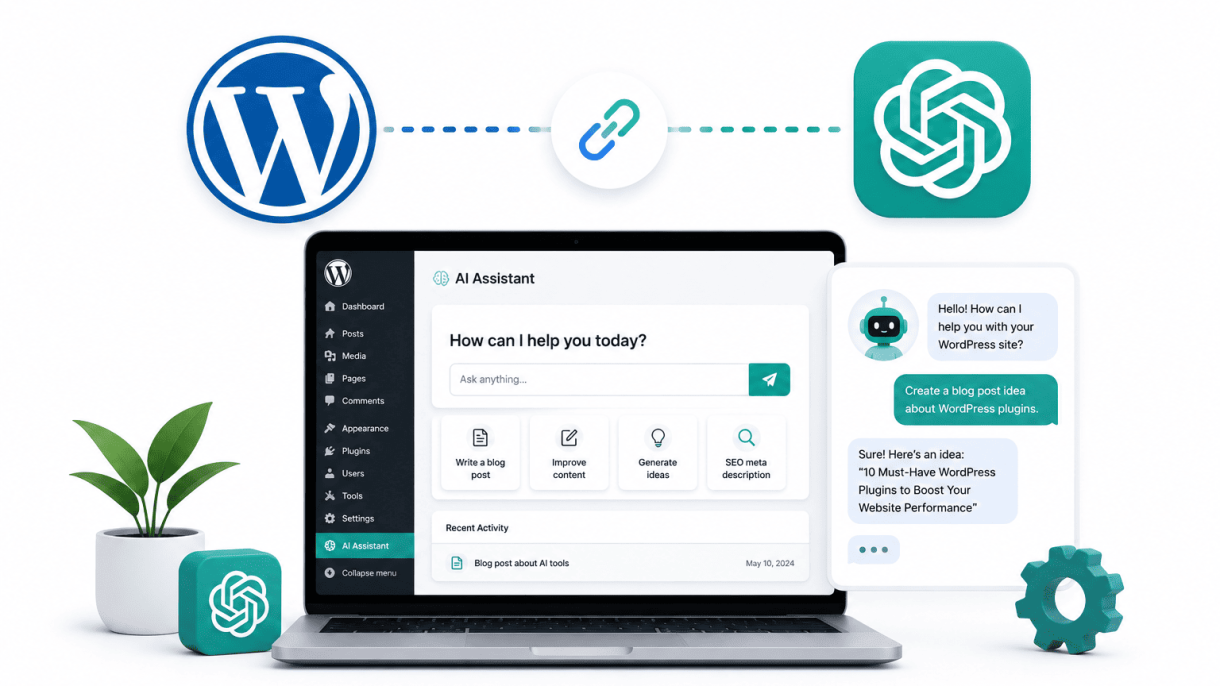

Introduction: Why Integrate ChatGPT with WordPress?
Combining WordPress’s robust content management capabilities with ChatGPT’s advanced natural language processing creates a powerful synergy that transforms how websites operate. This integration allows site owners to automate repetitive tasks, generate high-quality content efficiently, and deliver personalized user experiences. By bridging these two platforms, you can streamline workflows, reduce manual effort, and enhance engagement without sacrificing quality or control. Whether you manage a blog, an e-commerce store, or a membership site, the fusion of WordPress and ChatGPT opens doors to smarter automation and data-driven interactions.
The Rise of AI in Content Management
Artificial intelligence has rapidly evolved from a niche tool to a cornerstone of modern content management. Platforms like WordPress, which powers over 40% of all websites, now face increasing demands for real-time personalization, SEO optimization, and dynamic content creation. ChatGPT, developed by OpenAI, excels at understanding context, generating coherent text, and answering queries in a human-like manner. By integrating ChatGPT, WordPress users can leverage AI to draft posts, suggest meta descriptions, moderate comments, or even power chatbots—all within the familiar dashboard. This shift reduces the time spent on manual writing and editing, allowing creators to focus on strategy and audience connection.
Key Benefits of a ChatGPT-WordPress Connection
Integrating ChatGPT with WordPress offers tangible advantages that directly impact productivity and user satisfaction. Below is a breakdown of the primary benefits:
- Automated Content Generation: Generate blog posts, product descriptions, or landing page copy in seconds, based on simple prompts or outlines.
- Enhanced User Engagement: Deploy AI-powered chatbots that provide instant, relevant responses to visitor inquiries, improving retention and conversion rates.
- Streamlined SEO Workflows: Automatically generate optimized titles, meta descriptions, and keyword-rich snippets, saving hours of manual research.
- Improved Accessibility: Use ChatGPT to rewrite complex content into simpler language or translate it into multiple languages, broadening your audience reach.
- Reduced Operational Costs: Minimize the need for dedicated copywriters or customer support agents by automating routine tasks.
These benefits are not theoretical—they translate into measurable improvements in site performance, user satisfaction, and operational efficiency.
What This Guide Will Cover
This guide is structured to take you from understanding the basics to implementing advanced integrations. You will learn:
- Setup and Configuration: Step-by-step instructions for connecting ChatGPT to WordPress via plugins, APIs, or custom code, including security considerations.
- Practical Use Cases: Real-world examples of how to automate content creation, build intelligent chatbots, and generate dynamic FAQs or product recommendations.
- Best Practices: Tips for maintaining quality control, avoiding common pitfalls like over-reliance on AI, and ensuring your content remains authentic and valuable.
- Future Possibilities: A glimpse into emerging trends, such as voice-activated assistants and predictive content personalization, that can further elevate your WordPress site.
By the end, you will have a clear roadmap to harness the combined power of WordPress and ChatGPT integration, enabling you to create a smarter, more responsive website that meets the demands of today’s digital landscape.
Understanding ChatGPT and WordPress Basics
Before diving into the technical steps of WordPress and ChatGPT integration, it is essential to grasp the foundational components. This section clarifies what ChatGPT is, how WordPress operates as a content management system, and the core concepts—such as API keys and plugins—that will appear throughout your integration journey. Establishing this baseline knowledge ensures you can follow advanced procedures with confidence and avoid common pitfalls.
What Is ChatGPT and How Does It Work?
ChatGPT is a large language model developed by OpenAI. It is trained on vast amounts of text data from the internet, books, and other sources, enabling it to generate human-like responses to prompts. The model uses a transformer architecture, which processes input text and predicts the most likely next words or phrases based on context. When you interact with ChatGPT, you provide a prompt—a question, instruction, or statement—and the model generates a coherent, contextually relevant reply. It does not “understand” in a human sense but statistically mimics language patterns. Key capabilities include:
- Answering questions and providing explanations.
- Generating creative content such as blog posts, poems, or code.
- Summarizing lengthy texts or translating between languages.
- Assisting with brainstorming, editing, or problem-solving tasks.
For WordPress and ChatGPT integration, you typically access this model via OpenAI’s API, which allows your website to send prompts and receive responses programmatically.
WordPress as a Flexible CMS Platform
WordPress powers over 40% of all websites on the internet, thanks to its flexibility as a content management system (CMS). It allows you to create, manage, and publish content—such as posts, pages, and media—without requiring deep technical knowledge. WordPress is built on a modular architecture:
| Component | Purpose |
|---|---|
| Core software | Provides basic CMS functionality (posts, pages, users, settings). |
| Themes | Control the visual design and layout of your site. |
| Plugins | Add custom features and extend core capabilities. |
| REST API | Allows external applications to interact with your site via HTTP requests. |
WordPress’s plugin ecosystem is especially important for integration. You can install dedicated plugins that connect your site to ChatGPT, or you can write custom code using the WordPress REST API and PHP hooks. The platform also supports custom post types, taxonomies, and user roles, which gives you granular control over how AI-generated content is handled.
API Keys, Plugins, and Other Core Concepts
To successfully implement WordPress and ChatGPT integration, you need to understand several core concepts:
- API Key: A unique identifier that authenticates your requests to OpenAI’s servers. You obtain this from your OpenAI account dashboard. Keep it secret, as it grants access to paid usage.
- REST API: WordPress’s built-in REST API enables external services (like ChatGPT) to read, create, update, or delete content on your site. It uses standard HTTP methods (GET, POST, PUT, DELETE).
- Plugin: A software add-on that extends WordPress. For integration, you might use plugins like “AI Engine,” “ChatGPT for WordPress,” or custom-built solutions.
- Webhook: A mechanism for real-time data transfer. When a specific event occurs in WordPress (e.g., a new post is published), a webhook can send data to ChatGPT for processing.
- Rate Limiting: Both WordPress and OpenAI impose limits on how many requests you can make in a given time period. Plan your integration to avoid hitting these caps.
A practical code example using the WordPress REST API to send a prompt to ChatGPT might look like this in PHP:
function send_to_chatgpt($prompt) {
    $api_key = 'your-openai-api-key';
    $response = wp_remote_post('https://api.openai.com/v1/chat/completions', array(
        'headers' => array(
            'Authorization' => 'Bearer ' . $api_key,
            'Content-Type' => 'application/json',
        ),
        'body' => json_encode(array(
            'model' => 'gpt-3.5-turbo',
            'messages' => array(array('role' => 'user', 'content' => $prompt)),
            'max_tokens' => 500,
        )),
    ));
    if (is_wp_error($response)) {
        return false;
    }
    $body = wp_remote_retrieve_body($response);
    $data = json_decode($body, true);
    return $data['choices'][0]['message']['content'] ?? '';
}
This function sends a user prompt to ChatGPT and returns the generated text, which can then be used to create or update WordPress content automatically.
Method 1: Using a Dedicated WordPress Plugin for ChatGPT
Integrating ChatGPT into your WordPress site is most accessible through a dedicated plugin. This approach eliminates the need for custom coding, allowing you to connect your site to OpenAI’s API with a few clicks. Below, we walk through the leading plugin options, setup steps, and configuration best practices to get your AI assistant running smoothly.
Top Plugins Compared: Features and Pricing
Several plugins offer robust ChatGPT integration, each with distinct features and pricing models. The table below compares the most popular options based on functionality, cost, and ease of use.
| Plugin Name | Key Features | Pricing Model | Best For |
|---|---|---|---|
| AI Engine | Chat widget, content generator, image generation, fine-tuning, multi-model support (GPT-4, Claude, Gemini) | Freemium; Pro starts at $49/year | Users wanting all-in-one AI tools beyond chat |
| ChatGPT for WordPress | Simple chat widget, customizable appearance, conversation history, shortcode support | Freemium; Premium starts at $29/year | Bloggers needing a lightweight chat assistant |
| WP ChatGPT | Seamless OpenAI API integration, role-based access, content drafting, tone customization | Freemium; Pro starts at $39/year | Site owners focused on content creation |
| AI Power | Chat widget, GPT-3.5/4 support, WooCommerce integration, image generation, voice search | Freemium; Pro starts at $99/year | E-commerce sites needing AI-driven customer support |
All plugins require an OpenAI API key, which you can obtain from the OpenAI platform. Free tiers often limit features or API calls, so review each plugin’s upgrade path based on your anticipated usage.
Installation and API Key Setup
Follow these steps to install a plugin and connect it to OpenAI. We use AI Engine as an example due to its popularity, but the process is similar for others.
- Install the plugin: In your WordPress dashboard, navigate to Plugins > Add New. Search for “AI Engine” (or your chosen plugin), then click Install Now and Activate.
- Obtain an OpenAI API key: Go to platform.openai.com/api-keys, log in, and click Create new secret key. Copy the key immediately—it will not be shown again.
- Enter the API key: In your WordPress admin, find the plugin’s settings page (for AI Engine, it is under AI Engine > Settings). Paste your key into the OpenAI API Key field and save changes.
- Verify connection: Most plugins provide a test button. Click it to confirm your site can communicate with OpenAI. A success message indicates proper setup.
If you encounter errors, double-check that your key has sufficient credits and that your server allows outbound HTTPS requests to api.openai.com.
Configuring Chat Widgets and Content Assistants
Once connected, configure how the AI interacts with your visitors. Start with the chat widget, then explore content assistant features.
Chat widget setup:
- Appearance: Customize the widget’s position (bottom-right or bottom-left), color scheme, and greeting message. Most plugins offer a live preview.
- Behavior: Set the AI’s persona (e.g., friendly customer support agent) and response length. Enable conversation memory to maintain context across user messages.
- Visibility rules: Restrict the widget to specific pages, user roles (e.g., logged-in members), or device types. For example, show it only on product pages for targeted assistance.
Content assistant configuration:
- Drafting and editing: Use the assistant to generate blog post outlines, meta descriptions, or rewrite existing content. Plugins like AI Engine embed a button in the WordPress editor that triggers AI suggestions.
- Fine-tuning: Some plugins allow you to upload custom datasets (e.g., your FAQ or product specs) to tailor responses. This requires an OpenAI fine-tuning subscription in addition to the plugin.
- Safety filters: Enable moderation to block inappropriate content. Adjust the temperature parameter (0–1) to control creativity; lower values produce more predictable responses.
Test your configuration thoroughly. Use a private browser window to simulate a visitor’s experience and ensure the widget appears and responds as intended. Regularly review chat logs—if your plugin supports them—to refine the AI’s behavior over time.
Method 2: Custom Integration via the OpenAI API
For developers who require full control over how ChatGPT interacts with their WordPress site, the OpenAI REST API offers a direct, flexible integration path. This method bypasses plugin limitations, allowing you to tailor requests, manage costs precisely, and embed AI responses into custom workflows. Below is a step-by-step guide to implementing this integration securely and efficiently.
Setting Up Your OpenAI Account and API Key
Before writing any code, you must obtain API credentials from OpenAI. Follow these steps:
- Create an account at
platform.openai.comif you do not already have one. - Navigate to the API keys section under your account dashboard.
- Generate a new secret key and copy it immediately (you cannot view it again after creation).
- Set usage limits in your OpenAI account to prevent unexpected charges. Start with a low hard cap (e.g., $5–$10) while testing.
- Store the key securely in your WordPress environment. Avoid hard-coding it into theme files. Use a constant in
wp-config.phpor a secure environment variable.
Example of storing the key in wp-config.php:
define( 'OPENAI_API_KEY', 'sk-your-secret-key-here' );
Writing a Custom WordPress Function to Call ChatGPT
With your API key secured, create a custom function in your theme’s functions.php file or a site-specific plugin. The function will send a POST request to the OpenAI API endpoint and return the response. Here is a practical implementation:
function call_chatgpt_api( $prompt ) {
    $api_key = defined( 'OPENAI_API_KEY' ) ? OPENAI_API_KEY : '';
    if ( empty( $api_key ) ) {
        return 'Error: API key not configured.';
    }

    $url = 'https://api.openai.com/v1/chat/completions';

    $headers = array(
        'Authorization' => 'Bearer ' . $api_key,
        'Content-Type'  => 'application/json',
    );

    $body = array(
        'model'    => 'gpt-4o-mini', // Use a cost-effective model for testing
        'messages' => array(
            array( 'role' => 'user', 'content' => sanitize_text_field( $prompt ) ),
        ),
        'max_tokens' => 200,
        'temperature' => 0.7,
    );

    $response = wp_remote_post( $url, array(
        'headers' => $headers,
        'body'    => json_encode( $body ),
        'timeout' => 30,
    ) );

    if ( is_wp_error( $response ) ) {
        return 'Error: ' . $response->get_error_message();
    }

    $response_body = json_decode( wp_remote_retrieve_body( $response ), true );

    if ( isset( $response_body['choices'][0]['message']['content'] ) ) {
        return wp_kses_post( $response_body['choices'][0]['message']['content'] );
    } else {
        return 'Error: Unexpected API response.';
    }
}
Key points about this function:
- It uses
wp_remote_post(), WordPress’s built-in HTTP API, ensuring compatibility and security. - The prompt is sanitized with
sanitize_text_field()before sending to the API. - The response is escaped with
wp_kses_post()to allow safe HTML while preventing malicious content. - Error handling returns user-friendly messages for debugging or display.
Displaying AI Responses on Your Site Safely
Security is paramount when outputting AI-generated content. Follow these practices to protect your site and users:
| Practice | Implementation |
|---|---|
| Escape all output | Use esc_html() or wp_kses_post() before echoing AI responses. |
| Limit request frequency | Add a nonce check or rate limiter to prevent abuse from public-facing forms. |
| Cache responses | Store frequent queries in transients to reduce API calls and costs. |
| Validate user input | Sanitize and validate any user-submitted prompts before passing them to the API. |
To display a response on a page or post, call your function with a shortcode or template tag. Example usage in a template:
echo call_chatgpt_api( 'Explain the benefits of AI for WordPress websites.' );
For public-facing forms, wrap the call in a conditional check that verifies a nonce and user permissions. This ensures only authorized users can trigger API requests, preventing excessive usage and potential security vulnerabilities. By combining secure coding practices with the OpenAI API, you gain a powerful, customizable AI assistant for your WordPress site.
Method 3: Leveraging Page Builders and No-Code Tools
For site owners who prefer visual design over scripting, page builders and no-code platforms offer a direct path to WordPress and ChatGPT integration. This method allows you to add AI-powered features—such as smart content suggestions, automated replies, or dynamic text generation—without writing a single line of custom code. By combining the drag-and-drop flexibility of tools like Elementor or Divi with automation services like Zapier or Make, you can create sophisticated ChatGPT interactions that enhance user engagement and streamline your workflow.
Integrating ChatGPT with Elementor via Custom Code or Widgets
Elementor, one of the most popular page builders, supports ChatGPT integration through two primary approaches: custom code snippets and dedicated AI widgets.
- Custom Code (Elementor Pro): Use the “Custom Code” feature to inject JavaScript or PHP that calls the OpenAI API. For example, you can add a button that triggers a ChatGPT response in a text area. Steps include:
- Enabling the “Custom Code” feature in Elementor Pro settings.
- Adding a shortcode or JavaScript snippet that sends a user prompt to the OpenAI API.
- Displaying the response in a dynamic text widget or custom HTML block.
- AI Widgets (Third-Party Plugins): Install plugins like “AI Engine” or “ChatGPT for Elementor” that provide pre-built widgets. These widgets connect directly to your OpenAI account and allow you to:
- Add a chat interface to any page or section.
- Generate content on-the-fly (e.g., product descriptions, blog intros).
- Customize prompts and response styles without coding.
Both methods work well for adding interactive AI features, but custom code offers more control, while widgets prioritize speed and simplicity.
Automating Content Workflows with Zapier and ChatGPT
Zapier and Make (formerly Integromat) are no-code automation platforms that connect WordPress to ChatGPT through API triggers and actions. This is ideal for repetitive tasks like generating blog post drafts, summarizing comments, or translating content.
| Automation Example | Trigger (WordPress) | Action (ChatGPT via OpenAI) | Result |
|---|---|---|---|
| Auto-generate post summaries | New post published | Send post content to ChatGPT with prompt “Summarize this in 50 words” | Summary saved as post excerpt |
| Reply to comments with AI | New comment added | Send comment text to ChatGPT with prompt “Write a helpful reply” | Auto-reply posted as comment |
| Create SEO meta descriptions | New page created | Send page title and content to ChatGPT | Meta description updated in Yoast or Rank Math |
To set this up, create a Zapier or Make account, connect your WordPress site via the WordPress plugin, and add the OpenAI API as an action. Each “Zap” or “Scenario” runs automatically, saving hours of manual work.
Using Webhooks to Connect WordPress and OpenAI
Webhooks provide a direct, real-time link between WordPress events and the OpenAI API, bypassing traditional plugins. This method is lightweight and works with any page builder or theme. Here’s how to implement a webhook-based WordPress and ChatGPT integration:
- Create a Webhook Endpoint in WordPress: Use a plugin like “Webhook” or custom code to listen for specific events (e.g., form submission, user registration).
- Send Data to OpenAI: Configure the webhook to send a POST request to the OpenAI API endpoint (e.g.,
https://api.openai.com/v1/completions) with your API key and prompt. - Process the Response: Use the returned ChatGPT text to update a post, send an email, or display a message on the frontend.
For example, when a visitor submits a contact form, the webhook sends their query to ChatGPT, which generates a personalized response. That response can then be emailed to the user or stored in the database. This approach is ideal for developers who want a custom integration without heavy overhead, and it pairs seamlessly with page builders like Divi or Elementor by using their form or dynamic data features.
Practical Use Cases for ChatGPT on Your WordPress Site
Integrating ChatGPT into your WordPress site opens a spectrum of efficiency gains that go far beyond gimmickry. When applied thoughtfully, the AI transforms routine tasks into automated workflows, freeing you to focus on strategy and creativity. Below are three high-impact use cases that demonstrate how to harness this technology in real-world scenarios.
Automated Content Creation and Editing Assistance
One of the most immediate benefits of WordPress and ChatGPT integration is streamlined content production. Instead of staring at a blank editor, you can generate drafts, outlines, or even full articles based on simple prompts. For example, a travel blog might ask ChatGPT to write a 500-word post on “budget-friendly European destinations,” then refine the output for tone and accuracy.
To automate this, you can use a plugin like WP ChatGPT or custom code via the REST API. Below is a practical PHP snippet that sends a prompt to ChatGPT and returns a draft directly in your WordPress admin. This example assumes you have an API key stored securely:
function generate_chatgpt_draft( $prompt ) {
    $api_key = get_option( 'chatgpt_api_key' );
    $response = wp_remote_post( 'https://api.openai.com/v1/chat/completions', array(
        'headers' => array(
            'Authorization' => 'Bearer ' . $api_key,
            'Content-Type' => 'application/json',
        ),
        'body' => json_encode( array(
            'model' => 'gpt-4',
            'messages' => array(
                array( 'role' => 'user', 'content' => $prompt ),
            ),
            'max_tokens' => 1000,
        ) ),
    ) );
    $body = json_decode( wp_remote_retrieve_body( $response ), true );
    return $body['choices'][0]['message']['content'] ?? 'Error generating content.';
}
Use this function inside a custom WordPress dashboard widget or a cron job to schedule content generation. The AI also excels at editing: paste a rough draft into a ChatGPT-powered field, and it will suggest grammar fixes, rephrase awkward sentences, or adjust the reading level.
AI-Powered Customer Support Chatbots
Deploying a ChatGPT-driven chatbot on your WordPress site can handle common queries around the clock, reducing the burden on human support teams. Unlike rule-based bots, this AI understands context and can answer nuanced questions about your products, services, or policies.
To implement this, integrate a chatbot plugin (e.g., Tidio or Botpress) that connects to OpenAI’s API. Configure it with a system prompt that defines your brand voice and knowledge base. For instance:
- Prompt example: “You are a friendly support agent for an online shoe store. Answer only based on our product catalog and return policy. If unsure, say ‘I’ll connect you with a human.'”
- Common use cases: Order status inquiries, sizing recommendations, return procedures, and shipping time estimates.
This integration reduces average response time from hours to seconds. A table comparing traditional support vs. AI-powered support highlights the difference:
| Metric | Traditional Support | AI Chatbot |
|---|---|---|
| Response time | 2–24 hours | Instant |
| Hours of operation | Business hours only | 24/7 |
| Scalability | Limited by staff | Unlimited concurrent chats |
| Consistency | Varies by agent | Uniform responses |
Dynamic FAQ and Knowledge Base Generation
Static FAQ pages quickly become outdated. With ChatGPT, you can generate dynamic, context-aware answers that update automatically as your content evolves. The AI can pull from your existing posts, product descriptions, or support tickets to create fresh, accurate responses.
Here’s how to set this up:
- Step 1: Use a plugin like “FAQ Chatbot for WordPress” that supports OpenAI integration.
- Step 2: Feed your knowledge base (e.g., all published articles) into the AI’s context via embeddings or a fine-tuned model.
- Step 3: Let visitors type natural language questions—the AI returns answers drawn directly from your site’s content, complete with links to relevant pages.
For example, a SaaS site could allow users to ask “How do I reset my password?” and receive a step-by-step guide generated from the support documentation. This approach keeps your FAQ accurate without manual intervention, and the AI can even suggest new questions based on search patterns. Over time, this reduces support tickets and improves user satisfaction.
Best Practices for Content, Performance, and Security
Integrating ChatGPT into your WordPress site can transform user engagement, but it demands careful attention to content quality, site performance, and data protection. Following these best practices ensures your integration remains effective, fast, and secure without compromising user trust or your budget.
Optimizing API Usage to Avoid Rate Limits and High Costs
ChatGPT API calls are billed per token and subject to rate limits. Unoptimized usage can quickly escalate costs and trigger throttling. Implement these strategies to stay efficient:
- Set token limits per request: Use the
max_tokensparameter to cap response length, preventing overly long outputs that inflate costs. - Batch non-urgent requests: Queue less time-sensitive queries (e.g., content summaries) and send them during off-peak hours to reduce peak load.
- Use the “gpt-3.5-turbo” model for simple tasks: Reserve expensive models like GPT-4 for complex interactions that genuinely require higher reasoning.
- Implement exponential backoff: When a 429 (rate limit) error occurs, pause and retry with increasing delays to avoid repeated failures.
- Monitor usage via the OpenAI dashboard: Set usage caps and alerts to stay within budget.
| Strategy | Cost Impact | Rate Limit Benefit |
|---|---|---|
| Token caps | Reduces per-request cost | Lowers token consumption per minute |
| Request batching | May slightly increase latency | Spreads load evenly |
| Model selection | Significant savings with 3.5-turbo | Higher rate limits for cheaper models |
| Exponential backoff | Negligible | Prevents temporary bans |
Caching ChatGPT Responses for Better Performance
Repeatedly querying the API for identical or similar user inputs wastes resources and slows your site. Caching eliminates redundant calls and delivers near-instant responses. Follow these steps:
- Use WordPress transients: Store API responses with an expiration time using
set_transient(). For example, cache common FAQ answers for 24 hours. - Implement a hash-based lookup: Generate a unique hash of the user query and check the cache before calling the API. Use
wp_cache_get()andwp_cache_set()for object caching. - Set appropriate TTLs: Cache dynamic queries (e.g., conversational help) for minutes, static content (e.g., product descriptions) for days.
- Use a page cache plugin: For AI-generated content displayed on pages, leverage plugins like WP Rocket or W3 Total Cache to serve cached HTML to users.
- Invalidate cache intelligently: Clear cached responses when the underlying data changes (e.g., after a site update) to avoid stale outputs.
Protecting User Data and Complying with Privacy Regulations
ChatGPT processes user inputs through OpenAI’s servers, which raises privacy and compliance concerns. Safeguard your users and your site with these measures:
- Anonymize user data: Strip personally identifiable information (PII) like names, emails, or IP addresses from API requests. Send only the minimal text needed for the query.
- Enable data retention controls: In your OpenAI account, disable “Improve the model for everyone” to prevent your data from being used for training.
- Use a privacy-first plugin: Tools like WP AI Assistant offer local processing options that keep sensitive data on your server.
- Update your privacy policy: Clearly disclose that user interactions may be processed by third-party AI services, and obtain consent via a cookie banner or opt-in form.
- Comply with GDPR and CCPA: Provide users with a way to delete their conversation history from your database, and never store raw API responses containing personal data.
By balancing cost optimization, performance caching, and rigorous data protection, your WordPress and ChatGPT integration will deliver value without sacrificing speed or trust.
Troubleshooting Common Integration Issues
Integrating ChatGPT with WordPress offers transformative potential, but even the most robust setups encounter snags. Below, we address the three most frequent categories of problems—API authentication errors, plugin conflicts, and response quality issues—with actionable solutions to keep your AI-powered site running smoothly.
Fixing “401 Unauthorized” and Other API Errors
A “401 Unauthorized” error indicates that your WordPress site cannot authenticate with OpenAI’s servers. This typically stems from incorrect API key entry, expired keys, or misconfigured permissions. Follow these steps to resolve it:
- Verify the API key: Log into your OpenAI account, navigate to the API keys section, and regenerate a new key if the current one is expired or compromised. Copy it exactly, including any hyphens.
- Check key placement: In your WordPress integration plugin (e.g., AI Engine or WP ChatGPT), ensure the key is pasted into the designated field without extra spaces or line breaks. Some plugins require the key to be stored in the
wp-config.phpfile viadefine('OPENAI_API_KEY', 'your-key-here');. - Confirm billing status: OpenAI accounts must have a valid payment method and sufficient credits. A 401 error can also appear if your account is suspended or out of credits. Visit the OpenAI billing dashboard to verify.
- Test with a simple request: Use a tool like cURL to directly query the API:
curl https://api.openai.com/v1/models -H "Authorization: Bearer YOUR_API_KEY". If this works, the issue lies in your WordPress setup; if not, it’s an account or key problem.
Resolving Plugin Compatibility Conflicts
WordPress and ChatGPT Integration often involves multiple plugins—caching, security, or page builders—that can clash. Symptoms include blank responses, timeouts, or broken site layout. Use this comparison table to identify and resolve common conflicts:
| Plugin Type | Common Conflict | Solution |
|---|---|---|
| Caching (e.g., WP Rocket, W3 Total Cache) | Stale cached pages prevent live ChatGPT responses from loading. | Exclude the ChatGPT API endpoint (/wp-json/) from caching rules. Clear all caches after integration. |
| Security (e.g., Wordfence, Sucuri) | Firewalls block outgoing API requests as suspicious traffic. | Whitelist api.openai.com in the security plugin’s firewall settings. Temporarily disable the plugin to test. |
| Page Builders (e.g., Elementor, WPBakery) | JavaScript conflicts prevent ChatGPT widgets from rendering. | Disable the page builder’s script minification for the integration page. Use a dedicated shortcode instead of a widget. |
If conflicts persist, deactivate all non-essential plugins, then reactivate them one by one while testing the integration. This isolates the culprit.
Handling Incomplete or Irrelevant ChatGPT Responses
When ChatGPT outputs truncated, off-topic, or nonsensical text, the issue often lies in prompt design or response configuration. Apply these fixes:
- Refine your prompt: Be explicit about format and scope. For example, instead of “Write a blog intro,” use “Write a 50-word introduction for a blog post about WordPress and ChatGPT Integration. Use a professional tone and include the keyword once.”
- Adjust response parameters: In your integration plugin, increase the
max_tokenslimit (e.g., from 150 to 500) to prevent truncation. Reduce thetemperatureto 0.3 for more deterministic, relevant outputs. - Enable context windows: For multi-turn interactions, ensure the plugin sends conversation history. Without it, ChatGPT lacks context and may produce irrelevant replies.
- Test with a fallback: Use the plugin’s “retry” or “regenerate” feature. If the problem persists, manually test the same prompt in OpenAI’s Playground to rule out server-side issues.
Future Trends: AI and WordPress Beyond ChatGPT
The integration of artificial intelligence with WordPress is evolving rapidly, moving well beyond simple text generation. While ChatGPT has pioneered conversational AI, the next wave of innovation promises to transform how websites are built, managed, and experienced. These trends are not speculative; they are already taking shape through emerging technologies and community efforts. Below, we explore the key developments that will define the next era of WordPress and ChatGPT integration.
The Rise of Multimodal AI in Content Creation
Multimodal AI, which processes and generates multiple data types—text, images, audio, and video—is set to revolutionize content creation on WordPress. Instead of relying solely on text-based prompts, users will be able to combine inputs. For example, a content creator could upload a product photo, and the AI would automatically generate a description, alt text, and even a short promotional video script. Models like OpenAI’s GPT-4 Vision and DALL·E 3 already enable this, but deeper integration with WordPress will streamline workflows. Practical applications include:
- Automated media tagging: AI analyzes uploaded images and generates descriptive metadata and categories.
- Dynamic content blocks: A single multimodal prompt could produce a complete landing page with text, images, and layout suggestions.
- Accessibility improvements: AI can automatically generate captions for audio files and descriptive transcripts for videos.
This shift reduces manual effort and ensures consistency across media types, making WordPress sites more engaging and accessible.
Voice-Activated WordPress Features
Voice interfaces are becoming mainstream, and WordPress is poised to integrate them for both backend management and frontend user experiences. Imagine editing a post or adjusting settings using natural voice commands. For developers, implementing voice-activated features will rely on APIs like OpenAI’s Whisper for speech-to-text and GPT-4 for intent parsing. A practical code example for a custom WordPress plugin that accepts voice commands for post creation might look like this:
// Example: Basic voice command handler using Whisper API
function handle_voice_command($audio_file) {
    $transcript = whisper_transcribe($audio_file); // Returns text
    $intent = gpt4_parse_intent($transcript); // e.g., "create post"
    if ($intent === 'create_post') {
        $title = extract_title($transcript);
        $content = extract_content($transcript);
        wp_insert_post(array(
            'post_title'    => $title,
            'post_content'  => $content,
            'post_status'   => 'draft'
        ));
    }
}
On the frontend, voice-activated search and navigation will become standard, allowing users to find products or content hands-free. This trend is especially valuable for accessibility and for websites targeting mobile or smart speaker users.
Community-Driven AI Plugins and Standards
As AI integration deepens, the WordPress community is driving the creation of open-source plugins and interoperability standards. Rather than relying on proprietary solutions, developers are collaborating to build modular AI tools that work seamlessly with existing themes and plugins. Key developments include:
| Trend | Impact on WordPress and ChatGPT Integration |
|---|---|
| Standardized AI hooks | Plugins can trigger AI actions (e.g., content summarization) via common WordPress actions and filters. |
| Shared model caching | Reduce API costs by caching AI responses locally, with community-maintained libraries. |
| Privacy-focused frameworks | Ensure user data is processed on-site or via encrypted channels, aligning with GDPR and other regulations. |
These community efforts will democratize access to AI, allowing even small site owners to leverage advanced models without vendor lock-in. Expect to see more plugins that combine ChatGPT, DALL·E, and other OpenAI models into cohesive workflows, such as generating alt text for all images in a media library or auto-translating posts while preserving tone. The future of WordPress and ChatGPT integration is not just about smarter tools—it is about a more open, collaborative ecosystem that adapts to user needs.
Conclusion: Taking the Next Steps with AI-Enhanced WordPress
Integrating ChatGPT with WordPress unlocks a new realm of possibilities for site owners, from automated content generation to intelligent customer support. Throughout this guide, we have explored several key methods—including plugin-based solutions, custom API integrations, and hybrid workflows—each serving distinct use cases. Whether you aim to streamline drafting blog posts, personalize user interactions, or automate repetitive tasks, the combination of WordPress and ChatGPT integration empowers you to work smarter, not harder.
As you move forward, remember that the most effective integration balances automation with human oversight. AI can generate drafts, suggest improvements, and handle routine queries, but your unique expertise ensures relevance, accuracy, and brand consistency. The following subsections provide actionable advice to help you choose the right path, measure success, and continue learning.
Choosing the Best Integration Method for Your Needs
Selecting the optimal integration depends on your technical comfort, budget, and specific goals. Below is a comparison to guide your decision:
| Method | Best For | Technical Skill Required | Cost |
|---|---|---|---|
| Plugin (e.g., AI Engine, WP ChatGPT) | Quick setup, content generation, chatbot | Low (install and configure) | Free to moderate subscription |
| Custom REST API Integration | Tailored workflows, deep control | Advanced (PHP, API knowledge) | OpenAI API usage fees |
| Hybrid (Plugin + Custom Code) | Balanced flexibility and ease | Intermediate | Varies |
For most site owners, starting with a reputable plugin offers a low-risk entry point. If you need custom features like conditional content or advanced data handling, invest in a developer to build a custom solution. Always prioritize security by using API keys with restricted permissions and keeping plugins updated.
Measuring Success: Metrics and Iteration
To ensure your WordPress and ChatGPT integration delivers value, track these key performance indicators:
- Content Quality: Monitor user engagement (time on page, bounce rate) and edit rates for AI-generated posts.
- Efficiency Gains: Measure time saved on content creation or support responses compared to manual methods.
- User Satisfaction: For chatbots, track resolution rates, positive feedback, and reduced support tickets.
- SEO Impact: Observe organic traffic changes and keyword rankings after integrating AI-assisted content.
Iterate based on data. If AI-generated content underperforms, refine prompts or add human review steps. For chatbots, test different response styles and fallback strategies. Regular A/B testing helps optimize both user experience and operational efficiency.
Resources for Continued Learning
Deepen your expertise with these reliable resources:
- Official Documentation: OpenAI API docs for technical integration details; WordPress Developer Handbook for hooks and REST API.
- Community Forums: WordPress Stack Exchange and specialized Facebook groups for troubleshooting and best practices.
- Online Courses: Platforms like Udemy and LinkedIn Learning offer courses on AI integration and WordPress development.
- Blogs and Newsletters: Follow reputable WordPress and AI blogs for updates on new plugins, security tips, and case studies.
By starting small, measuring outcomes, and staying informed, you can harness the power of WordPress and ChatGPT integration to elevate your website while maintaining quality, security, and user trust. Experiment boldly, but always anchor your decisions in real-world feedback and ethical AI use.
Frequently Asked Questions
What is the easiest way to integrate ChatGPT with WordPress?
The easiest way is to use a dedicated plugin like 'AI Engine' or 'Chatbot for WordPress by Formilla'. These plugins provide a user-friendly interface to connect your OpenAI API key and embed a ChatGPT widget on your site without coding. You can customize the chatbot’s behavior, appearance, and trigger conditions directly from the WordPress dashboard. Most plugins also include pre-built templates for common use cases like customer support or lead generation.
Can I use ChatGPT to generate WordPress content automatically?
Yes, plugins like 'AI Power' and 'WordPress ChatGPT' allow you to generate posts, pages, and product descriptions using OpenAI’s GPT models. You can set prompts, tone, and length, and the AI will produce draft content that you can edit before publishing. Some plugins also support bulk generation and integration with page builders like Elementor. Always review AI-generated content for accuracy and originality.
Do I need coding skills to integrate ChatGPT with WordPress?
No, many plugins offer no-code integration. However, for advanced customizations—such as creating a custom chatbot flow or connecting to a third-party CRM—some PHP and JavaScript knowledge may be required. There are also tutorials and ready-made code snippets available for developers who want to build a custom solution using the OpenAI API directly.
How secure is ChatGPT integration on WordPress?
Security depends on how you implement it. When using a reputable plugin, your API key is stored securely and data transmission is encrypted via HTTPS. Avoid storing sensitive user data in chat logs unless necessary. Always keep WordPress core, plugins, and themes updated. For custom integrations, follow OpenAI’s security best practices and use environment variables for API keys.
What are the best ChatGPT plugins for WordPress?
Top plugins include 'AI Engine' (formerly 'Chatbot for WordPress'), 'AI Power', 'WordPress ChatGPT', and 'WP ChatGPT'. Each offers different features: AI Engine is great for customizable chatbots, AI Power excels in content generation and image creation, and WordPress ChatGPT provides a simple interface for embedding a chat widget. Compare their features and user reviews on the WordPress plugin repository.
Can ChatGPT improve my WordPress site’s SEO?
Indirectly, yes. ChatGPT can help generate SEO-friendly meta descriptions, title tags, and content outlines, but it cannot replace a dedicated SEO plugin like Yoast or Rank Math. Use AI to brainstorm keywords, create FAQ content, or draft blog posts, but always optimize manually for search intent and readability. Google does not penalize AI-generated content as long as it is helpful and original.
How much does it cost to integrate ChatGPT with WordPress?
The integration itself can be free if you use a free plugin and your own OpenAI API key. OpenAI charges based on usage (tokens), typically a few cents per 1,000 requests. For a small site, costs may be under $10/month. Premium plugins may charge a one-time fee or subscription for advanced features. Always monitor your API usage to avoid unexpected bills.
What limitations does ChatGPT have when used on WordPress?
ChatGPT may generate inaccurate or outdated information, so human oversight is essential. It also has a token limit per response, which can affect long-form content. Additionally, the AI does not have access to your site’s private data unless you explicitly provide it via fine-tuning or API context. For sensitive topics, always verify facts and comply with your local regulations.
Sources and further reading
- WordPress Plugin Directory – AI Engine
- WordPress Plugin Directory – AI Power
- WordPress Plugin Directory – WordPress ChatGPT
- WordPress Developer Resources – REST API
- Google Search Central – AI-Generated Content
- W3Techs – WordPress Usage Statistics
- OpenAI – GPT-4 Technical Report
- WordPress.org – Plugin Developer Handbook
- Zapier – WordPress Integrations
- Elementor – AI Features Overview
Need help with this topic?
Send us your details and we will contact you.