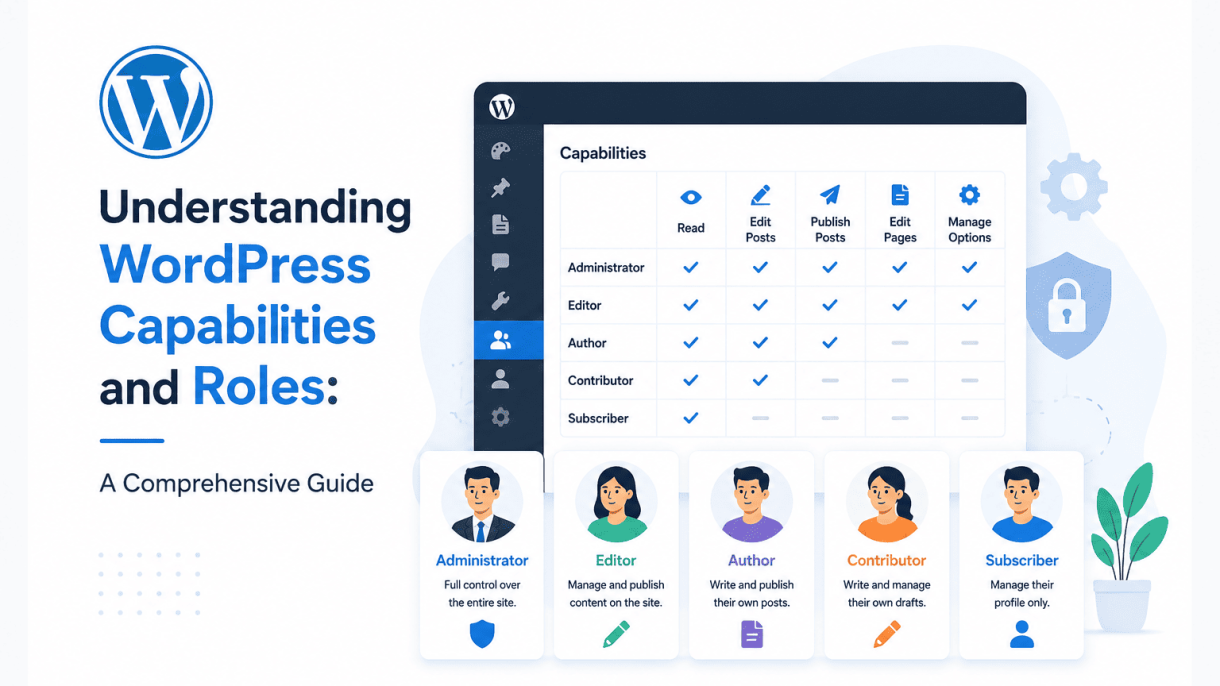

Introduction to WordPress Capabilities and Roles
WordPress, as a content management system, powers over 40% of all websites on the internet. Its flexibility and scalability stem from a granular permission system that controls what each user can and cannot do. This system, built around the concepts of capabilities and roles, is foundational to site security, efficient team management, and content workflow. Without a clear understanding of how these permissions work, site administrators risk exposing sensitive functions—such as plugin installation or user deletion—to unintended users. This guide will demystify the architecture of WordPress capabilities and roles, explaining their structure, relationship, and default implementation.
What Are User Roles and Why Do They Matter?
A user role is a predefined set of permissions assigned to a user account. Think of it as a job title that dictates what tasks a user can perform within the WordPress dashboard. For example, an Editor can publish and manage all posts, while a Subscriber can only manage their own profile. Roles matter because they:
- Enforce security boundaries: Preventing unauthorized users from accessing administrative areas, modifying themes, or deleting content.
- Streamline workflows: Allowing site owners to delegate tasks—like content creation or comment moderation—without granting full administrative control.
- Simplify user management: Instead of assigning individual permissions to each user, you assign a role that bundles all necessary capabilities together.
- Support multi-author sites: Essential for blogs, news portals, e-commerce stores, and membership platforms where different users require different levels of access.
Without roles, every user would either have full control (posing security risks) or no control at all (making collaboration impossible). WordPress solves this by providing a hierarchy of roles that balances power and restriction.
The Relationship Between Roles and Capabilities
Capabilities are the atomic units of permission—they represent a specific action a user can take, such as edit_posts, publish_pages, or install_plugins. Roles are simply collections of these capabilities. The relationship is straightforward: a role is a named group of capabilities. For instance, the Author role includes capabilities like upload_files and delete_posts, but does not include edit_others_posts.
This design offers several advantages:
- Granular control: You can create custom roles with exactly the capabilities your site needs.
- Easy scalability: Adding a new capability to a role automatically grants it to all users with that role.
- Backward compatibility: The capability system works with both core WordPress functions and third-party plugins, which often define their own capabilities (e.g.,
manage_woocommercefor WooCommerce).
When a user attempts an action, WordPress checks if the user’s role includes the required capability. If the capability is missing, the action is denied—often resulting in a “You do not have sufficient permissions” error. This check happens at the code level via functions like current_user_can() or user_can().
How WordPress Core Defines Default Roles
WordPress ships with six default roles, each with a predefined set of capabilities. Understanding these defaults is crucial before customizing them. Here is a summary of the core roles and their primary capabilities:
| Role | Typical Capabilities (Not Exhaustive) | Typical Use Case |
|---|---|---|
| Super Admin | Manage network, sites, users, plugins (multisite only) | Network administrator for WordPress Multisite |
| Administrator | All single-site capabilities: install plugins, manage users, edit themes | Site owner or lead administrator |
| Editor | Publish, edit, delete any posts/pages; moderate comments | Content manager or senior writer |
| Author | Publish and edit their own posts; upload files | Blogger or regular contributor |
| Contributor | Write and edit their own posts (cannot publish); no file uploads | Guest writer or junior contributor |
| Subscriber | Read content; manage their own profile | Registered user or member |
Each role is defined in the WordPress database under the wp_user_roles option (stored in the wp_options table). Developers can inspect these definitions using functions like get_role() or by viewing the wp-includes/capabilities.php file. The default roles are intentionally conservative: they grant only the capabilities necessary for each role’s function. For example, Contributors cannot upload images to prevent storage abuse, while Editors can manage comments but not install plugins.
This hierarchy ensures that site owners can assign appropriate access without overcomplicating the process. However, many sites require custom roles beyond these defaults—for instance, a “Shop Manager” role for WooCommerce or a “Moderator” role for forums. WordPress’s capability system makes such customization possible through plugins or manual code additions, preserving the core architecture while extending functionality.
The Default WordPress User Roles Explained
WordPress ships with six default user roles, each designed to provide a specific level of access and responsibility. Understanding these roles is fundamental to Understanding WordPress Capabilities and Roles, as they form the backbone of site security and workflow management. From a single blog to a complex multisite network, these roles let you assign permissions without granting unnecessary power. Below is a detailed breakdown of each role, starting with the most powerful.
Super Admin: Managing Multisite Networks
The Super Admin role exists exclusively in WordPress Multisite installations, where a single WordPress instance manages multiple sites. This role holds the highest level of authority, controlling network-wide settings, user management across all sites, and plugin/theme activation for the entire network. A Super Admin can create, delete, and manage any site in the network, as well as grant or revoke administrator privileges on individual sites. Key capabilities include:
- Network administration (e.g., settings, updates, and site creation).
- Managing all users across the network.
- Installing and activating plugins and themes network-wide.
- Editing any site’s content or settings.
For practical control, you can add a Super Admin programmatically via a plugin or by editing the wp-config.php file to define a network administrator. Example code to grant Super Admin status to a user with ID 1:
define( 'WP_ALLOW_MULTISITE', true );
// After network setup, use:
grant_super_admin( 1 ); // User ID 1 becomes Super Admin
Administrator: Full Control Over a Single Site
On a standard (non-Multisite) WordPress site, the Administrator role is the ultimate authority. Administrators have complete control over all site settings, including themes, plugins, user management, content creation, and site configuration. They can add, edit, or delete any post, page, or media file, manage comments, and change site appearance. This role is ideal for site owners or lead developers but should be assigned sparingly due to its extensive power. Administrators cannot delete themselves from the site unless another administrator exists. Their capabilities include:
- Installing and deleting plugins and themes.
- Editing any user’s profile, including other administrators.
- Managing site options under Settings.
- Importing and exporting content.
Editor, Author, Contributor, and Subscriber: Granular Permissions
The remaining four roles provide progressively restricted access, enabling you to delegate content creation and management without compromising security. Here is a comparative breakdown:
| Role | Key Permissions | Best Used For |
|---|---|---|
| Editor | Publish, edit, and delete any post or page (including others’). Manage categories, tags, and comments. No access to plugins, themes, or site settings. | Content managers or editorial teams who oversee multiple writers. |
| Author | Create, publish, edit, and delete their own posts. Upload media files. Cannot edit others’ content or access settings. | Regular writers who need to publish directly without review. |
| Contributor | Create and edit their own posts, but cannot publish them. Posts must be submitted for review by an Editor or Administrator. No media upload capability. | Guest authors or junior writers whose work requires approval. |
| Subscriber | Only manage their own profile (name, email, password). No content creation or editing rights. | Membership sites or blogs where users need an account for commenting or restricted access. |
These granular permissions allow you to tailor access precisely. For example, an Editor can review and publish a Contributor’s draft, while an Author retains full control over their own published work. Subscribers remain passive users, ideal for sites that require login for premium content. By mastering these roles, you ensure that each user has exactly the power they need—and no more—streamlining workflows and protecting your site from accidental or malicious changes.
Mapping Capabilities to Each Default Role
In WordPress, capabilities are the specific permissions that define what a user can or cannot do within the system. Each default role—Super Admin, Administrator, Editor, Author, Contributor, and Subscriber—comes with a predefined set of capabilities. Understanding how these capabilities map to each role is essential for managing content workflows, securing your site, and assigning appropriate access levels. Below, we break down the most important capability groups, focusing on content creation, user and site management, and read-only access.
Capabilities for Content Creation and Editing
Content-related capabilities control who can write, publish, edit, and delete posts, pages, and media. The following table summarizes the key capabilities assigned to each default role (excluding Super Admin, which inherits all Administrator capabilities plus network-wide features):
| Capability | Administrator | Editor | Author | Contributor | Subscriber |
|---|---|---|---|---|---|
publish_posts |
Yes | Yes | Yes | No | No |
edit_posts |
Yes | Yes | Yes | Yes | No |
edit_others_posts |
Yes | Yes | No | No | No |
delete_posts |
Yes | Yes | Yes | Yes (own only) | No |
edit_pages |
Yes | Yes | No | No | No |
upload_files |
Yes | Yes | Yes | No | No |
As shown, only Administrators and Editors can edit pages and manage others’ posts. Authors can publish and edit their own posts but cannot modify content from other users. Contributors can write and edit their own drafts but cannot publish them—a key distinction for editorial workflows. Subscribers have no content creation capabilities.
Capabilities for User and Site Management
User and site management capabilities are reserved for high-level roles due to their potential impact on security and administration. Key capabilities include:
delete_users: Allows permanent removal of user accounts. Only Administrators (and Super Admins on multisite) have this capability by default. Editors, Authors, Contributors, and Subscribers cannot delete any users.create_users: Permits adding new user accounts. This is exclusive to Administrators. No other default role can create users.edit_users: Enables modifying user profiles, roles, and passwords. Again, only Administrators possess this capability.install_pluginsandinstall_themes: These are critical site-altering capabilities. Only Administrators (and Super Admins) can install, activate, or delete plugins and themes. Editors and below have no access to these functions.manage_options: Controls access to core settings pages (e.g., General, Writing, Reading). This is also Administrator-only.
It is important to note that while Editors can manage content widely, they cannot manage users or site settings. This separation helps maintain security: a compromised Editor account cannot escalate privileges or alter site functionality.
Read-Only and Unauthenticated Access Capabilities
Read-only capabilities govern what users can view without needing to edit or create content. The most fundamental is read, which is assigned to every default role, including Subscribers. This capability allows users to access the WordPress admin dashboard and view their own profile page. However, it does not grant access to any content management screens.
For unauthenticated users (visitors not logged in), WordPress assigns no capabilities by default. This means:
- Unauthenticated users cannot access the admin area at all.
- They can only view public-facing content (posts, pages, media) as determined by the site’s visibility settings (e.g., public, private, or password-protected).
- No capability for
edit_posts,publish_posts, or any administrative function is available to unauthenticated users.
For authenticated users with the Subscriber role, the only additional capability beyond read is level_0 (a legacy user level). Subscribers cannot create, edit, or delete any content, nor can they manage users or site settings. Their access is limited to reading public content and maintaining their own profile. This makes the Subscriber role ideal for membership sites or forums where users need an account but should not have content editing rights.
Understanding these read-only and unauthenticated capabilities helps you configure appropriate access for different user types, ensuring that sensitive admin functions remain protected while still allowing broad public access to your content.
Customizing Roles and Capabilities with Plugins
WordPress ships with a standard set of roles—Administrator, Editor, Author, Contributor, and Subscriber—each with predefined capabilities. However, many sites require more granular control. For instance, you might need an “Editor Lite” who can publish posts but not delete them, or a “Support Agent” who can only moderate comments and edit user profiles. Plugins like User Role Editor and Members make this customization accessible without touching code. Below, we explore how to use these tools effectively, followed by best practices for programmatic modifications.
Using User Role Editor to Add or Remove Capabilities
User Role Editor is a free, widely used plugin that provides a visual interface for managing roles and capabilities. After installation, go to Users > User Role Editor. Here’s how to modify an existing role:
- Select a role from the dropdown (e.g., Author).
- Scroll through the list of capabilities—each checkbox represents a permission. Check to add, uncheck to remove.
- Click Update to save changes. The plugin also lets you copy a role, which is useful for creating a derivative role (e.g., copy “Editor” to “Editor Plus”).
For example, to allow Authors to upload custom file types (like SVG), simply check the upload_files capability for the Author role. To restrict Contributors from publishing posts, uncheck publish_posts. The plugin also supports bulk capability management: you can add or remove multiple capabilities at once by holding Ctrl (or Cmd) while clicking.
A key feature is the “Grant” function for individual users. If you need to give a specific user a capability without altering the entire role, use the “User” tab in the plugin. This ensures other users with the same role are unaffected.
Creating Custom Roles with the Members Plugin
The Members plugin (by the same developer as User Role Editor) offers a more role-centric approach. It allows you to create entirely new roles from scratch. Navigate to Members > Roles > Add New. You’ll see:
- Role Name (e.g., “Content Reviewer”).
- Role Slug (auto-generated, but editable—use lowercase and hyphens).
- Capabilities: a searchable list. Check only the permissions you need.
For instance, to create a “Support Agent” role that can only read private posts and manage comments, you would check: read, read_private_posts, moderate_comments, and edit_comment. Leave out publish_posts or delete_posts. After saving, assign this role to users via their profile page.
Members also includes a “Permissions” feature for content access control (e.g., restrict certain pages to logged-in users only). While User Role Editor focuses on capability editing, Members excels at role creation and content restriction.
Best Practices When Modifying Roles Programmatically
If you prefer to modify roles via code (e.g., in a custom plugin or theme’s functions.php), follow these guidelines to avoid security risks and data loss:
- Always use a child theme or custom plugin—never modify core WordPress files. Code changes in
functions.phpwill be lost on theme updates. - Hook into
initor a plugin activation hook to ensure roles are added only when needed. For example, useregister_activation_hook()in a custom plugin to add a role once. - Back up capabilities before changes. Use
get_role()to retrieve existing capabilities, then store them in an array before modifying. - Use
add_role()for new roles,remove_role()to delete, andadd_cap()/remove_cap()for individual capabilities.
Here is a practical code example that adds a “Content Reviewer” role with limited capabilities:
function add_content_reviewer_role() {
    add_role(
        'content_reviewer',
        'Content Reviewer',
        array(
            'read'              => true,
            'edit_posts'        => true,
            'edit_others_posts' => true,
            'publish_posts'     => false,
            'delete_posts'      => false,
        )
    );
}
add_action( 'init', 'add_content_reviewer_role' );
After adding this code, the new role appears in the WordPress admin. To remove it later, use remove_role( 'content_reviewer' ); on the same hook.
Additional best practices include:
- Test on a staging site before deploying to production.
- Limit super admin capabilities to only what is necessary—over-granting can lead to security vulnerabilities.
- Document all custom roles in a readme file or comments within the code for future maintainers.
- Use the
user_has_capfilter for dynamic capability checks (e.g., grant temporary access to a feature).
By leveraging plugins for visual control or code for precise automation, you can tailor WordPress to your exact workflow while maintaining security and manageability.
Programmatic Role and Capability Management
For developers seeking precise control over user permissions, WordPress provides a robust set of functions to manage roles and capabilities directly in code. This approach, often implemented via a theme’s functions.php file or a custom plugin, allows for dynamic adjustments that are not possible through the standard admin interface. By using functions like add_role(), add_cap(), and remove_cap(), you can tailor access for any user group, automate permissions based on site events, or restore default roles after modifications. Below are three key areas where programmatic management proves invaluable for “Understanding WordPress Capabilities and Roles.”
Adding a New Custom Role via Functions.php
Creating a custom role programmatically is straightforward with the add_role() function. This function accepts three parameters: a unique slug, a display name, and an array of capabilities. It is best called during theme or plugin activation to avoid repeated execution. Below is an example that adds a “Content Curator” role with limited editing abilities.
function add_content_curator_role() {
    add_role(
        'content_curator',
        'Content Curator',
        array(
            'read'         => true,
            'edit_posts'   => true,
            'edit_pages'   => false,
            'publish_posts' => false,
        )
    );
}
add_action('init', 'add_content_curator_role');
Key considerations when adding roles:
- Unique slug: Use a prefix (e.g.,
mytheme_editor) to avoid conflicts with other plugins. - Base capabilities: Always include
readfor basic admin access, andlevel_0if needed for backward compatibility. - Inheritance: New roles do not inherit capabilities from existing roles; you must define them explicitly.
- Removal: Use
remove_role('content_curator')in a deactivation hook to clean up when the role is no longer needed.
For more complex setups, consider cloning an existing role using get_role() and then modifying its capabilities array.
Granting and Revoking Capabilities Dynamically
To adjust permissions for existing roles or users at runtime, use add_cap() and remove_cap(). These methods operate on a WP_Role or WP_User object. The table below demonstrates common dynamic scenarios.
| Function | Target | Example Use Case |
|---|---|---|
$role->add_cap('edit_theme_options') |
Role object | Grant Editors access to theme customization |
$user->add_cap('manage_options') |
User object | Temporarily give a specific user admin rights |
$role->remove_cap('delete_published_posts') |
Role object | Prevent Authors from deleting published content |
$user->remove_cap('publish_posts') |
User object | Restrict a specific user from publishing |
Example of granting a capability to the Editor role conditionally:
function grant_editor_custom_cap() {
    $role = get_role('editor');
    if ($role && current_user_can('manage_options')) {
        $role->add_cap('edit_theme_options');
    }
}
add_action('admin_init', 'grant_editor_custom_cap');
Best practices for dynamic capability management:
- Check role existence: Use
get_role()and verify the object before calling methods to avoid fatal errors. - Persist changes: Capabilities added via code are stored in the database and persist until removed. Use hooks like
switch_themeto clean up if needed. - User-specific caps: These are stored in user meta and can be removed with
$user->remove_cap()or by deleting the meta key directly.
Resetting Default Roles to Their Original State
Over time, custom code or plugins may modify default WordPress roles (Administrator, Editor, Author, Contributor, Subscriber). To restore them to their original capabilities, use the populate_roles() function, which rebuilds the default roles from WordPress core. This function is typically called during a manual reset process.
function reset_default_roles() {
    // Remove all default roles first
    remove_role('administrator');
    remove_role('editor');
    remove_role('author');
    remove_role('contributor');
    remove_role('subscriber');

    // Re-populate with original capabilities
    populate_roles();
}
// Caution: Use this only in a controlled environment, e.g., via a custom admin page.
// add_action('admin_init', 'reset_default_roles');
Important notes for resetting roles:
- Back up first: Export the current roles table (
wp_optionswithwp_user_roles) before resetting to recover customizations. - Custom roles preserved:
populate_roles()only affects default roles; custom roles created viaadd_role()remain untouched. - User assignments: Users assigned to a role that is removed will lose all capabilities until reassigned. Always reassign users to a valid role before removing their current one.
- Alternative method: For a less destructive approach, manually revert capabilities using
get_role()and compare against a fresh WordPress installation’s role array.
Programmatic role and capability management empowers developers to enforce granular permissions, automate workflows, and maintain site security. By mastering these functions, you deepen your “Understanding WordPress Capabilities and Roles” and gain the ability to create tailored user experiences that adapt to your site’s evolving needs.
Security Implications of User Roles and Capabilities
Misconfigured user roles and capabilities in WordPress are among the most common yet overlooked attack vectors. When roles grant excessive permissions, even trusted users can inadvertently expose your site to data breaches, defacement, or malware injection. Understanding the security implications of each role and regularly auditing permissions is essential to maintaining a hardened WordPress installation.
Common Role Misconfigurations and Their Risks
Several misconfigurations frequently lead to vulnerabilities:
- Granting Administrator role to non-admin users: This gives full control over themes, plugins, and user management. A compromised editor-level account with admin privileges can install malicious plugins or change site ownership.
- Allowing Authors to upload files without restrictions: Authors can upload media, but if not limited to safe file types, they can upload PHP scripts or executable files. This enables remote code execution.
- Enabling unfiltered uploads for Subscribers: Subscribers typically have no upload capability. If a custom role grants uploads, it may allow arbitrary file uploads, leading to server compromise.
- Using the default Contributor role for content managers: Contributors cannot publish posts, but if they are given the
publish_postscapability, they may publish malicious content or spam without review. - Overlapping capabilities from multiple roles: When a user belongs to more than one role (via plugins), they accumulate all capabilities. A user with both Editor and Subscriber roles may gain unintended upload or deletion rights.
These misconfigurations often go unnoticed because they do not immediately break functionality. However, they create a surface for privilege escalation and data leakage.
Auditing User Capabilities for Security Hardening
Regular auditing of user capabilities is a proactive security measure. Begin by reviewing all user accounts and their assigned roles. Use a plugin like “User Role Editor” or “Members” to view and modify capabilities, but for a code-level audit, you can use WordPress’s built-in functions. The following PHP example checks if a specific user has a dangerous capability:
// Check if user ID 5 has the 'activate_plugins' capability
$user = get_userdata(5);
if ( $user && $user->has_cap('activate_plugins') ) {
    echo 'User has dangerous capability.';
}
To audit all users, loop through user roles and list capabilities:
$users = get_users( array( 'fields' => array( 'ID', 'user_email' ) ) );
foreach ( $users as $user ) {
    $caps = get_user_meta( $user->ID, 'wp_capabilities', true );
    if ( ! empty( $caps['administrator'] ) ) {
        // Log or flag admin users
    }
}
Additionally, check for unused roles. Remove any custom roles that are no longer needed, as they may contain orphaned capabilities. Use the wp_roles() object to list all registered roles:
$roles = wp_roles();
print_r( $roles->get_names() );
After identifying excessive capabilities, revoke them using the same plugin or code. For example, to remove the delete_published_posts capability from the Editor role:
$role = get_role( 'editor' );
$role->remove_cap( 'delete_published_posts' );
Document all changes and schedule quarterly audits to maintain a secure baseline.
Principles of Least Privilege in WordPress
The principle of least privilege dictates that every user should have only the minimum permissions necessary to perform their job functions. In WordPress, this means:
- Assign the lowest possible default role: Use Subscriber for readers, Contributor for writers who need review, Author for self-publishing, Editor for content management, and Administrator only for site owners.
- Create custom roles for specific needs: For example, a “SEO Manager” role might only need
edit_postsandedit_others_posts, but notdelete_postsorpublish_posts. - Restrict capabilities per post type: Use plugins or code to limit capabilities to specific post types (e.g., allow editing only of ‘page’ but not ‘post’).
- Never grant
unfiltered_htmlto non-administrators: This capability allows users to insert arbitrary HTML and JavaScript, which can lead to XSS attacks. - Audit plugin-created roles: Many plugins add roles with broad capabilities. Review these immediately after installation and tighten them if possible.
Implementing least privilege reduces the blast radius of any compromised account. For instance, if a Contributor account is hacked, the attacker cannot publish posts or upload files, limiting damage to draft content. Use a capability management plugin to enforce these restrictions visually, or maintain a capabilities spreadsheet that maps each role to a minimal set of capabilities. Test changes on a staging site before applying them to production. This systematic approach transforms user management from a potential vulnerability into a robust security layer.
Multisite Networks: Roles and Capabilities Across Sites
WordPress Multisite introduces a distinct hierarchy for managing a network of sites, adding the Super Admin role atop the standard administrator. This structure fundamentally alters how capabilities are distributed, enabling centralized control while preserving site-level autonomy. Understanding the nuances of Super Admin versus Site Administrator, how roles propagate, and which capabilities are unique to Multisite is essential for effective network management.
Super Admin vs. Site Administrator: Key Differences
In a standard WordPress installation, the Administrator role holds all capabilities. In a Multisite network, the Super Admin supersedes this, governing the entire network, while Site Administrators manage individual sites within it. The core distinctions are:
- Scope of Control: Super Admin can install and delete sites, manage network plugins and themes, and control user registration across the network. Site Administrator is limited to their own site’s settings, content, and users.
- Plugin and Theme Management: Only Super Admin can install, activate, or deactivate plugins and themes network-wide. Site Administrators can only activate themes and plugins that have been made available by the Super Admin.
- User Management: Super Admin can add, edit, or remove any user across the network, even if that user is not a member of any site. Site Administrators can only manage users on their own site and cannot create new user accounts unless network settings permit.
- Network Settings: Super Admin has exclusive access to the Network Admin dashboard, where settings like site creation, registration, and domain mapping are configured. Site Administrators cannot access these settings.
This hierarchy ensures that network-level changes remain in trusted hands, while site-level tasks are delegated efficiently.
Managing User Roles Across a Network of Sites
User roles in Multisite are managed at two levels: the network level and the individual site level. A user can have different roles on different sites, and their network role (Super Admin) is separate from any site-specific role. Key management practices include:
- Adding Users to Sites: Super Admin can add users to any site with a specific role (e.g., Editor, Author) via the Network Admin or directly from the site’s dashboard. Site Administrators can only add users to their own site if the network allows new user registration.
- Role Propagation: Capabilities do not automatically propagate across sites. A user assigned as Administrator on Site A does not gain any privileges on Site B unless explicitly added. Super Admin abilities are global and override site-level restrictions.
- Bulk User Management: Super Admin can use the Network Admin’s Users screen to add, remove, or bulk-edit users across all sites. This is useful for adding a content editor to multiple sites simultaneously.
- Subscriber Management: In networks with open registration, users are added as Subscribers by default to the main site. Super Admin can then assign them to other sites or modify their network-level role.
To streamline management, consider using a table to compare common user roles across a network:
| Role | Scope | Typical Capabilities |
|---|---|---|
| Super Admin | Network-wide | Manage all sites, users, plugins, themes, network settings |
| Site Administrator | Single site | Manage site settings, content, users, plugins/themes (if enabled) |
| Editor | Single site | Publish, edit, delete posts and pages |
| Author | Single site | Write and publish own posts |
Capabilities Unique to Multisite Installations
Multisite introduces several capabilities that do not exist in standard WordPress. These are exclusive to the Super Admin role and are essential for network oversight:
manage_network: Grants access to the Network Admin dashboard and all network-level settings.manage_network_users: Allows adding, editing, deleting, and promoting users across the entire network.manage_network_plugins: Enables installing, activating, deactivating, and deleting plugins network-wide.manage_network_themes: Permits installing, enabling, disabling, and deleting themes across all sites.manage_network_options: Allows modifying network-wide settings such as registration, site creation, and upload space limits.create_sites: Enables creating new sites within the network, typically via the Network Admin or a front-end form.delete_sites: Grants the ability to delete entire sites from the network, including all their content.manage_sites: Provides access to list and manage all sites, including editing site details and settings.
These capabilities are hard-coded and cannot be assigned to other roles without custom code. Understanding them helps Super Admins maintain security and control, ensuring that only authorized users can perform network-critical actions.
Troubleshooting Common Role and Capability Issues
Even with a solid grasp of WordPress roles and capabilities, problems can arise that disrupt site management. Understanding WordPress Capabilities and Roles is essential for diagnosing and resolving these issues efficiently. Below are solutions for three frequent scenarios: lost admin access, missing capabilities after plugin changes, and corrupted role definitions.
Recovering from a Locked-Out Administrator Account
Losing administrator access is one of the most alarming issues a site owner can face. This often occurs after a plugin or theme update that modifies user capabilities, or after accidentally demoting your own account. Recovery requires direct database access, typically via phpMyAdmin or a database management tool provided by your host.
- Access your database through phpMyAdmin or a similar tool. Locate the
wp_userstable and find your user record (look for your email or username). - Note your user ID from the
IDcolumn (usually a small number like1). - Open the
wp_usermetatable and find the row whereuser_idmatches your ID andmeta_keyiswp_capabilities(orwp_X_capabilitiesif your table prefix is custom). - Edit the
meta_valuefield. Replace its contents with the following serialized string:a:1:{s:13:"administrator";b:1;} - Save the change and log out of your database tool. You should now be able to log in with full administrator rights.
If you cannot access phpMyAdmin, you can also use a recovery script like emergency.php from a trusted source, but database editing is the most reliable method.
Fixing Missing Capabilities After Plugin Deactivation
When you deactivate a plugin that added custom capabilities to roles, those capabilities often remain assigned but become “orphaned”—they exist in the database but no longer have a corresponding plugin to handle them. This can cause confusion if you later reactivate the plugin or switch to an alternative. The solution is to clean up the orphaned capability assignments.
| Action | Method | When to Use |
|---|---|---|
| Remove orphaned caps | Use a plugin like User Role Editor to manually delete the orphaned capability from affected roles | After deactivating a plugin that added custom capabilities |
| Restore default caps | Reset the role to its default state using a plugin or code snippet | When a plugin has overwritten core capabilities (e.g., removed edit_posts from Editor) |
| Reassign missing caps | Add the missing capability back via a role editor plugin or by editing the role in code | When a plugin update inadvertently removed a capability from a role |
To remove orphaned capabilities manually, use a plugin like User Role Editor. Navigate to Users > User Role Editor, select the affected role, find the orphaned capability (it will appear in the list but may be unused), and uncheck it. Save the role. This prevents confusion and potential conflicts when other plugins check for those capabilities.
Using a Fresh Installation to Reset Role Definitions
If role definitions become severely corrupted—for example, after multiple plugin conflicts or manual database edits—the most reliable fix is to reset roles to their WordPress defaults. A fresh installation is not always necessary; you can reset roles programmatically without losing content.
- Back up your database and files before proceeding.
- Install a plugin like “WordPress Reset” or “WP Reset” (choose one that specifically resets roles, not the entire site). Alternatively, use a code snippet in your theme’s
functions.phpfile (temporarily) to callpopulate_roles(). - Run the reset via the plugin’s interface or by triggering the code snippet once. This will restore all built-in roles (Administrator, Editor, Author, Contributor, Subscriber) to their default capabilities, removing any custom additions or deletions.
- Remove the code snippet if you used one, and verify that your admin account still has full access. You may need to re-add any custom roles or capabilities you previously created.
This method is ideal when you have made extensive role edits that have broken site functionality, such as preventing users from uploading media or publishing posts. It is also useful after a plugin has irreversibly altered role definitions.
Advanced Use Cases: Custom Post Types and Capabilities
Understanding WordPress Capabilities and Roles is essential for building secure, user-specific websites. When you introduce Custom Post Types (CPTs), the default role system often falls short. You need to assign custom capabilities for CPTs to restrict access based on user roles, ensuring that only authorized users can create, edit, publish, or delete specific content types. This section explains how to register CPTs with custom capabilities, map those capabilities to existing roles, and create role-specific access for custom taxonomies.
Registering Custom Post Types with Custom Capabilities
To control access for a CPT, you must define custom capabilities during registration. Use the register_post_type() function with the capabilities and capability_type arguments. Set capability_type to a custom value (e.g., 'project'), which automatically generates a set of capabilities like edit_project, publish_projects, delete_others_projects, and more. You can also manually map each capability using the capabilities array for precise control.
Example code for registering a CPT with custom capabilities:
function register_project_cpt() {
    $args = array(
        'public' => true,
        'label'  => 'Projects',
        'capability_type' => 'project',
        'capabilities' => array(
            'edit_post'          => 'edit_project',
            'read_post'          => 'read_project',
            'delete_post'        => 'delete_project',
            'edit_posts'         => 'edit_projects',
            'edit_others_posts'  => 'edit_others_projects',
            'publish_posts'      => 'publish_projects',
            'read_private_posts' => 'read_private_projects',
        ),
        'map_meta_cap' => true, // Enables automatic mapping
    );
    register_post_type( 'project', $args );
}
add_action( 'init', 'register_project_cpt' );
Key points for registration:
- Always set
map_meta_captotrueto allow WordPress to handle complex permissions (e.g., editing own vs. others’ posts). - Use descriptive capability names that match your CPT (e.g.,
'edit_product'for a product CPT). - Test the registration thoroughly; missing capabilities can break access for all users.
Mapping Capabilities for CPTs to Existing Roles
After registering the CPT, you must grant the custom capabilities to existing WordPress roles (e.g., Administrator, Editor, Author). Use the get_role() function and the add_cap() method. This step ensures that users in a role inherit the necessary permissions for the CPT.
Example: Giving Editors full project access and Authors limited access:
function add_cpt_capabilities() {
    $roles = array( 'administrator', 'editor' );
    foreach ( $roles as $role_name ) {
        $role = get_role( $role_name );
        if ( $role ) {
            $role->add_cap( 'edit_projects' );
            $role->add_cap( 'edit_others_projects' );
            $role->add_cap( 'publish_projects' );
            $role->add_cap( 'read_private_projects' );
            $role->add_cap( 'delete_projects' );
            $role->add_cap( 'delete_others_projects' );
        }
    }
    $author_role = get_role( 'author' );
    if ( $author_role ) {
        $author_role->add_cap( 'edit_projects' );
        $author_role->add_cap( 'publish_projects' );
        $author_role->add_cap( 'delete_projects' );
        // No edit_others or delete_others
    }
}
add_action( 'admin_init', 'add_cpt_capabilities' );
Common mapping pitfalls to avoid:
- Granting
edit_others_poststo Authors — this allows them to edit any project, which may be unintended. - Forgetting to add
readcapabilities, causing users to see a blank list. - Using
add_cap()on every page load; run it once during theme activation or plugin setup to avoid performance issues.
Creating Role-Specific Access for Custom Taxonomies
Custom taxonomies (e.g., categories for your CPT) also require capability control. When registering a taxonomy with register_taxonomy(), use the capabilities argument to assign custom capabilities. Then map these to roles similarly to CPTs.
Example for a taxonomy called project_type:
function register_project_taxonomy() {
    $args = array(
        'label'  => 'Project Types',
        'capabilities' => array(
            'manage_terms' => 'manage_project_types',
            'edit_terms'   => 'edit_project_types',
            'delete_terms' => 'delete_project_types',
            'assign_terms' => 'assign_project_types',
        ),
    );
    register_taxonomy( 'project_type', 'project', $args );
}
add_action( 'init', 'register_project_taxonomy' );
Then grant to roles:
function add_taxonomy_caps() {
    $editor_role = get_role( 'editor' );
    if ( $editor_role ) {
        $editor_role->add_cap( 'manage_project_types' );
        $editor_role->add_cap( 'edit_project_types' );
        $editor_role->add_cap( 'delete_project_types' );
        $editor_role->add_cap( 'assign_project_types' );
    }
    $author_role = get_role( 'author' );
    if ( $author_role ) {
        $author_role->add_cap( 'assign_project_types' );
        // Authors can only assign terms, not manage or delete them
    }
}
add_action( 'admin_init', 'add_taxonomy_caps' );
Best practices for taxonomy capabilities:
- Keep taxonomy capabilities separate from post capabilities to avoid confusion.
- Allow only Editors and above to
manage_terms(create/rename terms) to maintain data integrity. - Test each role’s ability to assign terms via the post editor; incorrect capabilities may hide the taxonomy metabox.
By implementing these advanced techniques, you achieve granular control over your WordPress site, ensuring that Understanding WordPress Capabilities and Roles translates into real-world security and workflow efficiency.
Future of WordPress Roles and Capabilities
The WordPress ecosystem is actively evolving to address modern access control needs, with the core development team and community driving improvements to roles and capabilities. As websites become more complex—supporting multi-user content workflows, headless architectures, and enterprise integrations—the current system is being reimagined for greater flexibility, security, and scalability. Below, we explore the most significant planned changes, community proposals, and integration trends shaping the future of Understanding WordPress Capabilities and Roles.
Upcoming Changes in WordPress Core Role Management
WordPress core development is focused on refining the built-in role management system to reduce friction for administrators and developers. Key upcoming changes include:
- Enhanced UI for Role Editing: A redesigned user interface in the WordPress admin panel will allow administrators to view, add, or remove capabilities from roles without requiring third-party plugins. This aims to simplify common tasks like granting “edit_others_posts” to a custom editor role.
- Role Cloning and Reset Features: Core may introduce native functions to clone existing roles (e.g., duplicating “Editor” as a starting point for a custom role) and reset roles to their default state after modifications, reducing the risk of configuration errors.
- Capability Inheritance Improvements: The hierarchical model for roles (e.g., Administrator inheriting all capabilities) will be clarified and extended, allowing more precise control over which capabilities cascade to child roles. This addresses community feedback about unexpected permissions for secondary administrators.
- Deprecation of Legacy Capabilities: Outdated capabilities like “unfiltered_html” may be deprecated or restricted to specific user contexts, with new capabilities replacing them to align with modern security best practices.
These changes are expected to roll out incrementally across major WordPress versions, with testing available through beta releases. Developers should monitor the Make WordPress Core blog for detailed specifications and timeline updates.
Community Discussions on More Granular Permissions
The WordPress community has long debated the need for granular permissions beyond the current role-based system. Active discussions and proposals include:
- Per-Post and Per-Page Capabilities: A widely requested feature is the ability to assign permissions to individual posts or pages, such as allowing a user to edit only specific articles without granting broader “edit_posts” access. This would enable fine-grained content moderation for news sites or collaborative blogs.
- Dynamic Capability Groups: Proposals suggest grouping capabilities into logical sets (e.g., “SEO Management” combining “edit_meta_keywords” and “manage_redirects”) that can be assigned to roles or individual users. This reduces complexity when managing dozens of capabilities.
- Capability Templates for Common Use Cases: Community-driven templates for roles like “Contributor Plus” or “Site Editor” (for block editor access) are being standardized, with core potentially adopting them as optional presets. This lowers the learning curve for site owners unfamiliar with capabilities.
- Time-Based and Conditional Permissions: Advanced proposals include granting capabilities for limited durations (e.g., temporary “publish_posts” during a content sprint) or based on user metadata (e.g., location or team membership). While not yet in core, these ideas are being explored via plugins and may influence future core APIs.
The community encourages participation through Trac tickets, Slack channels, and WordCamp contributions. Feedback on these proposals directly shapes the roadmap for Understanding WordPress Capabilities and Roles.
Integration with External Authentication and SSO Systems
As enterprises adopt WordPress for large-scale deployments, integration with external authentication and Single Sign-On (SSO) systems is becoming a priority. Future developments include:
| Integration Type | Description | Impact on Roles |
|---|---|---|
| LDAP/Active Directory | Automatically map external user groups (e.g., “Marketing Team”) to WordPress roles (e.g., “Editor”). | Reduces manual role assignment; enables centralized user management. |
| SAML/OAuth 2.0 | Allow users to log in via Google Workspace, Okta, or Azure AD, with roles synced from identity providers. | Supports enterprise SSO; roles can be dynamically assigned via claims or attributes. |
| Keycloak/Custom IDPs | Define custom capabilities in the identity provider and pass them to WordPress via API tokens. | Enables granular permissions based on external roles, such as “Content Approver.” |
These integrations will likely be facilitated through new core hooks and filters, allowing plugins to handle authentication while core manages role synchronization. For developers, this means preparing for standards like OpenID Connect and ensuring custom roles are compatible with external mapping logic. The goal is a seamless experience where administrators manage permissions centrally, reducing duplication and security gaps.
By embracing these changes, the WordPress ecosystem will offer more robust access control, making it easier to implement complex permission models while maintaining the platform’s renowned simplicity. Staying informed about these developments is essential for anyone invested in Understanding WordPress Capabilities and Roles.
Frequently Asked Questions
What are WordPress capabilities and roles?
WordPress capabilities and roles form a permission system that controls what users can do on a site. A role is a set of capabilities assigned to a user. For example, the Administrator role has all capabilities, while a Subscriber can only manage their profile. This system allows site owners to grant appropriate access levels, enhancing security and workflow efficiency.
How many default user roles does WordPress have?
WordPress has five default user roles: Super Admin (multisite only), Administrator, Editor, Author, Contributor, and Subscriber. Each role has a predefined set of capabilities. Super Admin has the highest privileges across a network, while Subscriber has the fewest. These roles cover most common use cases for content management and site administration.
Can I create custom user roles in WordPress?
Yes, you can create custom user roles in WordPress using plugins like User Role Editor or via code with functions like add_role(). Custom roles allow you to define specific capabilities, such as editing only certain post types or accessing specific plugins. This flexibility helps tailor permissions to your site's unique needs without giving unnecessary access.
What is the difference between a capability and a role?
A capability is a specific permission, such as 'edit_posts' or 'publish_pages'. A role is a collection of capabilities bundled together. For instance, the Editor role includes capabilities like 'edit_others_posts' and 'publish_pages'. Users are assigned a role, not individual capabilities, though you can add or remove capabilities from roles programmatically.
How do I check a user's capabilities in WordPress?
You can check a user's capabilities using the current_user_can() function or the user_can() function. For example, if ( current_user_can( 'edit_posts' ) ) { // allow editing }. These functions check if the current user or a specific user has a given capability, making it easy to conditionally display content or restrict actions.
What happens if I assign a user a role with too many capabilities?
Assigning a user a role with excessive capabilities can pose a security risk, as they may inadvertently or maliciously modify critical site settings, delete content, or install plugins. It's best to follow the principle of least privilege, giving users only the capabilities necessary for their tasks. Regularly review roles and use plugins to audit permissions.
How do WordPress roles work on multisite networks?
On WordPress multisite, the Super Admin role has network-wide capabilities, such as managing sites, users, and plugins across the network. Each site within the network has its own set of roles (Administrator, Editor, etc.) that apply only to that site. This allows centralized control while giving site administrators autonomy over their individual sites.
Can I edit default WordPress roles?
Yes, you can edit default WordPress roles by adding or removing capabilities using code or plugins. For example, you might remove the 'delete_published_posts' capability from the Author role to prevent authors from deleting their own posts. However, be cautious as changes affect all users with that role. It's often safer to create custom roles instead.
Sources and further reading
- WordPress Roles and Capabilities (Official Documentation)
- WordPress Plugin Handbook: Roles and Capabilities
- Current User Can Function (WordPress Developer Resources)
- Add Role Function (WordPress Developer Resources)
- User Role Editor Plugin (WordPress Plugin Directory)
- Members Plugin (WordPress Plugin Directory)
- OWASP Access Control Cheat Sheet
- NIST Guide to Attribute Based Access Control
- Mozilla Web Security Guidelines
- How to Create Custom User Roles in WordPress (Kinsta Blog)
Need help with this topic?
Send us your details and we will contact you.