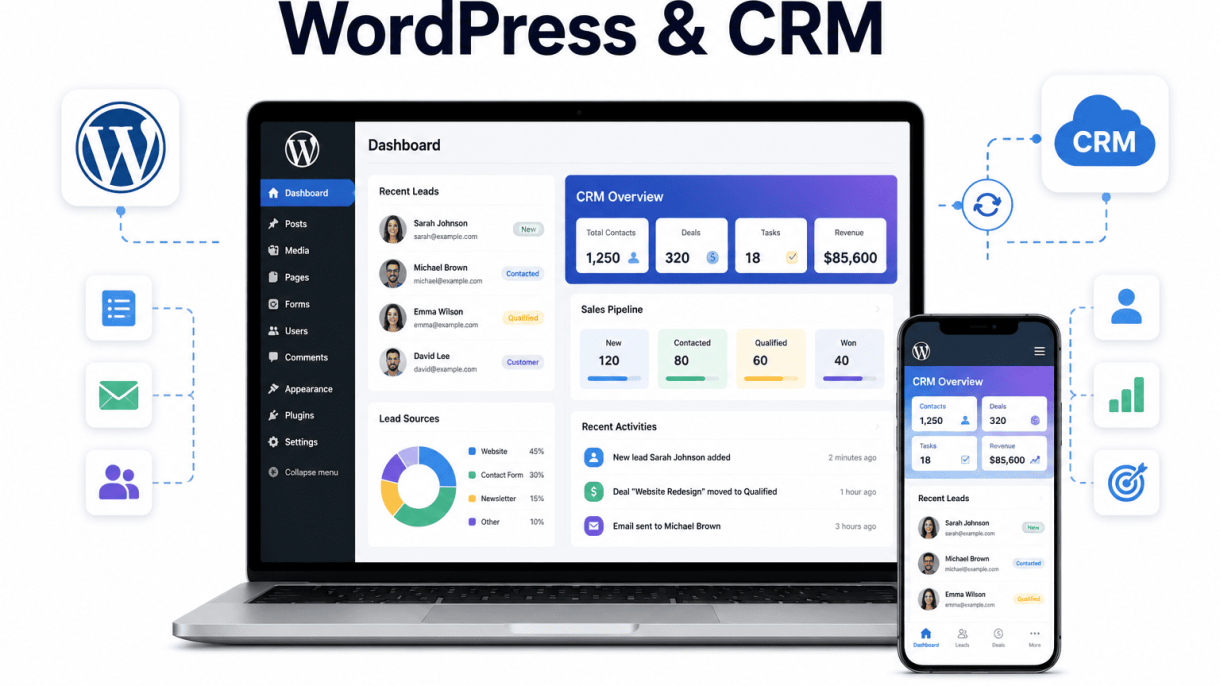

Introduction: Why Integrate WordPress with a CRM?
Connecting your WordPress website to a Customer Relationship Management (CRM) system is one of the most impactful steps you can take to streamline business operations. At its core, this integration bridges the gap between your content management system—where visitors interact with your brand—and your CRM, which stores and organizes customer data. The result is a seamless flow of information that eliminates manual data entry, reduces errors, and accelerates your sales and marketing processes. By automating lead capture from forms, comments, and e-commerce transactions, you ensure that every potential customer is recorded and nurtured without delay. Follow-up emails, task assignments, and segmentation become automatic, freeing your team to focus on high-value activities. Centralized data also provides a single source of truth, enabling better reporting, personalized communications, and improved customer experiences. In short, WordPress and CRM integration transforms your site from a static brochure into a dynamic business hub that works for you around the clock.
How CRM Integration Transforms Your WordPress Site
Integrating a CRM with WordPress fundamentally changes how your website supports your business goals. Here are the key transformations:
- Automated Lead Capture: When a visitor fills out a contact form, subscribes to a newsletter, or makes a purchase, their details are instantly added to your CRM. No manual copy-pasting or spreadsheet updates required.
- Personalized User Experiences: With CRM data, you can display dynamic content—such as tailored product recommendations or targeted calls-to-action—based on a user’s past behavior, preferences, or lifecycle stage.
- Efficient Follow-Up Workflows: Triggers set in the CRM can automatically send welcome emails, assign leads to specific sales reps, or schedule follow-up tasks, ensuring no prospect falls through the cracks.
- Enhanced Analytics and Reporting: Track website interactions (page views, form submissions, time on site) alongside CRM data to measure campaign effectiveness, conversion rates, and customer lifetime value with precision.
- Unified Customer View: Every interaction—from first visit to post-purchase support—is logged in one place, giving your team context for more meaningful conversations and faster issue resolution.
Key Business Challenges Solved by Integration
Before integration, many businesses face persistent obstacles that drain time and resources. Here’s how CRM integration addresses these challenges directly:
| Challenge | Solution via Integration |
|---|---|
| Data silos between website and sales tools | Real-time synchronization ensures all teams access the same, up-to-date customer information. |
| Manual lead entry and high error rates | Automatic capture from forms, chats, and purchases eliminates typos and lost data. |
| Slow response times to inquiries | Automated notifications and email sequences engage leads within minutes, not hours. |
| Inability to segment audiences effectively | CRM tags and custom fields allow precise segmentation based on behavior, demographics, or purchase history. |
| Difficulty tracking ROI from website efforts | Integration links website actions to revenue data, clarifying which campaigns drive conversions. |
| Repetitive administrative tasks | Workflows automate task creation, follow-ups, and data updates, reducing manual workload. |
Overview of Popular CRM Platforms for WordPress
Several CRM platforms offer robust integration options for WordPress, each with distinct strengths. Below is a concise overview to help you choose:
- HubSpot CRM: Known for its free tier and deep integration with WordPress via plugins like HubSpot for WordPress. Excellent for inbound marketing, with built-in forms, live chat, and email tracking.
- Salesforce: A enterprise-grade solution offering extensive customization and powerful automation. Integrates through plugins (e.g., Salesforce WordPress Integration) or custom API connections, ideal for complex sales processes.
- Zoho CRM: Provides affordable plans and a dedicated Zoho WordPress plugin. Features include lead scoring, workflow automation, and AI-powered insights, suitable for small to mid-sized businesses.
- ActiveCampaign: Combines CRM with advanced email marketing and automation. Its WordPress plugin syncs contacts and triggers campaigns based on site activity, perfect for e-commerce and content-driven sites.
- Pipedrive: Focused on sales pipeline management with a visual interface. Integrates via third-party plugins or Zapier, offering easy deal tracking and activity logging from WordPress forms.
Each platform can be tailored to your specific needs, but all share the core benefit of unifying your website data with customer management tools—making your WordPress site a true engine for growth.
Understanding WordPress and CRM Integration Fundamentals
WordPress and CRM integration connects your website’s front-end interactions—such as form submissions, purchases, or registrations—directly to your customer relationship management system. This synchronization eliminates manual data entry, reduces errors, and ensures that every lead or customer interaction is captured in real time. At its core, integration relies on three primary mechanisms: API-based connections, plugin-based solutions, and manual methods. Understanding these fundamentals helps you select the approach that best fits your technical resources, budget, and workflow complexity.
What Is CRM Integration and How It Works with WordPress
CRM integration is the process of linking your WordPress site to a CRM platform so that data flows automatically between them. When a visitor fills out a contact form, completes a purchase, or registers for an account, the integration sends that information to the CRM without requiring manual export or re-entry. The CRM then updates contact records, triggers automated follow-ups, and segments the audience based on behavior. This works through a secure connection—typically via an API key or OAuth authentication—that authorizes data exchange. For example, when a user submits a Gravity Forms entry, the plugin can send the name, email, and message directly to a CRM like HubSpot or Salesforce, creating a new contact or updating an existing one.
Types of Integration: Native Plugins, APIs, and Custom Development
Choosing the right integration type depends on your technical comfort and specific needs. Below is a comparison of the three main approaches:
| Integration Type | Best For | Technical Skill Required | Customization Level |
|---|---|---|---|
| Native Plugins | Non-developers, small to medium businesses | Low (point-and-click setup) | Moderate |
| APIs (REST or Webhooks) | Developers, custom workflows | High (coding required) | High |
| Custom Development | Complex or unique business rules | Very high (full-stack developer) | Complete control |
Native plugins like WP Fusion, FluentCRM, or Zapier offer pre-built connections that require no coding. You install the plugin, authenticate with your CRM, and map fields using a visual interface. API-based integration uses the CRM’s REST API to send or retrieve data programmatically. This approach is ideal for developers who need to handle conditional logic, batch updates, or real-time sync. Custom development involves writing bespoke PHP functions or building a custom plugin, often for enterprise-level requirements such as syncing across multiple CRMs or handling complex validation rules.
Common Data Flows: Contact Forms, User Registrations, and E-Commerce
Three data flows dominate WordPress and CRM integration scenarios. Each has distinct triggers and data points:
- Contact forms: When a user submits a form (via Contact Form 7, Gravity Forms, or Elementor), the integration sends fields like name, email, phone, and message to the CRM. The system then creates a new contact or logs an activity. This is the most common starting point for lead capture.
- User registrations: When a visitor creates an account on your WordPress site—whether for a membership, forum, or course—the integration pushes user data (username, email, role, registration date) to the CRM. This enables automated onboarding sequences and segmentation based on user type.
- E-commerce transactions: For WooCommerce or Easy Digital Downloads, the integration sends order details—product names, quantities, totals, payment status, and customer info—to the CRM. This allows for post-purchase follow-ups, abandoned cart recovery, and customer lifetime value tracking.
For developers implementing an API-based connection, here is a practical example using WordPress’s built-in HTTP API to send a contact form submission to a CRM endpoint:
function send_to_crm( $form_data ) {
    $crm_endpoint = 'https://yourcrm.com/api/contacts';
    $api_key = 'your_api_key_here';

    $response = wp_remote_post( $crm_endpoint, array(
        'headers' => array(
            'Authorization' => 'Bearer ' . $api_key,
            'Content-Type'  => 'application/json',
        ),
        'body' => json_encode( array(
            'email'   => $form_data['email'],
            'name'    => $form_data['name'],
            'message' => $form_data['message'],
        ) ),
        'timeout' => 30,
    ) );

    if ( is_wp_error( $response ) ) {
        error_log( 'CRM sync failed: ' . $response->get_error_message() );
    }
}
add_action( 'wpforms_process_complete', 'send_to_crm', 10, 1 );
This function hooks into form submission, constructs the JSON payload, and sends it securely. Adjust the endpoint and field mapping to match your CRM’s API documentation.
Top CRM Platforms That Integrate Seamlessly with WordPress
Selecting the right customer relationship management (CRM) system for your WordPress site hinges on compatibility, ease of use, and the specific features you need. A seamless integration ensures that lead data flows automatically from forms, purchases, and interactions into your CRM, eliminating manual data entry and reducing errors. Below, we profile three leading platforms—HubSpot, Salesforce, and Zoho CRM—each offering distinct advantages for WordPress users.
HubSpot: Free Plugin and Marketing Automation Features
HubSpot’s WordPress plugin is a standout for businesses seeking a robust, free entry point into CRM and marketing automation. The official plugin, available in the WordPress repository, syncs contact submissions from forms, live chat, and pop-ups directly into HubSpot’s CRM. Key features include:
- Free CRM Core: Unlimited contacts, deal tracking, and email templates at no cost.
- Marketing Automation: Automated workflows for lead nurturing, email sequences, and segmentation based on user behavior (e.g., page visits or form submissions).
- Analytics Dashboard: Track form performance, traffic sources, and conversion rates within WordPress.
- Live Chat and Bots: Embedded chat widgets that capture leads and qualify them before CRM entry.
For advanced needs, HubSpot offers paid tiers (Starter at $20/month) that unlock A/B testing, custom reporting, and multi-step automation. The plugin’s simplicity makes it ideal for small to medium businesses, though it lacks deep customization for complex enterprise workflows.
Salesforce: Enterprise-Grade Connectivity via APIs
Salesforce, the industry leader in enterprise CRM, integrates with WordPress primarily through its robust REST and SOAP APIs, as well as third-party connectors like Zapier, WP Fusion, or custom development. This approach offers maximum flexibility but requires technical expertise. Key integration capabilities include:
- API-First Design: Direct data syncing for leads, contacts, accounts, and opportunities using Salesforce’s Developer APIs.
- Web-to-Lead Forms: Native WordPress form plugins (e.g., Gravity Forms, Contact Form 7) can submit data via Salesforce’s Web-to-Lead endpoint.
- Custom Objects and Workflows: Map WordPress user roles, WooCommerce orders, or membership levels to custom Salesforce objects for tailored automation.
- Third-Party Connectors: Tools like Zapier (500+ tasks/month on free plan) or WP Fusion ($87/year) simplify syncing without coding.
Salesforce is best for large organizations with dedicated developers or budgets for premium connectors. Its scalability comes at a cost: setup can be time-consuming, and monthly subscriptions start at $25/user for the Essentials plan.
Zoho CRM: Affordable Integration with Built-In Tools
Zoho CRM offers a cost-effective alternative with its native WordPress plugin, Zoho CRM for WordPress, and a suite of built-in tools. The plugin enables two-way syncing of leads, contacts, and deals, plus integration with Zoho’s broader ecosystem (e.g., Zoho Forms, Zoho Campaigns). Highlights include:
- Direct Plugin: Free plugin connects WordPress forms (via Zoho Forms or third-party plugins) to Zoho CRM with drag-and-drop mapping.
- Automation Tools: Built-in workflow rules for lead assignment, email notifications, and follow-up tasks.
- Multi-Channel Capture: Embed Zoho’s Live Chat, PhoneBridge (call tracking), and Social CRM widgets on WordPress pages.
- Affordable Pricing: Free tier for up to 3 users; Standard plan at $14/user/month includes mass emails and sales insights.
Zoho is ideal for budget-conscious businesses that need a balance of power and simplicity. However, advanced features like AI-powered predictions (Zia) or custom modules require higher-tier plans.
| Feature | HubSpot | Salesforce | Zoho CRM |
|---|---|---|---|
| Native Plugin Availability | Yes (free) | No (API/connector-based) | Yes (free) |
| Starting Price (per month) | $0 (free tier) | $25/user (Essentials) | $0 (up to 3 users) |
| Marketing Automation | Built-in (free + paid) | Requires Marketing Cloud | Built-in (paid tiers) |
| Ease of Setup | Very easy | Moderate (needs technical skill) | Easy |
| Best For | SMBs, marketers | Enterprises, custom workflows | Small teams, budget-friendly |
Each platform excels in different areas: HubSpot for user-friendly automation, Salesforce for enterprise scalability, and Zoho for affordability with integrated tools. Assess your team’s technical capacity, budget, and workflow complexity to choose the best fit for your WordPress and CRM integration needs.
Step-by-Step: Setting Up Your First WordPress CRM Integration
A successful WordPress and CRM integration begins with a methodical setup. This walkthrough covers plugin selection, account connection, and initial sync configuration, focusing on contact form data. Follow these steps to link your website with your customer relationship management system without disrupting existing workflows.
Choosing the Right Plugin for Your CRM
Selecting the appropriate plugin is critical for a seamless integration. Not all plugins support every CRM, and feature sets vary widely. Evaluate candidates based on these criteria:
- CRM compatibility: Verify the plugin explicitly supports your CRM platform (e.g., HubSpot, Salesforce, Zoho, or ActiveCampaign).
- Form builder support: Confirm integration with your active form plugin, such as Contact Form 7, WPForms, or Gravity Forms.
- Field mapping flexibility: Look for custom field mapping to align WordPress form fields with CRM-specific data structures.
- Sync direction: Determine if the plugin supports one-way (form to CRM) or two-way (bidirectional) data sync.
- Performance impact: Check user reviews for latency or server load issues during sync operations.
Popular options include WP Fusion for advanced mapping, Uncanny Automator for no-code workflows, and native plugins like HubSpot’s official WordPress plugin. Always install the plugin from the WordPress repository or the CRM’s verified developer page to avoid security risks.
Connecting Your CRM Account to WordPress
Once the plugin is installed and activated, establish the connection between your WordPress site and your CRM account. This process typically involves API authentication:
- Navigate to the plugin’s settings page (usually under Settings or Integrations in your WordPress admin panel).
- Locate the CRM connection section and click Connect or Authorize.
- You will be redirected to your CRM’s login page or presented with an API key field. For example, with HubSpot, you might paste an access token generated from your HubSpot account under Integrations > Private Apps.
- After authentication, the plugin will display a success message. Test the connection by clicking a Verify Connection button if available.
For a manual API key setup, a typical code snippet used in a custom plugin or theme functions.php might look like this (replace placeholders with actual values):
define( 'CRM_API_KEY', 'your_crm_api_key_here' );
define( 'CRM_API_ENDPOINT', 'https://yourcrm.com/api/v1/' );
Note: Hardcoding API keys is not recommended for production sites. Use environment variables or a secure secrets manager instead.
Mapping Form Fields to CRM Custom Fields
Field mapping ensures that data collected from your WordPress forms is correctly assigned to the appropriate CRM fields. Follow these steps:
- Identify form fields: List all fields in your contact form (e.g., Name, Email, Phone, Message).
- Access mapping interface: In your integration plugin, find the field mapping section, often labeled Map Fields or Sync Settings.
- Map standard fields: Pair common fields like Email (WordPress) to Email (CRM) and Name to First Name or Full Name.
- Map custom fields: For unique data, such as a dropdown for “Preferred Contact Method,” create a custom field in your CRM (e.g., preferred_contact_method) and map it to the corresponding form field.
- Set default values: If your CRM requires a mandatory field not present in the form, assign a static default value (e.g., “Lead Source = Website”).
Test the mapping by submitting a test entry through your form. Verify the data appears correctly in your CRM, including custom fields. Adjust mappings if values are missing or misplaced. Once confirmed, enable automatic sync to streamline your business workflows permanently.
Automating Lead Capture and Follow-Ups with CRM Integration
Integrating your WordPress site with a CRM system transforms how you manage leads by eliminating manual data entry and accelerating response times. When a visitor submits a contact form, signs up for a newsletter, or completes a purchase via WooCommerce, the integration automatically creates a new lead record in your CRM. This seamless flow ensures no prospect slips through the cracks and that your sales team receives clean, actionable data instantly. Beyond capture, automation enables intelligent follow-up sequences triggered by specific user behaviors, such as visiting a pricing page or abandoning a cart. By leveraging webhooks for real-time synchronization, your WordPress and CRM systems stay in perfect alignment, enabling a cohesive workflow that nurtures leads from first interaction to conversion.
Setting Up Automated Lead Creation from Contact Forms
To automate lead creation, start by connecting your WordPress form plugin—such as Gravity Forms, Contact Form 7, or WPForms—to your CRM using a dedicated integration plugin or a third-party tool like Zapier. Configure the integration to map form fields to CRM contact fields, ensuring data like name, email, phone, and custom questions transfer accurately. For user sign-ups, use a registration plugin that syncs new user data to your CRM upon account creation. For WooCommerce purchases, set up triggers that send order details—including product purchased, total value, and shipping address—as a new lead or deal record. Below is a typical field mapping example:
| WordPress Form Field | CRM Contact Field |
|---|---|
| First Name | First Name |
| Last Name | Last Name |
| Email Address | |
| Phone Number | Phone |
| Message | Notes |
| Product Purchased (WooCommerce) | Deal Name |
Test the integration by submitting a sample form and verifying the lead appears in your CRM with all fields populated. For WooCommerce, run a test order to confirm the deal is created with the correct stage (e.g., “New Lead”).
Triggering Follow-Up Emails Based on User Behavior
Once leads are captured, use your CRM’s automation tools to trigger follow-up emails based on specific actions. For example, when a user signs up for a webinar, send an immediate confirmation email, then a reminder 24 hours before the event. For WooCommerce customers, set up a post-purchase sequence that offers product tips, requests a review, or suggests complementary items. Key behavioral triggers include:
- Form submission (e.g., download a whitepaper) → send the resource and a follow-up offer.
- Page visit (e.g., pricing page) → trigger a sales outreach email or call task.
- Cart abandonment → send a recovery email with a discount code within one hour.
- Email open or link click → update lead score and move to a warmer segment.
To implement, define your email sequences within the CRM, linking each step to a condition based on user behavior. For example, if a lead opens three emails but doesn’t click, send a personalized survey. Ensure your CRM logs these interactions via the integration, so your WordPress site’s user data stays current.
Using Webhooks for Real-Time Data Sync
Webhooks provide the backbone for real-time synchronization between WordPress and your CRM. Unlike scheduled imports, webhooks push data instantly when an event occurs—such as a form submission or purchase—ensuring your CRM reflects the latest activity without delay. To set up webhooks, locate the webhook URL provided by your CRM (often found in developer settings) and configure your WordPress plugin to send a POST request with the relevant payload. For example, when a user completes a WooCommerce order, a webhook can send order data to your CRM, which then updates the lead’s deal stage, adds purchase history, and triggers a thank-you email. Here are common webhook use cases:
- New contact form entry → create or update CRM contact.
- User account registration → add lead with sign-up source.
- WooCommerce order status change (e.g., completed, refunded) → update deal value or stage.
- WordPress user profile update (e.g., email change) → sync to CRM contact record.
Test your webhook setup by performing a test action in WordPress and checking the CRM for the incoming data. Monitor webhook logs in both systems to troubleshoot any failures, such as missing fields or authentication errors. With webhooks active, your WordPress and CRM integration operates with near-zero latency, ensuring your lead capture and follow-up workflows remain efficient and responsive.
Enhancing E-Commerce Operations with WordPress CRM Sync
Integrating your WordPress e-commerce site, especially WooCommerce, with a Customer Relationship Management (CRM) system transforms scattered customer interactions into a unified operational hub. A robust WordPress and CRM integration syncs critical data—orders, support tickets, and marketing preferences—in real time, eliminating manual data entry and reducing errors. This centralization empowers your team to serve customers faster, personalize outreach, and scale operations without administrative overhead. For e-commerce businesses, the payoff is immediate: streamlined workflows, higher customer lifetime value, and a single source of truth for every buyer journey.
Syncing WooCommerce Customer Data with Your CRM
The foundation of effective e-commerce CRM integration lies in bi-directional data synchronization. When a customer registers, places an order, or updates their profile on your WooCommerce store, that information should automatically appear in your CRM. Conversely, CRM updates—like a changed email address or a support note—should reflect back in WordPress. Most modern CRM plugins (e.g., HubSpot, Salesforce, or Zoho) offer dedicated WooCommerce connectors. To set up syncing, you typically:
- Install a CRM plugin or connector (e.g., “WP Fusion” or “AutomateWoo”).
- Authenticate your CRM account within WordPress.
- Map fields: standard fields (name, email) and custom fields (membership tier, referral source).
- Test a sample transaction to confirm data flows correctly.
For developers, you can extend syncing with a custom hook. Here is a practical PHP snippet to send new WooCommerce order data to a CRM endpoint when an order is completed:
add_action( 'woocommerce_order_status_completed', 'sync_order_to_crm', 10, 1 );
function sync_order_to_crm( $order_id ) {
    $order = wc_get_order( $order_id );
    $customer_data = array(
        'email'   => $order->get_billing_email(),
        'name'    => $order->get_billing_first_name() . ' ' . $order->get_billing_last_name(),
        'total'   => $order->get_total(),
        'items'   => array(),
    );
    foreach ( $order->get_items() as $item ) {
        $customer_data['items'][] = $item->get_name();
    }
    // Replace with your CRM API endpoint and authentication
    wp_remote_post( 'https://yourcrm.com/api/orders', array(
        'body'    => json_encode( $customer_data ),
        'headers' => array( 'Content-Type' => 'application/json', 'Authorization' => 'Bearer YOUR_API_KEY' ),
    ) );
}
This ensures every completed order enriches your CRM with purchase data, reducing manual effort and errors.
Tracking Order History and Purchase Patterns
Once customer data flows into your CRM, you can leverage order history to understand buying behavior. A synced CRM aggregates every transaction—date, product, quantity, and revenue—into a single timeline. This visibility enables you to:
- Identify repeat buyers and their preferred product categories.
- Spot churn risks by analyzing gaps between purchases.
- Calculate average order value (AOV) and lifetime value (LTV) per customer segment.
For example, a CRM dashboard might show that customers who buy “premium coffee beans” also frequently purchase “ceramic mugs” within 30 days. This pattern triggers a workflow: automatically send a follow-up offer for mugs to new coffee bean buyers. Without CRM integration, this insight would require manual database queries or spreadsheets. With sync, it becomes a real-time, actionable metric.
Segmenting Customers for Targeted Campaigns
Effective segmentation is the backbone of personalized marketing. By syncing WooCommerce data—such as order frequency, product categories, and total spend—into your CRM, you can create dynamic segments without exporting lists. Common segmentation criteria include:
| Segment | Criteria | Example Campaign |
|---|---|---|
| High-value repeat buyers | More than 5 orders, total spend > $500 | Exclusive VIP discount |
| Lapsed customers | No purchase in 90+ days | Re-engagement email with 15% off |
| Category enthusiasts | Purchased from “Fitness” category | New arrivals in fitness gear |
| First-time buyers | Only one order completed | Welcome series with upsell |
Automated workflows then trigger personalized emails, SMS, or ads based on these segments. For instance, a lapsed customer segment can receive a “We miss you” coupon, while a high-value segment gets early access to a sale. This precision boosts conversion rates and reduces marketing waste—all because your WordPress and CRM integration keeps data fresh and accessible.
Managing User Roles and Permissions in a CRM-Connected WordPress Site
When you integrate a CRM with WordPress, controlling who sees what becomes critical. Without proper role management, sensitive customer data—like purchase history, support tickets, or contact details—could be exposed to the wrong team members. A well-structured permission system ensures that each user sees only the information relevant to their job, protecting both your customers and your business. This section explains how to configure user roles, restrict sensitive data, and maintain security in multi-user environments.
Configuring User Roles for CRM Data Visibility
WordPress comes with default roles—Administrator, Editor, Author, Contributor, and Subscriber—but these are designed for content management, not CRM data. To integrate CRM data visibility, you must extend or customize these roles using a plugin like User Role Editor, Members, or a dedicated CRM integration tool. The goal is to map CRM permissions to WordPress roles so that, for example, sales reps see lead statuses while support agents see only ticket histories.
- Administrator: Full access to all CRM data, including customer profiles, financial records, and integration settings.
- Sales Manager: View and edit leads, opportunities, and pipeline stages, but not financial or support data.
- Support Agent: Access only to support tickets, contact history, and customer notes—no sales or billing info.
- Editor: View aggregate CRM reports (e.g., conversion rates) but no individual customer records.
- Subscriber: No CRM data access unless explicitly assigned a custom role.
To configure these, install a role management plugin, create new roles (e.g., “CRM Sales Rep”), and assign capabilities like view_crm_leads or edit_crm_contacts. Test each role by logging in as that user and verifying that only permitted CRM fields appear.
Restricting Access to Sensitive Customer Information
Sensitive data—such as payment details, social security numbers, or private notes—requires extra protection. Even within a role, you can restrict access to specific CRM fields or records. Use these methods:
- Field-level permissions: Configure the CRM integration to hide sensitive fields (e.g., “Credit Card Last 4”) from roles that don’t need them.
- Record-level restrictions: Limit visibility to records assigned to the user or their team. For example, a sales rep sees only their own leads, not the entire database.
- Conditional access: Use plugins that allow rules like “Support agents see contact notes but not purchase history unless the ticket is escalated.”
Additionally, enable logging to track who accesses sensitive data. Many CRM integration plugins include audit logs that record every view or edit of restricted fields. Regularly review these logs to detect unauthorized attempts.
Best Practices for Multi-User Environments
When multiple team members access CRM data through WordPress, follow these best practices to maintain security and efficiency:
| Practice | Description |
|---|---|
| Principle of least privilege | Grant the minimum permissions needed for each role. Start with no access and add capabilities only as required. |
| Regular role audits | Review user roles quarterly to remove outdated permissions or deactivate unused accounts. |
| Use groups for teams | If your CRM supports groups (e.g., “North America Sales”), map them to WordPress roles to auto-assign permissions. |
| Separate admin and CRM roles | Never give full WordPress Administrator access to users who only need CRM data. Create a dedicated “CRM Admin” role instead. |
| Enable two-factor authentication (2FA) | Require 2FA for any role that accesses sensitive CRM data, especially on shared or remote devices. |
Finally, document your permission structure in a simple chart that lists each role, its CRM data access, and the responsible manager. Share this with your team to prevent confusion and ensure consistent enforcement. By configuring user roles carefully, restricting sensitive fields, and following these best practices, you create a secure, efficient CRM-connected WordPress site where every team member works with exactly the data they need.
Troubleshooting Common WordPress CRM Integration Issues
Integrating WordPress with a CRM can dramatically streamline your business workflows, but even the best setups encounter roadblocks. Data duplication, sync failures, and plugin conflicts are the most frequent issues that disrupt operations. This section provides practical solutions and debugging steps to resolve these problems efficiently, ensuring your integration remains reliable and your data stays accurate.
Resolving Duplicate Contact Entries
Duplicate contact entries often occur when multiple integration triggers run simultaneously or when webhook data is processed without proper deduplication checks. To resolve this, follow these steps:
- Enable Deduplication Rules: Most CRM platforms (e.g., Salesforce, HubSpot, Zoho) offer built-in deduplication settings. Activate them to merge contacts based on email or phone number.
- Use Unique Identifiers: Configure your WordPress plugin (e.g., WP Fusion, FluentCRM) to map a unique field—such as user ID or email—as the primary key for each contact.
- Schedule Regular Cleanup: Run a monthly query in your CRM to identify and merge duplicates. For example, in HubSpot, use the “Deduplicate” tool under Contacts.
- Test with a Staging Environment: Before applying changes live, simulate form submissions on a staging site to verify that deduplication logic works correctly.
If duplicates persist, review your integration’s webhook logs. Look for repeated POST requests from the same form submission. This indicates a need to throttle or debounce your webhook triggers.
Fixing Sync Errors Between WordPress and CRM
Sync errors typically stem from API rate limits, incorrect field mappings, or authentication token expirations. Use this comparison table to diagnose common sync error types and their solutions:
| Error Type | Common Cause | Solution |
|---|---|---|
| API Rate Limit Exceeded | Too many requests in a short period | Reduce sync frequency; implement queue-based processing |
| Field Mapping Mismatch | CRM field type differs from WordPress (e.g., text vs. dropdown) | Re-map fields to matching types; use text fields as fallback |
| Token Expiration | OAuth token not refreshed automatically | Enable auto-refresh in plugin settings; regenerate token manually |
| Data Format Error | Special characters or long strings | Sanitize data with functions like sanitize_text_field() |
To debug sync errors, enable logging in your integration plugin (e.g., WP Fusion’s “Logging” tab). Check for HTTP 429 (rate limit) or 400 (bad request) responses. For persistent issues, verify that your WordPress server’s PHP memory limit is at least 256MB, as low memory can interrupt background sync processes.
Handling Plugin Compatibility Conflicts
Plugin conflicts occur when your CRM integration plugin clashes with other active plugins, especially form builders (e.g., Gravity Forms, Elementor Pro) or caching plugins (e.g., W3 Total Cache). Follow this systematic approach to resolve conflicts:
- Isolate the Conflict: Deactivate all plugins except your CRM integration and a default WordPress theme (e.g., Twenty Twenty-Four). Test the sync. If it works, reactivate plugins one by one, testing after each activation.
- Check for JavaScript Errors: Use your browser’s developer console (F12) to find JS errors. Conflicts often arise from script enqueuing issues. Disable script concatenation in caching plugins.
- Update All Components: Ensure your CRM plugin, WordPress core, and all active plugins are on the latest versions. Outdated code is a primary cause of incompatibility.
- Use a Compatibility Plugin: Consider tools like “Plugin Organizer” to load CRM scripts only on specific pages, reducing conflicts with other plugins.
If conflicts persist, review the CRM plugin’s support forum for known incompatibilities. For example, WP Fusion has specific documentation for conflicts with WooCommerce subscriptions. In extreme cases, switch to a different CRM integration plugin that better matches your plugin stack.
Performance and Security Considerations for CRM Integration
Integrating WordPress with a CRM system unlocks powerful workflow automation, but careless implementation can degrade site performance, expose sensitive data, and violate privacy regulations. A balanced approach ensures that data synchronization remains efficient, credentials stay protected, and user information is handled lawfully. The following practices address the three critical pillars of a secure and performant integration.
Optimizing Page Load Times with Efficient Syncs
Background synchronization between WordPress and your CRM should never slow down the front-end experience for visitors. The key is to decouple data transfer from page requests. Use these strategies to maintain fast load times:
- Queue asynchronous tasks: Offload sync operations to a job queue (e.g., using Action Scheduler or WP-Cron with a proper system cron replacement). This prevents PHP execution from blocking the response to the user.
- Batch API calls: Instead of sending one request per record, collect multiple changes and send them in a single batch. Most CRMs support bulk endpoints that reduce overhead.
- Implement delta syncs: Only transfer records that have changed since the last sync rather than performing full data dumps. Use timestamps or version fields to identify updates.
- Limit sync frequency: Real-time updates are rarely necessary for every field. Schedule syncs during low-traffic hours or set a minimum interval (e.g., 5 minutes) between sync attempts.
A practical example using a WordPress hook to trigger an asynchronous job:
// Schedule a background sync job when a post is updated
add_action('save_post', 'schedule_crm_sync', 10, 3);
function schedule_crm_sync($post_id, $post, $update) {
    if (wp_next_scheduled('crm_sync_event', array($post_id))) {
        return;
    }
    wp_schedule_single_event(time() + 30, 'crm_sync_event', array($post_id));
}
This code delays the sync by 30 seconds, allowing the page to load immediately while the data transfer happens later in the background.
Securing API Credentials and Data Transfers
Exposed API keys or unencrypted data channels can lead to data breaches. Follow these security measures to protect your integration:
| Practice | Implementation |
|---|---|
| Store credentials outside the database | Use server environment variables (e.g., define('CRM_API_KEY', getenv('CRM_API_KEY')); in wp-config.php) or a secure vault plugin. |
| Encrypt data in transit | Always use HTTPS for API endpoints. Validate SSL certificates on both sides. |
| Use API tokens with limited scope | Create read-only or write-only tokens where possible. Rotate tokens regularly. |
| Log access attempts | Monitor failed authentication attempts and alert on anomalies. |
| Sanitize and validate all data | Before sending data to the CRM, escape and validate inputs to prevent injection attacks. |
Never hardcode API keys in plugin files or theme templates. If a repository becomes public, your credentials are immediately compromised.
Ensuring GDPR Compliance in Data Handling
When personal data flows between WordPress and a CRM, you must comply with the General Data Protection Regulation (GDPR) and similar laws. This applies to any EU resident’s data, regardless of where your servers are located. Key compliance steps include:
- Obtain explicit consent: Before syncing user data to the CRM, ensure your WordPress forms include a clear, opt-in checkbox. Store the consent record (timestamp, IP, user ID) in both systems.
- Implement data minimization: Only transfer fields that are strictly necessary for your business processes. Avoid syncing sensitive categories (e.g., health, religion) unless required and legally justified.
- Enable deletion synchronization: When a user requests data erasure under the “right to be forgotten,” your integration must propagate the deletion to the CRM automatically. Log the action for audit trails.
- Provide a data access export: Build a mechanism that retrieves all stored CRM data for a specific user upon request, combining records from both systems.
Document your data processing activities and maintain records of consent. Regularly review your sync logic to ensure it does not inadvertently expose personal data to unauthorized third parties. A secure, compliant integration builds trust and protects your organization from regulatory penalties.
Future Trends: AI, Automation, and Advanced CRM Integration with WordPress
The landscape of WordPress and CRM integration is evolving rapidly, driven by artificial intelligence, automation, and the demand for deeper, more intelligent connectivity. As businesses seek to streamline workflows and personalize customer interactions, emerging technologies are reshaping how these systems interact. The next generation of integrations will move beyond simple data syncing to proactive, predictive, and autonomous operations, fundamentally altering how organizations manage leads, automate tasks, and derive insights from their customer data.
AI-Powered Lead Scoring and Personalization
Artificial intelligence is transforming the traditional lead scoring model within WordPress and CRM integration. Instead of relying on static rules based on form submissions or page visits, AI algorithms analyze behavioral patterns, engagement history, and demographic data to assign dynamic scores. This allows businesses to prioritize leads most likely to convert, reducing time wasted on unqualified prospects. Furthermore, AI enables hyper-personalization by tailoring content, email sequences, and website experiences in real-time based on individual lead profiles. For example, a visitor repeatedly viewing pricing pages might receive a targeted offer via the CRM, while a content-heavy user gets educational resources. This level of automation enhances conversion rates and customer satisfaction, making the integration not just a tool but a strategic asset.
No-Code Automation Platforms for Deeper Integration
The rise of no-code automation platforms is democratizing advanced WordPress and CRM integration, allowing non-technical users to build complex workflows without custom development. Tools like Zapier, Make, and Automate.io now offer pre-built connectors and visual builders that link WordPress events—such as form submissions, e-commerce purchases, or user registrations—directly to CRM actions like creating contacts, updating deals, or triggering email campaigns. These platforms also support conditional logic, enabling nuanced automation based on specific criteria. Key capabilities include:
- Trigger-based actions: Automatically create CRM records from WordPress form entries.
- Data enrichment: Sync purchase history from WooCommerce to CRM profiles.
- Multi-step workflows: Combine WordPress events with third-party apps like Slack or Mailchimp.
- Error handling: Set fallback actions if a connection fails.
This shift empowers marketing and sales teams to iterate quickly, reducing reliance on developers and accelerating time-to-value for integration projects.
Predictive Analytics for Smarter Customer Insights
Predictive analytics is emerging as a game-changer for WordPress and CRM integration, enabling businesses to forecast customer behavior and optimize strategies proactively. By analyzing historical data from both WordPress (e.g., content consumption, support tickets) and the CRM (e.g., purchase history, churn rates), machine learning models can identify patterns that human analysts might miss. These insights support data-driven decisions, such as predicting which leads will close, which customers are at risk of churning, or what content drives conversions. A practical application is segmenting audiences based on predicted lifetime value, allowing targeted campaigns that maximize ROI. As integration tools incorporate built-in predictive models, businesses can move from reactive reporting to forward-looking strategy, ultimately improving customer retention and revenue growth. The table below summarizes key predictive applications:
| Application | Data Sources (WordPress + CRM) | Business Outcome |
|---|---|---|
| Lead conversion prediction | Page views, form fields, email opens, deal stage | Prioritize high-probability leads |
| Churn risk identification | Support tickets, login frequency, subscription status | Proactive retention campaigns |
| Content impact analysis | Blog reads, download history, CRM engagement | Optimize content strategy for conversions |
| Customer lifetime value | Purchase history, referral data, CRM interactions | Segment high-value audiences |
Frequently Asked Questions
What is WordPress CRM integration?
WordPress CRM integration connects your WordPress website (e.g., contact forms, e-commerce, user registrations) with a Customer Relationship Management (CRM) system. This allows automatic syncing of leads, contacts, and customer data between the two platforms. It eliminates manual data entry, reduces errors, and ensures your sales and marketing teams have up-to-date information. Popular CRMs like HubSpot, Salesforce, and Zoho offer plugins or API-based connections to WordPress.
Which CRM integrates best with WordPress?
The best CRM for WordPress depends on your business size, budget, and needs. HubSpot offers a free, user-friendly plugin with robust contact syncing and tracking. Salesforce is ideal for large enterprises with complex sales processes. Zoho CRM provides a cost-effective solution with many integrations. For open-source flexibility, SuiteCRM (via WP-CRM or other plugins) is a strong choice. Most CRMs provide dedicated WordPress plugins or utilize REST API for custom integration.
How do I integrate WordPress with my CRM?
Integration can be done via dedicated plugins (e.g., HubSpot for WordPress, WPForms + Salesforce), third-party automation tools like Zapier or WP Fusion, or custom development using the CRM’s REST API. Steps typically involve installing the plugin, authenticating with your CRM account, mapping form fields to CRM fields, and setting up triggers (e.g., new form submission creates a contact). For advanced workflows, consider using a middleware platform like PieSync or Automate.io.
Can I sync WooCommerce customer data with a CRM?
Yes, many CRM plugins and integrations support WooCommerce. For example, the HubSpot plugin for WooCommerce automatically syncs orders, customers, and products. Similarly, Zapier can connect WooCommerce to Salesforce, Zoho, or other CRMs. Syncing customer data allows you to track purchase history, segment audiences, and personalize marketing campaigns. Ensure the integration handles order statuses, user roles, and GDPR compliance.
What are the benefits of integrating WordPress and CRM?
Key benefits include: automated lead capture from forms and landing pages, centralized customer data, improved sales follow-up with real-time notifications, personalized email marketing based on behavior, reduced manual data entry errors, and better reporting on marketing ROI. Integration also enables seamless handoff from marketing to sales, and helps maintain a single source of truth for customer interactions across your business.
Is WordPress CRM integration secure?
Yes, when implemented correctly. Use HTTPS on your site, choose reputable plugins with regular updates, and ensure the CRM uses OAuth 2.0 or API keys with proper permissions. Avoid storing sensitive data unnecessarily. For compliance with GDPR or CCPA, configure data mapping to exclude personal data you don’t need. Always test in a staging environment first and review the plugin’s privacy policy.
Do I need coding skills to integrate WordPress with CRM?
Not necessarily. Many integrations require no coding by using plugins with graphical interfaces (e.g., HubSpot, WPForms + Zapier). However, for custom fields, complex logic, or unsupported CRMs, you may need some PHP and REST API knowledge. Low-code platforms like Zapier, Make (formerly Integromat), and WP Fusion offer visual builders that simplify integration without coding.
What is the best free WordPress CRM plugin?
For free CRM integration, HubSpot’s official WordPress plugin is excellent, offering contact management, live chat, and email tracking. WP ERP (by weDevs) provides a free CRM module with basic features. Another option is Jetpack CRM (formerly Zero BS CRM), which has a free version with contact management and billing. These are good starting points for small businesses on a budget.
Sources and further reading
- HubSpot WordPress Plugin Documentation
- WordPress REST API Handbook
- WP Fusion Documentation
- Jetpack CRM (Zero BS CRM) Official Site
- Zapier: WordPress Integrations
- WP ERP CRM Module
- SuiteCRM Official Website
- OAuth 2.0 Authorization Framework (IETF RFC 6749)
- GDPR Compliance for WordPress (European Commission)
- CCPA Compliance Guide (California Attorney General)
Need help with this topic?
Send us your details and we will contact you.