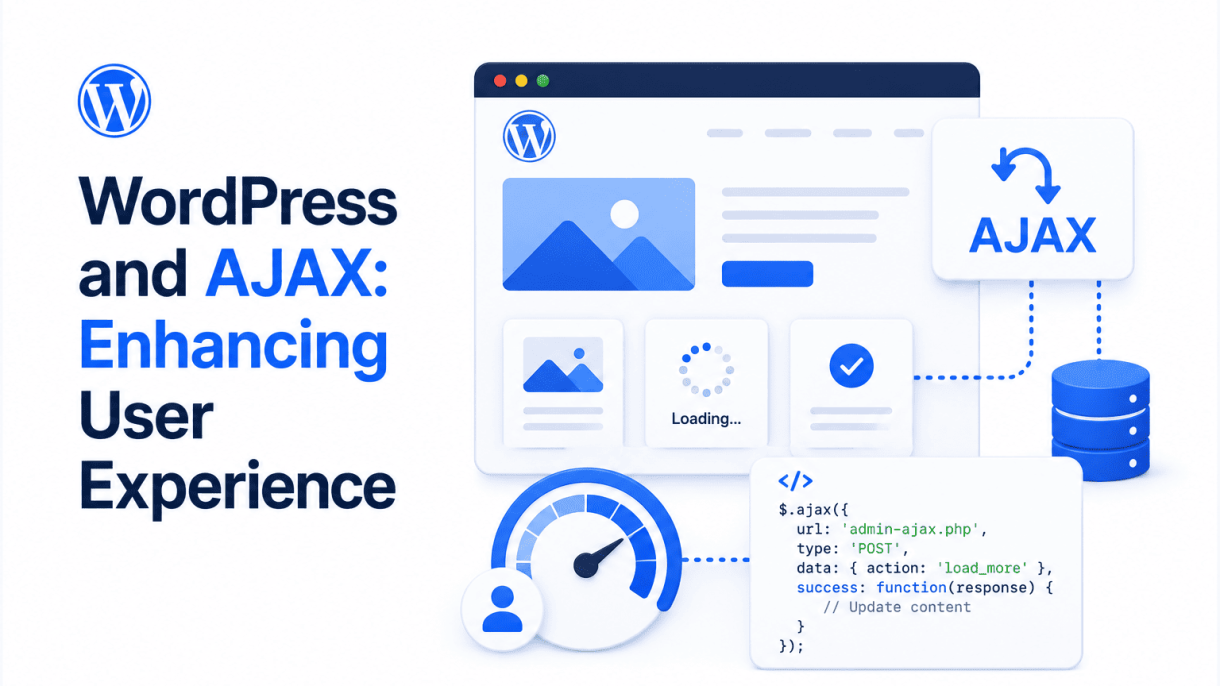

Introduction to AJAX in WordPress
AJAX, which stands for Asynchronous JavaScript and XML, is a set of web development techniques that allows a webpage to communicate with a server in the background without requiring a full page reload. In the context of WordPress, AJAX transforms static content delivery into a fluid, interactive experience. Instead of waiting for an entire page to refresh—which can be slow and jarring—users can perform actions like submitting forms, loading new posts, or updating settings seamlessly. This foundational concept is central to modern user experience (UX) because it reduces friction, minimizes waiting time, and creates a desktop-application-like feel within a browser. For WordPress site owners, implementing AJAX means faster interactions, higher engagement, and a more polished interface that keeps visitors on the page longer.
What Is AJAX and How Does It Work?
At its core, AJAX is a methodology that leverages a combination of technologies: JavaScript (the XMLHttpRequest object or the newer Fetch API) to manage communication, HTML and CSS for presentation, and often JSON or XML for data exchange. The process begins when a user triggers an event—such as clicking a button, typing in a search box, or scrolling to load more content. JavaScript intercepts this event and sends an asynchronous request to the server. Unlike a traditional HTTP request, which forces the browser to reload the entire page, an asynchronous request runs in the background. The server processes the request, sends back a response (typically in JSON format for modern WordPress sites), and JavaScript then updates only the relevant part of the webpage—like a comment list, a cart total, or a search result panel—without disturbing the rest of the interface. This cycle happens in milliseconds, creating an illusion of instantaneous feedback.
The Role of Asynchronous Requests in Web Performance
Asynchronous requests are the engine behind AJAX’s performance benefits. In a standard synchronous model, each user action triggers a full page load, consuming bandwidth and server resources as the entire DOM is rebuilt. Asynchronous requests, by contrast, send only the necessary data, which is typically much smaller. This leads to three key performance advantages:
- Reduced payload size: Only the required data (e.g., a single post excerpt or a form validation message) travels between client and server, cutting down on transfer time.
- No page flicker or delay: Users avoid the visual disruption of a white screen or loading spinner, as the current page remains intact while the update happens in the background.
- Lower server load: Since the server processes only specific requests rather than regenerating entire pages, it can handle more concurrent users with less strain.
For WordPress, where dynamic content like comments, search results, and widget updates are common, asynchronous requests prevent the bottleneck of repeated full-page rendering. This makes AJAX a practical tool for optimizing perceived performance—how fast users feel the site responds—which is a critical UX metric.
Why WordPress Developers Embrace AJAX for Dynamic Content
WordPress developers increasingly rely on AJAX to deliver dynamic content because it aligns perfectly with the platform’s modular architecture. WordPress already separates content from presentation using templates, and AJAX enhances this by allowing specific pieces of content to be fetched and injected on demand. Common use cases include:
- Infinite scroll: Loading more posts as the user scrolls down, without pagination reloads.
- Live search: Displaying real-time suggestions as the user types, powered by AJAX queries.
- Form submissions: Validating and submitting contact forms, comments, or login fields without leaving the page.
- Dashboard updates: Refreshing admin panels, such as plugin notifications or site statistics, in the background.
Additionally, WordPress provides a built-in AJAX handler (via admin-ajax.php and the newer REST API) that simplifies integration. Developers can write custom JavaScript to trigger requests and PHP functions to process them, all while adhering to WordPress security standards like nonces. This flexibility allows for tailored interactions—like a custom filtering system for a product catalog or a live preview of theme customizations—that would be cumbersome with traditional page loads. By embracing AJAX, WordPress developers not only improve UX but also reduce bounce rates and encourage deeper user engagement, making it an indispensable technique in modern web development.
Core Benefits of AJAX for User Experience
AJAX, or Asynchronous JavaScript and XML, transforms how users interact with WordPress sites by enabling data exchange with the server without reloading the entire page. For site owners and developers, this technology delivers measurable improvements in speed, fluidity, and overall satisfaction. Below are the primary advantages that make AJAX a cornerstone of modern WordPress user experience.
Eliminating Full Page Reloads for Smoother Navigation
Traditional WordPress navigation forces a complete page refresh each time a user clicks a link, submits a form, or updates content. This process interrupts the user’s mental flow, requiring them to wait for the browser to re-render headers, footers, sidebars, and all assets. AJAX eliminates this by fetching only the necessary data—such as a new post excerpt, search results, or a comment thread—and updating the relevant section of the page dynamically. The result is a seamless experience where navigation feels instantaneous, whether browsing an archive, paginating comments, or loading a new product via a shop filter.
- Reduced bandwidth consumption: Only small data packets travel between server and client, not entire HTML documents.
- Preserved scroll position: Users stay exactly where they are, avoiding the disorienting jump to the top of a page.
- Faster subsequent interactions: Once the initial page loads, subsequent AJAX requests are typically quicker than full reloads.
Real-Time Feedback Without Interrupting User Flow
One of the most powerful aspects of AJAX is its ability to provide immediate feedback while users continue their tasks. On a WordPress site, this manifests in several practical ways:
| Scenario | Without AJAX | With AJAX |
|---|---|---|
| Comment submission | Page reloads, user loses context | Comment appears instantly; user continues reading |
| Like or vote button | Full page refresh resets state | Count updates silently; no disruption |
| Search suggestions | User must submit and wait for results | Dropdown shows results as user types |
| Form validation | Server returns errors after reload | Inline validation occurs immediately |
This real-time capability keeps users engaged and reduces abandonment rates. For example, an e-commerce store using AJAX for cart updates lets shoppers add items and see the total change without leaving the product page. Similarly, a membership site can verify login credentials asynchronously, preventing the frustration of a full reload after a typo.
How AJAX Reduces Perceived Loading Times
Perceived performance often matters more than actual load times. AJAX exploits this psychological principle by creating the illusion of speed, even when server response times remain constant. Instead of a blank page or spinning icon during a full reload, AJAX updates only the changed content while the rest of the interface remains interactive. Users perceive this as faster because they can still see, read, or interact with other parts of the page.
For WordPress developers, implementing AJAX involves a simple pattern. Below is a practical example of a WordPress AJAX handler that fetches recent posts without a page reload:
// In functions.php of your theme or plugin
add_action('wp_ajax_nopriv_get_recent_posts', 'handle_get_recent_posts');
add_action('wp_ajax_get_recent_posts', 'handle_get_recent_posts');

function handle_get_recent_posts() {
    $posts = get_posts(array(
        'numberposts' => 5,
        'post_status' => 'publish'
    ));
    if ($posts) {
        foreach ($posts as $post) {
            echo '<li>' . esc_html($post->post_title) . '</li>';
        }
    }
    wp_die(); // Required to terminate properly
}

// JavaScript in your theme's script file
jQuery(document).ready(function($) {
    $('#load-posts-button').on('click', function() {
        $.post(ajaxurl, {
            action: 'get_recent_posts'
        }, function(response) {
            $('#posts-container').html(response);
        });
    });
});
This code demonstrates how a button click triggers an AJAX request to fetch recent post titles, updating only the target container. The rest of the page—navigation, sidebar widgets, footer—remains untouched and responsive. Users perceive this as nearly instant, as the browser does not need to reparse the entire DOM or reload external resources like stylesheets or scripts.
To further enhance perceived speed, combine AJAX with techniques like lazy loading for images or infinite scroll for content archives. These approaches keep the initial page lightweight while progressively loading additional data as the user scrolls or interacts. The cumulative effect is a site that feels responsive, modern, and app-like—qualities that directly correlate with lower bounce rates and higher user satisfaction.
Understanding WordPress AJAX Hooks and Actions
WordPress provides a robust system for handling AJAX requests through two primary hooks: wp_ajax_ and wp_ajax_nopriv_. These hooks allow developers to define custom actions that process asynchronous requests from the front end or admin area, ensuring secure and efficient data handling. The key difference lies in user authentication: wp_ajax_ fires only for logged-in users, while wp_ajax_nopriv_ handles requests from unauthenticated visitors. Together, they form the backbone of AJAX integration in WordPress, enabling dynamic content updates, form submissions, and real-time interactions without page reloads. Understanding these hooks is essential for building responsive, user-friendly WordPress applications.
The Difference Between Authenticated and Unauthenticated Requests
WordPress distinguishes between authenticated and unauthenticated AJAX requests to control access to sensitive data and actions. Authenticated requests use the wp_ajax_ hook, which requires a valid user session. This is ideal for tasks like updating user profiles, managing posts, or accessing private data. Unauthenticated requests use the wp_ajax_nopriv_ hook, which processes actions from visitors who are not logged in. Common use cases include public search features, contact forms, or content voting systems. Developers must carefully choose which hook to implement based on the action’s security requirements. For example, a function that deletes a user’s comment should only be accessible to authenticated users, while a plugin that fetches public blog posts can safely use the unauthenticated hook. The following table summarizes the key distinctions:
| Hook | Authentication Required | Typical Use Cases | Security Considerations |
|---|---|---|---|
wp_ajax_ |
Yes (logged-in users) | Admin panel updates, user-specific settings, post editing | Requires nonce verification; user capabilities should be checked |
wp_ajax_nopriv_ |
No (all visitors) | Public search, contact forms, voting systems | Nonce optional but recommended; data sanitization critical |
Registering Custom AJAX Actions in functions.php
To register a custom AJAX action, add hook definitions in your theme’s functions.php file or a custom plugin. The process involves three steps: define the callback function, hook it to the appropriate action, and enqueue the JavaScript that triggers the request. For authenticated actions, use add_action('wp_ajax_my_action', 'my_action_callback'). For unauthenticated actions, add add_action('wp_ajax_nopriv_my_action', 'my_action_callback'). The action name (my_action in this example) must match the action parameter sent via JavaScript. Here is a practical implementation:
// In functions.php
function handle_custom_ajax_request() {
    // Verify nonce and sanitize data
    $data = isset($_POST['data']) ? sanitize_text_field($_POST['data']) : '';
    // Process the request
    $response = array('message' => 'Data received: ' . $data);
    wp_send_json_success($response);
}
add_action('wp_ajax_custom_action', 'handle_custom_ajax_request');
add_action('wp_ajax_nopriv_custom_action', 'handle_custom_ajax_request');
On the JavaScript side, use wp_localize_script() to pass the AJAX URL and nonce to your script, then send the request using jQuery.post() or the Fetch API. This approach ensures that the server can properly route the request to the correct handler.
Best Practices for Nonce Verification and Data Sanitization
Nonce verification and data sanitization are critical for securing AJAX endpoints in WordPress. A nonce (number used once) prevents cross-site request forgery (CSRF) attacks by ensuring the request originates from a legitimate source. Generate a nonce using wp_create_nonce('my_action_nonce') and include it in the AJAX data. On the server side, verify it with check_ajax_referer('my_action_nonce', 'nonce') or wp_verify_nonce(). For unauthenticated requests, nonces are optional but recommended to reduce spam. Data sanitization involves cleaning user input before processing. Use WordPress functions like sanitize_text_field(), sanitize_email(), or intval() depending on the expected data type. For complex inputs, consider wp_kses() to allow only safe HTML tags. Always validate data structure (e.g., checking if an array key exists) and escape output with esc_html() or esc_attr() before returning it. By combining nonce verification with rigorous sanitization, you protect your application from malicious requests and ensure data integrity, creating a secure foundation for enhanced user experiences through AJAX.
Setting Up AJAX in WordPress Themes and Plugins
Integrating AJAX into WordPress themes and plugins allows for seamless, asynchronous interactions that update content without requiring a full page reload. This technique enhances user experience by making interfaces more responsive and reducing server load. The setup process involves two primary steps: enqueuing JavaScript with proper localization, and creating a server-side PHP handler to process requests. Below is a structured guide to implementing AJAX in both themes and plugins, with emphasis on security and debugging.
Enqueuing JavaScript with wp_enqueue_script and wp_localize_script
To begin, you must register and enqueue your JavaScript file using wp_enqueue_script(). This ensures the script loads correctly in the front end or admin area. Simultaneously, use wp_localize_script() to pass server-side variables—specifically the AJAX URL and a nonce for security—to your JavaScript. The nonce prevents unauthorized requests. Below is a practical example for a plugin:
function my_ajax_enqueue_scripts() {
    // Enqueue the main JavaScript file
    wp_enqueue_script(
        'my-ajax-script',
        plugin_dir_url( __FILE__ ) . 'js/ajax-script.js',
        array( 'jquery' ),
        '1.0.0',
        true
    );

    // Localize script with AJAX URL and nonce
    wp_localize_script(
        'my-ajax-script',
        'my_ajax_object',
        array(
            'ajax_url' => admin_url( 'admin-ajax.php' ),
            'nonce'    => wp_create_nonce( 'my_ajax_nonce' ),
        )
    );
}
add_action( 'wp_enqueue_scripts', 'my_ajax_enqueue_scripts' );
For themes, replace plugin_dir_url( __FILE__ ) with get_template_directory_uri() . '/js/' or get_stylesheet_directory_uri() for child themes. Always enqueue scripts in the footer (fifth parameter true) to improve page load speed.
Creating the Server-Side PHP Handler for AJAX Requests
The server-side handler is a PHP function that processes the AJAX request and returns a response. WordPress uses two hooks: wp_ajax_{action} for authenticated users and wp_ajax_nopriv_{action} for unauthenticated users. The action name must match the action parameter sent from JavaScript. Below is a secure handler example:
function my_ajax_handler() {
    // Verify nonce for security
    if ( ! isset( $_POST['nonce'] ) || ! wp_verify_nonce( $_POST['nonce'], 'my_ajax_nonce' ) ) {
        wp_die( 'Security check failed.' );
    }

    // Process the request
    $data = sanitize_text_field( $_POST['data'] );
    $response = 'Received: ' . $data;

    // Return response
    echo esc_html( $response );
    wp_die(); // Required to terminate properly
}
add_action( 'wp_ajax_my_action', 'my_ajax_handler' );
add_action( 'wp_ajax_nopriv_my_action', 'my_ajax_handler' );
Key points for the handler:
- Always validate the nonce using
wp_verify_nonce(). - Sanitize and validate all incoming data with functions like
sanitize_text_field()orintval(). - Use
wp_die()ordie()at the end to send a proper response. - For JSON responses, use
wp_send_json()orwp_send_json_success().
Testing and Debugging AJAX Calls in the Browser Console
Debugging AJAX calls is essential for identifying issues. Use the browser’s developer tools—specifically the Network tab—to inspect requests and responses. Follow these steps:
- Open your browser’s developer tools (F12 or right-click > Inspect).
- Navigate to the Network tab and filter by XHR or Fetch.
- Trigger the AJAX call (e.g., click a button).
- Click the request to view details: Headers, Payload, Preview, and Response.
Common issues to check:
| Issue | Likely Cause | Solution |
|---|---|---|
| 400 Bad Request | Missing or incorrect action parameter |
Verify the action name matches the hook. |
| 403 Forbidden | Nonce mismatch or missing | Check wp_localize_script and nonce creation. |
| 500 Internal Server Error | PHP error in handler | Enable WP_DEBUG in wp-config.php. |
| Empty response | Missing wp_die() or echo |
Ensure the handler echoes data and calls wp_die(). |
Additionally, log errors by adding error_log( print_r( $_POST, true ) ); in the PHP handler. In the browser console, use console.log() in your JavaScript to inspect data before sending. For example:
jQuery.ajax({
    url: my_ajax_object.ajax_url,
    type: 'POST',
    data: {
        action: 'my_action',
        nonce: my_ajax_object.nonce,
        data: 'test'
    },
    success: function(response) {
        console.log('Success:', response);
    },
    error: function(jqXHR, textStatus, errorThrown) {
        console.log('Error:', textStatus, errorThrown);
    }
});
By following these steps, you can reliably integrate AJAX into your WordPress themes and plugins, ensuring a smooth and responsive user experience.
Common AJAX Use Cases in WordPress
AJAX, which stands for Asynchronous JavaScript and XML, is a foundational technology for modern web applications. In WordPress, AJAX allows the browser to communicate with the server in the background, enabling dynamic content updates without requiring a full page reload. This capability directly improves user experience by reducing perceived loading times, eliminating disruptive page flashes, and creating a more fluid, app-like feel. Below are three of the most impactful AJAX use cases in WordPress, each demonstrating a practical way to enhance how visitors interact with your site.
Implementing Infinite Scroll for Content-Heavy Pages
Content-heavy pages, such as blog archives, portfolio galleries, or news feeds, often rely on pagination. While functional, traditional pagination forces users to click a “Next Page” link, wait for a new page to load, and then scroll back to the top to continue reading. Infinite scroll eliminates this friction by automatically loading the next set of posts when the user reaches the bottom of the current viewport. This creates a seamless browsing experience that encourages deeper engagement with your content.
Key benefits of infinite scroll include:
- Reduced user effort: No manual clicking is required to access more content.
- Improved session duration: Visitors tend to view more pages as the content loads continuously.
- Mobile-friendly experience: Scrolling is a natural gesture on touch devices, making infinite scroll ideal for responsive designs.
Implementation involves a few core steps. First, you enqueue a custom JavaScript file in your theme that listens for the scroll event. When the user nears the bottom of the page, the script sends an AJAX request to the WordPress admin-ajax.php endpoint. The server-side handler, typically defined in your theme’s functions.php file, uses WP_Query to fetch the next set of posts, formats them as HTML, and returns the data. The JavaScript then appends this HTML to the existing post container. A common practice is to include a “loading” spinner to provide visual feedback during the request. For accessibility, always consider adding a “Load More” button as a fallback for users who rely on keyboard navigation or screen readers.
Building a Live Search Feature with Instant Results
A live search, also known as an instant search or search-as-you-type, displays results in real-time as the user types into the search field. This contrasts with the default WordPress search, which requires form submission and a page reload. Live search dramatically improves the user experience by providing immediate feedback, helping users find what they need faster and reducing the likelihood of abandoned searches.
The typical workflow for a live search implementation is as follows:
- Frontend setup: Create a search input field with a dedicated container for results. Use JavaScript to capture the
keyupevent and debounce it to avoid excessive requests. - AJAX request: Send the current search query to the server. Include a nonce for security.
- Server-side processing: In your WordPress handler, query posts, pages, or custom post types using
WP_Querywith asparameter. Limit results to a manageable number, such as five or ten. - Return results: Format the matching posts as a list of titles with links. Optionally include excerpts or featured images for richer previews.
- Display: The JavaScript receives the HTML and injects it into the results container. If no results are found, display a “No results found” message.
For best results, consider caching the search queries to reduce server load, especially on high-traffic sites. Additionally, ensure the search results are keyboard-navigable, allowing users to tab through the list and press Enter to visit a selected post.
Submitting Contact Forms and Comments Without Page Reloads
Contact forms and comment sections are among the most common interactive elements on a WordPress site. Traditionally, submitting a form triggers a full page reload, which can be jarring and may cause users to lose their place. AJAX-powered submissions eliminate this disruption by sending the form data to the server in the background and updating only the relevant part of the page, such as displaying a success message or the newly added comment.
This approach offers several user experience advantages:
| Traditional Submission | AJAX Submission |
|---|---|
| Page reloads after each submission | No page reload; seamless interaction |
| User may lose scroll position | Scroll position is maintained |
| Error messages require a new page load | Errors appear inline, immediately |
| Higher server load due to full page render | Lower server load; only data is processed |
To implement this, you first create a standard HTML form in your theme. Then, use JavaScript to intercept the form’s submit event, prevent the default behavior, and serialize the form data. Send this data via AJAX to the server, including a nonce and an action hook. On the server side, validate the input, process the form (e.g., send an email or insert a comment), and return a JSON response indicating success or failure. The JavaScript then updates the page DOM accordingly—for example, clearing the form and showing a thank-you message, or displaying validation errors next to the relevant fields. This method keeps the user engaged and reduces frustration, particularly on long comment threads or multi-step contact forms.
Optimizing AJAX Performance and Security
When implementing AJAX in WordPress, performance and security are not optional—they are essential for maintaining a responsive, trustworthy site. Poorly optimized AJAX calls can degrade user experience, while insecure handlers expose your site to attacks. Below are three critical strategies for ensuring your AJAX implementations remain fast, secure, and scalable within the WordPress ecosystem.
Caching AJAX Responses for Faster Repeat Requests
Repeated identical AJAX requests waste server resources and slow down the user experience. Caching responses reduces load time and database strain. WordPress offers several caching mechanisms:
- Transient API: Store temporary data with expiration. Ideal for data that changes infrequently.
- Page caching plugins: Tools like W3 Total Cache or WP Super Cache can cache AJAX endpoints if configured properly.
- Object caching: Use Redis or Memcached for persistent, high-speed caching across sessions.
For a practical example, consider caching a user’s recent comments:
function cache_ajax_recent_comments() {
    $user_id = get_current_user_id();
    $cache_key = 'recent_comments_' . $user_id;
    $cached = get_transient( $cache_key );

    if ( false !== $cached ) {
        wp_send_json_success( $cached );
    }

    $comments = get_comments( array( 'user_id' => $user_id, 'number' => 5 ) );
    set_transient( $cache_key, $comments, HOUR_IN_SECONDS );
    wp_send_json_success( $comments );
}
add_action( 'wp_ajax_get_recent_comments', 'cache_ajax_recent_comments' );
This code checks for a cached response before querying the database. If found, it returns the cached data instantly. The transient expires after one hour, ensuring fresh data eventually reaches users.
Preventing CSRF Attacks with Nonces and Capability Checks
Cross-Site Request Forgery (CSRF) attacks trick authenticated users into executing unwanted actions. WordPress provides two layered defenses: nonces and capability checks. Nonces verify that the request originated from your site, while capability checks ensure the user has permission to perform the action.
Implement both in every AJAX handler:
| Defense Layer | Purpose | Implementation |
|---|---|---|
| Nonce | Verifies request origin | Use check_ajax_referer() or wp_verify_nonce() |
| Capability check | Verifies user permissions | Use current_user_can() with appropriate capability |
Example handler with both checks:
function secure_ajax_update_profile() {
    // Verify nonce from the AJAX request
    if ( ! check_ajax_referer( 'update_profile_nonce', 'nonce', false ) ) {
        wp_send_json_error( 'Invalid nonce.' );
    }

    // Verify user has capability to edit their own profile
    if ( ! current_user_can( 'edit_user', get_current_user_id() ) ) {
        wp_send_json_error( 'Insufficient permissions.' );
    }

    // Process the update
    wp_send_json_success( 'Profile updated.' );
}
add_action( 'wp_ajax_update_profile', 'secure_ajax_update_profile' );
Always generate the nonce in your frontend JavaScript using wp_create_nonce() and send it with each AJAX request. This simple step blocks most CSRF attempts.
Minimizing Database Queries in AJAX Handlers
AJAX handlers triggered by user actions (like autocomplete or live search) can quickly overwhelm the database if not optimized. Reduce query load with these techniques:
- Use
WP_Querywithfieldsparameter: Retrieve only necessary columns. For example,'fields' => 'ids'returns just post IDs. - Leverage
get_posts()instead ofWP_Query: For simple data retrieval,get_posts()is faster and uses built-in caching. - Batch database operations: Combine multiple queries into one using
wpdb->get_results()with a custom SQL statement. - Implement query result caching: Store query results in transients or object cache as shown earlier.
For a typical search autocomplete handler, avoid querying all post fields. Instead:
function ajax_search_suggestions() {
    $search_term = sanitize_text_field( $_POST['search'] );
    $args = array(
        's'              => $search_term,
        'posts_per_page' => 10,
        'fields'         => 'ids', // Only fetch IDs
        'no_found_rows'  => true,  // Skip pagination count
    );
    $posts = get_posts( $args );

    if ( empty( $posts ) ) {
        wp_send_json_error( 'No results.' );
    }

    // Fetch only titles from cached post data
    $titles = array_map( 'get_the_title', $posts );
    wp_send_json_success( $titles );
}
add_action( 'wp_ajax_search_suggestions', 'ajax_search_suggestions' );
add_action( 'wp_ajax_nopriv_search_suggestions', 'ajax_search_suggestions' );
By combining fields => 'ids', no_found_rows => true, and get_posts(), you reduce database overhead significantly. For high-traffic sites, pair this with object caching for sub-millisecond response times. Always profile your AJAX handlers using query monitor plugins to identify and eliminate unnecessary database calls.
Handling AJAX Errors Gracefully
When integrating AJAX into a WordPress site, network interruptions, server timeouts, or invalid data can disrupt the user experience. Without proper error handling, a failed request might leave users staring at a broken interface or a confusing blank screen. Graceful error management ensures that failures are communicated clearly, the system remains functional, and technical details stay hidden from visitors. This approach preserves trust and usability even when things go wrong.
Displaying User-Friendly Error Messages
The first line of defense is to replace cryptic technical errors with clear, human-readable messages. In WordPress, AJAX responses typically return either success or failure states. A common pattern is to check the success property of the response object and, if false, extract a meaningful message from the data property. For example:
- Network errors: Display “Unable to connect. Please check your internet connection and try again.”
- Server errors: Show “Something went wrong on our end. Please refresh the page or try later.”
- Validation errors: Present specific feedback, such as “The email field is required.”
Use a dedicated error container near the triggering element, styled with a subtle red or orange background and clear typography. Avoid alert boxes or modal overlays that interrupt the user’s flow. For instance, in the jQuery $.ajax error callback, you can inject a message into a <p> with a class like ajax-error-notice. Ensure the message is concise, actionable, and free of jargon—never expose 500 Internal Server Error or stack traces.
Implementing Retry Logic and Fallback Mechanisms
Transient failures—such as a momentary network blip—can often be resolved automatically. Implement a retry mechanism with exponential backoff to avoid overwhelming the server. A typical approach involves three attempts with increasing delays (e.g., 1 second, 2 seconds, 4 seconds). Below is a simplified example of how this logic can be structured:
| Attempt | Delay (seconds) | Action on failure |
|---|---|---|
| 1 | 1 | Retry the request |
| 2 | 2 | Retry the request |
| 3 | 4 | Show user-friendly error |
If retries fail, provide a fallback mechanism. For example, if an AJAX form submission fails, preserve the user’s input in local storage and offer a “Save Draft” button that triggers a traditional page reload. Alternatively, for dynamic content loading, degrade gracefully by displaying a cached version of the content or a link to reload the page manually. Always communicate the fallback action clearly, such as “We’ll save your work automatically. Click here to reload.”
Logging AJAX Errors for Debugging Without Exposing Details
While user-facing messages should remain generic, developers need detailed error logs to diagnose issues. In WordPress, use the error_log() function within the AJAX handler to record specifics such as the request URL, parameters, and server response. For example:
- Client-side: Log network status codes and response text to the browser console using
console.error()during development, but disable this in production. - Server-side: In the WordPress AJAX action callback, log the full error message with
error_log( 'AJAX error: ' . $wpdb->last_error )and include a timestamp. - Structured logging: Use a plugin like WP_DEBUG_LOG to write errors to
/wp-content/debug.log. Ensure this file is not publicly accessible via.htaccessrules.
Never include user-specific data (like passwords or email addresses) in logs. Also, avoid echoing or returning raw error details in the AJAX response. Instead, use a unique error code that maps to a logged entry: for instance, return {"success":false, "data":{"code":"ERR_001"}} and store the full explanation server-side. This way, support staff can look up the code without exposing sensitive information to end users.
By combining clear error messages, intelligent retry logic, and secure server-side logging, you maintain a polished experience even when AJAX requests falter. Users stay informed and empowered, while developers retain the diagnostic tools needed to fix underlying problems.
Integrating AJAX with WordPress REST API
The WordPress REST API provides a modern, structured alternative to the traditional Admin AJAX handler for asynchronous operations. By leveraging the REST API, developers can build more extensible, version-controlled, and standards-compliant solutions that integrate seamlessly with external applications and JavaScript frameworks. This approach replaces the reliance on admin-ajax.php with predictable URL patterns, HTTP methods, and built-in data validation, while still supporting AJAX-driven interactions on the front end.
When to Use REST API vs. Admin AJAX
Choosing between the REST API and Admin AJAX depends on the complexity, scope, and security requirements of the operation. The table below outlines key differences to guide this decision.
| Criteria | REST API | Admin AJAX |
|---|---|---|
| URL Structure | Predictable, versioned endpoints (e.g., /wp-json/wp/v2/posts) |
Single endpoint (admin-ajax.php) with action-based routing |
| HTTP Methods | Uses GET, POST, PUT, DELETE for CRUD operations | Primarily GET and POST via action parameter |
| Authentication | Supports cookies, OAuth, application passwords, and nonces | Relies on nonces and user capability checks |
| Extensibility | Built for custom endpoints, schema registration, and external clients | Limited to internal WordPress actions and hooks |
| Performance | Lightweight routing, no unnecessary core loading | Loads full WordPress core for every request |
| Use Case Fit | Public APIs, headless WordPress, complex data operations | Simple admin-side AJAX, logged-in user actions |
Use the REST API when building public-facing endpoints, integrating with external services, or requiring granular permission control. Reserve Admin AJAX for quick, internal operations where full REST infrastructure is unnecessary, such as updating a user meta field from the admin panel.
Creating Custom REST Endpoints for AJAX Operations
To create a custom REST endpoint for AJAX, register it using register_rest_route() within a plugin or theme’s functions file. This function accepts three parameters: the namespace, route, and an array of arguments including methods, callback, and permission callback.
Below is a step-by-step outline for building a custom endpoint:
- Define namespace and route: Use a unique namespace like
myplugin/v1and a clear route such as/submit-feedback. - Set HTTP method: Specify
methodsasWP_REST_Server::CREATABLE(POST) for data submission orREADABLE(GET) for retrieval. - Implement callback function: Write a function that processes the request, validates input, performs the operation, and returns a
WP_REST_Response. - Handle request data: Access parameters via
$request->get_param()and validate them usingsanitize_text_field()or custom logic. - Return response: Use
new WP_REST_Response($data, $status_code)with appropriate HTTP status codes like 200 for success or 400 for bad requests.
Example registration code structure:
add_action('rest_api_init', function () {
    register_rest_route('myplugin/v1', '/submit-feedback', array(
        'methods' => 'POST',
        'callback' => 'myplugin_handle_feedback',
        'permission_callback' => '__return_true'
    ));
});
On the front end, use wp.apiFetch() or jQuery’s $.ajax() to send requests to the endpoint URL, typically constructed as /wp-json/myplugin/v1/submit-feedback.
Securing REST API Requests with Authentication and Permissions
Securing REST API endpoints is critical to prevent unauthorized access and data manipulation. WordPress provides several authentication methods and permission callback mechanisms.
Authentication methods include:
- Cookie authentication: Works for logged-in users on the same site. Nonces are passed via
X-WP-Nonceheader for CSRF protection. - Application passwords: Suitable for external clients, generated per user via the WordPress admin panel.
- OAuth 1.0a: Ideal for third-party integrations requiring token-based access.
Implementing permission callbacks: The permission_callback argument in register_rest_route() should check user capabilities or custom conditions. For example:
'permission_callback' => function () {
    return current_user_can('edit_posts');
}
For public endpoints, use '__return_true' but ensure sensitive data is never exposed. Always validate and sanitize input parameters using WordPress functions like sanitize_text_field(), absint(), or wp_kses_post(). Additionally, implement capability checks within the callback for granular control, such as verifying a user can edit a specific post before allowing an update.
By combining proper authentication, permission callbacks, and data sanitization, custom REST endpoints provide a secure and scalable foundation for AJAX-driven user experiences in WordPress.
Real-World Examples: AJAX in Popular WordPress Plugins
AJAX (Asynchronous JavaScript and XML) has become a cornerstone of modern WordPress development, enabling plugins to update content without requiring full page reloads. This capability dramatically improves perceived performance and user satisfaction. Below, we examine how three widely-used plugins—WooCommerce, BuddyPress, and Gravity Forms—implement AJAX to deliver superior, seamless experiences.
WooCommerce: Instant Cart Updates and Checkout Enhancements
WooCommerce, the leading e-commerce plugin for WordPress, relies heavily on AJAX to streamline shopping interactions. Key implementations include:
- Cart updates without refresh: When a user adds, removes, or adjusts the quantity of an item, AJAX sends a request to the server, updates the cart session, and returns the new totals. The cart widget or mini-cart updates instantly in the browser.
- Checkout validation: As customers fill in billing or shipping fields, AJAX can validate input (e.g., zip code format) in real time, reducing errors before form submission.
- Shipping method recalculation: Changing the shipping address triggers an AJAX call to recalculate available methods and costs, all while the user stays on the same page.
For developers, WooCommerce exposes hooks like woocommerce_ajax_added_to_cart and filters such as woocommerce_add_to_cart_fragments to customize AJAX responses. A practical example of a custom fragment for the cart count:
add_filter( 'woocommerce_add_to_cart_fragments', 'custom_cart_count_fragment' );
function custom_cart_count_fragment( $fragments ) {
    $fragments['span.cart-count'] = '<span class="cart-count">' . WC()->cart->get_cart_contents_count() . '</span>';
    return $fragments;
}
This code ensures that any element with the class cart-count updates dynamically when the cart changes, providing immediate visual feedback.
BuddyPress: Real-Time Notifications and Activity Feeds
BuddyPress, a social networking plugin, uses AJAX to create a fluid, community-driven experience. Its primary AJAX features include:
- Real-time notifications: When a user receives a new message, friend request, or group invitation, AJAX polls the server at set intervals (or uses long-polling) to fetch unread counts. The notification bubble updates without user action.
- Activity stream updates: New posts, comments, or likes appear in the activity feed via AJAX pagination or auto-loading. Users can click “Load More” or see new items appended without a page refresh.
- Member search and filtering: Typing in the member directory triggers AJAX to return filtered results, making navigation fast and responsive.
BuddyPress relies on its own bp_ajax_querystring() function to manage AJAX requests. Developers can extend this by hooking into bp_ajax_get_users or bp_ajax_get_activities to add custom parameters or modify returned data.
Gravity Forms: Dynamic Field Loading and Conditional Logic
Gravity Forms, a premium form builder, leverages AJAX to create intelligent, adaptive forms. Key use cases include:
- Dynamic field population: Fields can be pre-filled with data from external sources (e.g., a user’s profile or a database) via AJAX calls when the form loads or when a user selects an option.
- Conditional logic: Fields, sections, or entire pages show or hide based on user input, all processed client-side with AJAX for server-side validation. For example, selecting “USA” in a country dropdown might trigger an AJAX request to load state options.
- Multi-page forms: Navigating between form pages uses AJAX to save partial data and validate current fields, preventing data loss and reducing server load.
A practical example of adding a custom AJAX endpoint to populate a dropdown based on a previous field selection:
add_action( 'wp_ajax_load_cities', 'load_cities_callback' );
add_action( 'wp_ajax_nopriv_load_cities', 'load_cities_callback' );
function load_cities_callback() {
    $state = sanitize_text_field( $_POST['state'] );
    $cities = get_cities_by_state( $state ); // Custom function
    wp_send_json_success( $cities );
}
This endpoint, when triggered by a Gravity Forms JavaScript event, returns a JSON array of cities that populates a dropdown dynamically, enhancing form usability.
By integrating AJAX thoughtfully, these plugins reduce friction, minimize waiting times, and create interfaces that feel responsive and modern. Developers can study their approaches to implement similar enhancements in custom WordPress solutions, always prioritizing user experience and performance.
Future Trends: AJAX and Modern WordPress Development
As WordPress evolves, the core principles of AJAX—asynchronous data exchange without full page reloads—continue to underpin modern development approaches. Emerging technologies and architectures are redefining how developers implement dynamic, responsive interfaces while maintaining performance and accessibility. Three key trends illustrate this progression: the Interactivity API, headless WordPress, and progressive enhancement strategies.
The Interactivity API and Declarative AJAX Patterns
Introduced in WordPress 6.5, the Interactivity API represents a paradigm shift from imperative AJAX calls to declarative, state-driven interactions. Instead of manually managing XMLHttpRequest or fetch calls, developers define reactive states and actions using a standardized directive system. For example, a live search block can be built with data-wp-interactive and data-wp-bind attributes, automatically triggering server requests when state changes.
Key advantages over traditional AJAX:
- Reduced boilerplate: No need to write custom event listeners or response handlers.
- Built-in hydration: Server-rendered HTML seamlessly transitions to client-side interactivity.
- Accessibility: Focus management and ARIA attributes are handled automatically.
- Performance: Only changed DOM nodes are updated, minimizing reflows.
This declarative pattern simplifies complex interactions like infinite scroll, real-time form validation, and dynamic filtering, all while maintaining backward compatibility with existing WordPress hooks.
Headless WordPress: AJAX as the Backbone of Decoupled Frontends
Headless WordPress decouples the backend (REST API or GraphQL) from the frontend framework (React, Vue, or Svelte). Here, AJAX is not merely an enhancement—it is the fundamental communication layer. Every data fetch, mutation, or authentication request relies on asynchronous HTTP calls. For instance, a React-based storefront might use wp.apiFetch() to retrieve product data, add items to cart, or process checkout, all without reloading the page.
Common AJAX endpoints in headless setups:
| Endpoint | Purpose | AJAX Method |
|---|---|---|
/wp/v2/posts |
Fetch blog posts | GET |
/wp/v2/media |
Retrieve images | GET |
/wp/v2/users/me |
Get current user data | GET |
/wp/v2/posts |
Create or update posts | POST/PUT |
While headless architectures offer flexibility, they introduce complexity: developers must handle loading states, error boundaries, and caching strategies. However, AJAX remains the backbone, enabling real-time updates from external services, such as payment gateways or content delivery networks.
Progressive Enhancement: Ensuring AJAX Works Without JavaScript
Despite AJAX’s ubiquity, modern WordPress development emphasizes progressive enhancement—building core functionality that works without JavaScript, then layering AJAX improvements. This approach ensures accessibility for users with disabled scripts, screen readers, or slow connections. For example, a comment form might submit via a standard POST request, then use AJAX to display the new comment without reloading the page.
Implementation strategies:
- Use the
admin-ajax.phphandler as a fallback, but prefer the REST API for modern sites. - Detect JavaScript availability with
or server-side checks before enqueuing AJAX scripts. - Provide non-JS alternatives: paginated links alongside infinite scroll, or a static form alongside AJAX validation.
- Test with JavaScript disabled: ensure all forms, navigation, and content loading degrade gracefully.
By prioritizing progressive enhancement, developers future-proof their sites against evolving browser standards and user preferences, while still delivering the smooth, responsive experiences that AJAX enables.
Frequently Asked Questions
What is AJAX in WordPress and how does it improve user experience?
AJAX (Asynchronous JavaScript and XML) allows WordPress pages to update content without a full page reload. This means actions like submitting a comment, loading more posts, or saving a draft happen in the background. Users see faster responses and smoother interactions, which reduces wait time and frustration. For example, when a user submits a form, only the relevant section refreshes rather than the entire page, making the site feel more like a native application.
How do I enqueue scripts for AJAX in WordPress?
To use AJAX in WordPress, you must properly enqueue your JavaScript file using `wp_enqueue_script()` and pass the AJAX URL via `wp_localize_script()`. For example: `wp_enqueue_script( 'my-ajax-script', get_template_directory_uri() . '/js/ajax.js', array('jquery'), null, true );` then `wp_localize_script( 'my-ajax-script', 'my_ajax_obj', array( 'ajax_url' => admin_url( 'admin-ajax.php' ) ) );`. This ensures the script knows where to send requests and follows WordPress coding standards.
What is the role of admin-ajax.php in WordPress AJAX?
`admin-ajax.php` is the core WordPress file that handles AJAX requests for both logged-in and logged-out users. When a JavaScript call is made to this URL, WordPress processes it using hooks like `wp_ajax_myaction` (for authenticated users) and `wp_ajax_nopriv_myaction` (for unauthenticated users). Developers define custom actions that map to PHP functions, making it a flexible but centralized endpoint. However, for high-traffic sites, the REST API is often preferred due to better performance and scalability.
How do I secure AJAX requests in WordPress?
Security is critical. Always use nonces (number used once) to verify the request origin. When enqueuing your script, localize a nonce using `wp_create_nonce('my_nonce_action')`. In your JavaScript, include the nonce in the data object, e.g., `data: { action: 'my_action', nonce: my_ajax_obj.nonce }`. On the PHP side, verify with `check_ajax_referer('my_nonce_action', 'nonce')`. Additionally, validate and sanitize all user inputs with functions like `sanitize_text_field()` and `intval()`.
What are the differences between admin-ajax.php and the WordPress REST API for AJAX?
`admin-ajax.php` is a single endpoint that processes all custom AJAX actions, which can become a bottleneck under heavy load. The WordPress REST API provides multiple endpoints, better caching, and standard HTTP methods (GET, POST, PUT, DELETE). REST API responses are also more structured (JSON) and can be consumed by external applications. For simple tasks, `admin-ajax.php` is easier to set up, but for complex or public-facing features, the REST API is more robust and scalable.
Can I use AJAX without jQuery in WordPress?
Yes, WordPress now includes a built-in `wp.apiFetch` function that uses the Fetch API and works without jQuery. You can also use vanilla JavaScript with `XMLHttpRequest` or the modern `fetch()` API. To do so, enqueue your script with a dependency on `wp-api-fetch` and use `apiFetch( { path: '/wp/v2/posts' } )`. This is lighter than jQuery and aligns with modern WordPress development practices, especially for block editor extensions.
How do I debug AJAX requests in WordPress?
Use browser developer tools (F12) to monitor network requests. Look for the request to `admin-ajax.php` and check the response tab for any PHP errors or returned data. In your PHP handler, use `error_log()` to write messages to the debug log. Also, ensure `WP_DEBUG` is enabled in wp-config.php. Common issues include missing action hooks, incorrect nonce verification, or outputting HTML instead of JSON. Always use `wp_die()` or `wp_send_json()` at the end of your handler.
What are common use cases for AJAX in WordPress themes and plugins?
Common uses include infinite scroll for posts, live search suggestions, comment submission without reload, real-time form validation, dynamic filtering of products or posts, saving user preferences, and loading content in modals. Plugins like WooCommerce use AJAX for cart updates and checkout. AJAX is also vital in the block editor (Gutenberg) for real-time saving and previews. These features dramatically improve perceived performance and user satisfaction.
Sources and further reading
- AJAX in Plugins – WordPress Developer Resources
- REST API Handbook – WordPress Developer Resources
- wp_localize_script() – WordPress Developer Resources
- wp_create_nonce() – WordPress Developer Resources
- Check AJAX Referer – WordPress Developer Resources
- wp_enqueue_script() – WordPress Developer Resources
- wp.apiFetch – WordPress Developer Resources
- AJAX and WordPress – Smashing Magazine
- Nonces – WordPress Security – OWASP
- JavaScript Fetch API – MDN Web Docs
Need help with this topic?
Send us your details and we will contact you.