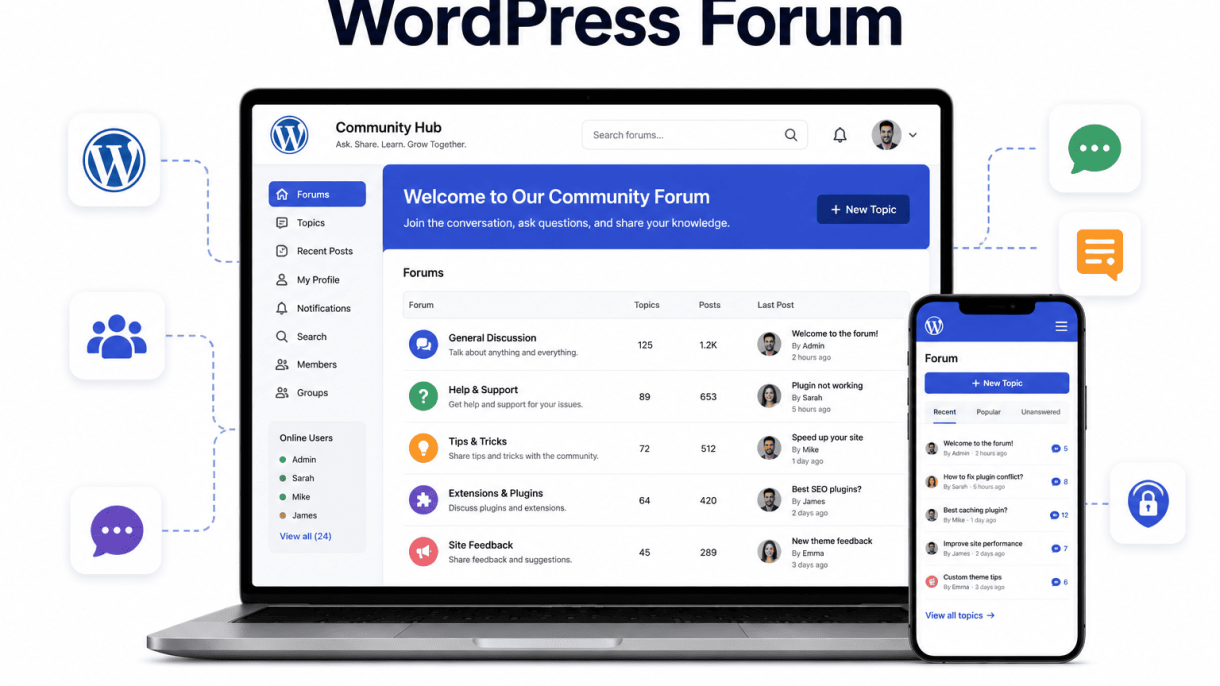

1. Understanding the Purpose of Your Forum
Before you install a single plugin or choose a theme, pause to clarify the core mission of your WordPress forum. The purpose you define will ripple through every decision—from plugin selection to content rules to how you attract members. A forum built without a clear goal often becomes a ghost town or a moderation nightmare. Your purpose might be community support, where members help each other solve problems; niche discussions, where enthusiasts gather around a specific hobby or profession; or customer engagement, where you create a space for clients to share feedback and build loyalty. Each purpose demands a different structure, tone, and set of features.
Defining your target audience and their needs
Your forum’s success hinges on knowing exactly who you are building it for. Ask yourself: What problems does my audience face that a forum can solve? Are they beginners seeking hand-holding, or experts looking for deep technical discussions? For example, a forum for freelance graphic designers would need categories for portfolio feedback, software tutorials, and client negotiation tips. A forum for a software product would prioritize bug reports, feature requests, and troubleshooting threads. Create a simple audience profile: list their age range, technical skill level, preferred communication style (formal vs. casual), and the primary value they seek. Use this profile to shape your forum’s categories, language, and moderation policies. A mismatch between audience needs and forum design is the number one reason forums fail to gain traction.
Choosing between a standalone forum vs. integrated community
Once you understand your audience, decide whether your forum should be a standalone hub or integrated into an existing WordPress site. A standalone forum works best when the forum is the main attraction—for example, a niche hobbyist community where members primarily interact through discussions. An integrated community, on the other hand, combines a forum with other site features like a blog, membership area, or e-commerce store. This is ideal for businesses that want to offer support forums alongside product pages or a knowledge base. Consider these trade-offs:
- Standalone forum: Easier to focus on community features, simpler navigation, but may feel disconnected from your main site content.
- Integrated community: Seamless user experience, cross-promotion opportunities, but requires careful planning to avoid clutter and performance issues.
For most WordPress users, an integrated approach using a plugin like bbPress or BuddyPress offers the best balance, allowing you to embed forums within your existing site structure.
Setting realistic expectations for moderation and growth
A thriving forum doesn’t happen overnight, and it requires consistent effort. Set realistic expectations from the start. Moderation is not optional—every forum needs a clear code of conduct, a team of moderators (even if it’s just you initially), and a system for handling spam, disputes, and rule violations. Growth typically follows a slow-steady curve: you might see a handful of posts in the first month, then gradual acceleration as early members become advocates. Plan for a moderation time commitment of at least 1–2 hours per day in the early stages. Also, decide how you will handle negative behavior: Will you use a warning system? Temporary bans? Permanent bans? Document these policies before launch. Finally, understand that forums are not set-and-forget. They require ongoing content seeding, member engagement, and technical maintenance. If you cannot commit to this, consider whether a simpler solution like a Facebook group or a comments section might better serve your purpose.
2. Selecting the Right WordPress Hosting
Choosing the correct hosting environment is arguably the most critical decision when learning how to build a WordPress forum. Unlike a standard blog, forum software—whether you use bbPress, BuddyPress, or a third-party plugin—is inherently resource-intensive. Each page load can trigger multiple database queries to fetch user profiles, thread hierarchies, and post metadata. A shared server that handles a simple brochure site will choke under the concurrent connections of even a modestly active community. Your host must provide robust support for PHP and MySQL, along with effortless scalability to accommodate spikes in user activity during popular threads or events.
Key hosting features: PHP version, memory limits, and caching
Before signing up for any plan, verify these three technical pillars:
- PHP version: Ensure the host supports PHP 8.0 or later. Modern forum plugins often rely on PHP 8+ features for performance and security. Older PHP versions (7.4 or below) are deprecated and will slow down your site.
- Memory limits: Forums require generous PHP memory limits. Look for a minimum of 256 MB per site, with the ability to increase to 512 MB or 1 GB as your community grows. You can verify this by adding
define('WP_MEMORY_LIMIT', '256M');to yourwp-config.phpfile. - Caching: Object caching (like Redis or Memcached) is vital. It stores frequently accessed data—such as recent posts, user badges, and unread counts—in memory, reducing database load. Page caching (via plugins like WP Rocket or host-level solutions) also helps serve static versions of pages to guests.
To check your current PHP memory limit, you can create a simple info file. Upload the following code as info.php to your site’s root directory, then access it via your browser:
<?php
phpinfo();
?>
Look for the “memory_limit” directive. After testing, delete this file immediately for security.
Shared vs. managed WordPress hosting for forums
The debate between shared and managed hosting has clear implications for forums:
| Hosting type | Pros | Cons |
|---|---|---|
| Shared hosting | Low cost, easy to start | Limited resources, no dedicated PHP workers, risk of neighbor site traffic spikes slowing your forum |
| Managed WordPress hosting | Optimized server stack, automatic caching, staging environments, expert support for WordPress-specific issues | Higher monthly cost, may restrict certain plugins or custom .htaccess rules |
For a forum with more than a handful of daily users, shared hosting is rarely sufficient. Managed WordPress hosting often includes server-level caching, automatic updates, and proactive monitoring—features that directly benefit community performance. However, if you are building a small private forum for a team or a hobby project, a quality shared host with good PHP support (like SiteGround or A2 Hosting) can work temporarily, but plan to upgrade as soon as activity increases.
Recommended hosts optimized for community sites
While no single host fits every budget, the following providers have demonstrated reliability for WordPress forums:
- Kinsta: Built on Google Cloud Platform, offers automatic Redis caching, PHP 8.x, and scalable resources. Ideal for forums expecting rapid growth.
- WP Engine: Provides a dedicated caching layer, staging sites, and excellent support. Their “Scale” plan includes 100+ GB bandwidth, suitable for active communities.
- Cloudways: A managed cloud platform that lets you choose DigitalOcean, Linode, or AWS servers. You can scale resources up or down manually, and it includes built-in Redis and Varnish caching.
- Liquid Web (Nexcess): Specializes in WooCommerce and community sites, offering auto-scaling and dedicated IP addresses for forums that require SSL certificates.
When evaluating any host, request a trial or money-back guarantee period. Test your forum with a simulated load using tools like Loader.io or K6 to ensure the server handles concurrent users without timeouts. Remember, the cheapest option often becomes the most expensive when your community outgrows it—choose a host that scales with your success.
3. Installing and Configuring WordPress
Before you can add forum functionality, you need a functional WordPress installation. This section covers setting up a fresh WordPress site or preparing an existing one to ensure it supports forum software without conflicts. Proper configuration at this stage prevents common issues like broken permalinks, user role mismatches, or data loss later.
Step-by-step WordPress installation (one-click vs. manual)
Choose the installation method that best fits your hosting environment. Most hosting providers offer a one-click installer, but manual installation gives you more control.
- One-click installation (recommended for beginners): Access your hosting control panel (cPanel, Plesk, or custom dashboard). Locate the “WordPress Installer” tool (e.g., Softaculous, Fantastico). Enter your site name, admin username, email, and select a theme. The installer automatically creates the database and configures files. This takes 2–5 minutes.
- Manual installation (for advanced users): Download the latest WordPress zip from wordpress.org. Create a MySQL database and user via phpMyAdmin or your host’s database tool. Upload the WordPress files to your server via FTP or file manager. Rename
wp-config-sample.phptowp-config.phpand add your database credentials. Run the installation script by visiting your domain. This method offers full control over file structure and database naming.
For a forum site, manual installation may be preferable if you plan to use a custom folder structure or integrate with existing user systems. However, one-click installers are reliable and include automatic updates.
Essential WordPress settings for a forum (permalinks, user roles)
After installation, configure these settings to optimize your site for forum functionality.
Permalinks: Forums rely on clean, readable URLs. Go to Settings > Permalinks and select “Post name” or a custom structure like /forum/%postname%/. This ensures your forum topics and replies have user-friendly URLs (e.g., yoursite.com/forum/topic-title). Avoid the default “Plain” setting, which creates broken links in forum menus and sitemaps.
User roles: WordPress default roles (Administrator, Editor, Author, Contributor, Subscriber) may not map cleanly to forum roles. For a forum, consider these role mappings:
| WordPress Role | Forum Equivalent | Key Permissions |
|---|---|---|
| Administrator | Forum Admin | Full control over forum settings, user management, moderation |
| Editor | Moderator | Edit/delete any posts, manage users, but not site settings |
| Author | Member | Create and edit own posts, reply to topics |
| Subscriber | Participant | Read forum, create topics, reply (if allowed) |
Most forum plugins (e.g., bbPress, BuddyPress) create their own role hierarchy. After installation, check that your user roles align with forum permissions to avoid accidental admin access for regular members.
Backing up your site before adding forum software
Before installing any forum plugin or theme, create a full backup of your current WordPress installation. This protects against data loss if the forum software conflicts with existing plugins or themes.
Backup steps:
- Files: Use an FTP client or file manager to download the entire
wp-contentfolder (themes, plugins, uploads). Also downloadwp-config.phpand.htaccess. - Database: Export your MySQL database via phpMyAdmin. Select all tables, choose “Export” (SQL format), and save the file. For large databases, use a plugin like UpdraftPlus or BackupBuddy for automated backups.
- Test the backup: Restore the backup to a staging environment or local server to verify it works. A corrupted backup is useless in an emergency.
Store backups in a secure off-site location (cloud storage, external drive). Schedule automatic backups at least weekly, especially after major changes like installing forum software. Without a backup, a single plugin conflict could erase weeks of forum setup work.
4. Choosing Between Forum Plugins and bbPress
When you decide how to build a WordPress forum, your first major fork in the road is selecting the right plugin. The choice largely comes down to three distinct paths: bbPress for native integration, BuddyPress for social features, or a third-party plugin like wpForo for advanced styling. Each option serves a different use case, and understanding their strengths helps you avoid costly rework later.
bbPress: lightweight, deep WordPress integration
bbPress is developed by the same team behind WordPress, which means it follows core coding standards and relies on WordPress data structures. This results in a forum that feels like a natural extension of your site rather than a bolted-on add-on.
- Performance: Minimal database overhead; uses existing WordPress tables for users and posts.
- Integration: Works seamlessly with your current theme’s template hierarchy. You can override forum templates via your child theme.
- Simplicity: No bloat. You get forums, topics, replies, and moderation—nothing more.
- Extensibility: Hooks and filters are abundant. For example, to add a custom field to topic submission forms, you can use
add_action( 'bbp_theme_before_topic_form_content', 'my_custom_field' );.
bbPress is ideal for site owners who already have a well-designed theme and want a forum that loads fast and requires minimal maintenance. However, its default styling is bare-bones, and you will need to invest in custom CSS or a child theme to match your brand.
BuddyPress: adding social profiles and activity streams
BuddyPress extends WordPress into a social network. When combined with bbPress (and the official BuddyPress/bbPress integration plugin), it adds layers of user engagement beyond simple forum threads.
- User profiles: Members get customizable profile pages with avatars, cover images, and fields.
- Activity streams: Forum posts automatically appear in a site-wide activity feed, encouraging discovery and interaction.
- Private messaging: Users can send direct messages, which reduces the need for third-party messaging plugins.
- Groups: Create private or public groups with their own forums, which is powerful for membership sites or communities.
The trade-off is complexity. BuddyPress adds its own database tables and background processes. On shared hosting, this can slow down your site. Use BuddyPress only if your forum strategy depends on social features—otherwise, you risk overcomplicating your setup.
Third-party plugins: advanced features and styling options
Third-party forum plugins like wpForo, Asgaros Forum, and CM Answers offer features that bbPress and BuddyPress do not include out of the box.
| Feature | bbPress | wpForo (example) |
|---|---|---|
| Built-in styling/themes | No | Yes (multiple layouts) |
| Drag-and-drop layout editor | No | Yes |
| Advanced search (fuzzy, tags) | Basic | Full-text with filtering |
| User reputation systems | Plugin required | Built-in |
| GDPR/legal compliance tools | Manual setup | Built-in options |
wpForo, for example, includes a visual theme editor that lets you change colors, fonts, and spacing without writing a line of code. It also supports forum attachments, polls, and advanced moderation queues. The downside is that these plugins are heavier and may conflict with other plugins or your theme’s CSS. Always test third-party plugins on a staging site before deploying to production.
For most projects that prioritize design control and feature richness over lightweight integration, a third-party plugin is the pragmatic choice. However, if you value long-term maintainability and a small footprint, bbPress remains the most reliable foundation for how to build a WordPress forum.
5. Installing and Setting Up bbPress
bbPress is the most widely used plugin for building a WordPress forum because it integrates seamlessly with your existing user system and requires minimal overhead. This section walks you through installing bbPress, creating forum structures, and configuring permissions to ensure your community runs smoothly from day one.
Installing bbPress via the WordPress plugin repository
Begin by navigating to your WordPress admin dashboard. Go to Plugins > Add New and type “bbPress” into the search bar. The plugin, developed by the WordPress core team, appears as the first result. Click Install Now and then Activate once the installation completes.
After activation, bbPress adds a new menu item labeled Forums to your admin sidebar. You may also notice a settings panel under Settings > Forums. No additional configuration is required at this point, but verify that the plugin is active by checking for the bbPress version number in the Plugins list.
If you prefer manual installation, download the plugin zip file from the WordPress repository, upload it via Plugins > Add New > Upload Plugin, and activate it. Automatic installation is recommended for most users because it handles file permissions and version checking automatically.
Creating forum categories and subforums
With bbPress active, you can now structure your forum. Click Forums > Add New in your admin panel. Enter a title for your main forum category—for example, “General Discussion” or “Technical Support.” In the Forum Attributes metabox, select Category as the forum type. This creates a top-level container that holds subforums.
To add a subforum, create another new forum item. Give it a descriptive title, such as “Installation Help” or “Feature Requests.” In the Forum Attributes metabox, choose Forum as the type, then use the Parent Forum dropdown to assign it to the category you just created. Repeat this process until you have a hierarchy that matches your community needs.
A typical forum structure might look like this:
- General Discussion (Category)
- Welcome and Introductions
- Off-Topic Chat
- Support (Category)
- Installation Help
- Troubleshooting
- Feature Requests
- Announcements (Category)
- Site News
- Updates and Changelogs
You can reorder forums by adjusting the Order field in the Forum Attributes metabox. Lower numbers appear first. Save each forum as you go, and your structure will be visible on the front end immediately.
Configuring user permissions and topic moderation
bbPress uses WordPress user roles to control access. By default, Administrators have full control, Editors can moderate all content, and Subscribers can only create topics and replies. To fine-tune permissions, go to Settings > Forums and review these key options:
| Setting | Default | Recommendation |
|---|---|---|
| Allow users to create topics | Enabled | Keep enabled for all roles except blocked users |
| Allow users to reply to topics | Enabled | Keep enabled for all roles except blocked users |
| Topic moderation | None | Set to “Moderate” to require approval for new users |
| Reply moderation | None | Set to “Moderate” to prevent spam |
| Allow anonymous posting | Disabled | Keep disabled for security |
For topic moderation, you can assign specific users as Forum Moderators by editing their WordPress user profile and checking the Forum Moderator box under the bbPress section. These users can edit, delete, and move topics and replies within assigned forums.
To set per-forum permissions, edit any forum and scroll to the Forum Moderators metabox. Add usernames to grant moderation rights for that specific forum only. Use this feature to delegate responsibility for large communities or sensitive sections like “Support” or “Announcements.”
Finally, enable Spam Protection under Settings > Forums > Akismet if you have the Akismet plugin installed. This automatically flags suspicious content for review, reducing manual oversight. Test your setup by logging in as a subscriber and creating a topic to confirm that permissions and moderation rules work as intended.
6. Customizing the Forum Appearance
Once your forum is functional, tailoring its look to align with your brand identity is essential for user trust and engagement. A cohesive design ensures visitors immediately associate the discussion area with your website. This section covers three key approaches to styling your bbPress forum without losing core functionality.
Choosing a WordPress theme that supports bbPress
Not all themes handle bbPress gracefully. A theme designed with forum compatibility will display topic lists, replies, and user profiles cleanly. Look for themes that explicitly list bbPress support, often found in the theme description or demo. Many popular multipurpose themes—such as GeneratePress, Astra, or OceanWP—include dedicated bbPress styling options.
When selecting a theme, consider these factors:
- Responsive layout: Ensure the forum collapses properly on mobile devices.
- Typography controls: Ability to adjust font sizes for forum titles, breadcrumbs, and reply text.
- Color scheme integration: The theme should allow you to match forum elements (buttons, links, backgrounds) to your brand palette.
- Sidebar management: Some themes let you disable sidebars on forum pages for a distraction-free experience.
If your current theme lacks bbPress styling, consider switching to a child theme that inherits parent theme capabilities while adding forum-specific CSS overrides.
Using a page builder to design forum pages
Page builders like Elementor, Beaver Builder, or Brizy can be used to create custom forum layouts, though they do not directly edit bbPress templates. Instead, you can design wrapper pages that contain your forum using shortcodes or dynamic content widgets.
For example, to embed a forum list inside a custom page:
- Create a new page using your page builder.
- Add a shortcode element and insert
[bbp-forum-index]to display all forums. - Style the surrounding section with your brand colors, padding, and background.
- Add a sidebar widget area for recent topics or search.
This approach gives you control over header and footer regions while leaving the core forum interaction intact. Avoid modifying bbPress template files directly—use hooks or CSS instead to prevent update conflicts.
Adding custom CSS for a unique forum layout
For granular control, add custom CSS through the WordPress Customizer (Appearance > Customize > Additional CSS) or via a child theme’s style.css file. This allows you to override default bbPress styles without editing plugin files.
Practical example: To change the background color of forum topic rows and adjust spacing:
/* Custom forum topic row styling */
#bbpress-forums ul.bbp-forums li.bbp-body ul.forum {
    background-color: #f9f9f9;
    border-bottom: 1px solid #e0e0e0;
    padding: 12px 0;
}

#bbpress-forums ul.bbp-forums li.bbp-body ul.forum:hover {
    background-color: #fff3e0;
}

/* Adjust topic title font size */
#bbpress-forums li.bbp-forum-title a {
    font-size: 1.1em;
    font-weight: 600;
}
This code targets the forum list rows, giving them a subtle hover effect and consistent spacing. Always test custom CSS in a staging environment first. Use browser developer tools to inspect bbPress-generated classes—common ones include .bbp-forums, .bbp-topic, .bbp-reply, and .bbp-author.
For advanced customization, consider using a dedicated bbPress theme plugin like “bbPress Toolkit” or “bbPress Styles” to add pre-built styling options without coding.
7. Implementing Essential Forum Features
Once your forum’s core structure is in place, adding essential features transforms it from a basic discussion board into a vibrant community hub. These enhancements improve usability, encourage participation, and keep members engaged. Below are three critical features to implement, each with practical steps for WordPress.
Adding user avatars and profile fields
User avatars and custom profile fields personalize the forum experience, fostering identity and trust. To add avatars, use a plugin like BuddyPress or bbPress (which integrates with WordPress’s built-in avatar system). For more control, consider Simple Local Avatars or WP User Avatar. Steps:
- Install and activate the chosen avatar plugin.
- Navigate to Settings > Discussion to enable avatars and set default types.
- Allow users to upload custom images via their profile page (most plugins add this automatically).
For custom profile fields, use BuddyPress (which includes extended profile fields) or a dedicated plugin like User Extra Fields or Profile Builder. Example fields to add:
| Field Type | Example Use |
|---|---|
| Text | Location, website URL |
| Select | Industry, skill level |
| Date | Birthday (if needed) |
| Checkbox | Interests (e.g., tech, sports) |
Always test that new fields display on forum profiles and in posts without breaking layout.
Enabling email notifications and topic subscriptions
Notifications keep users informed and drive return visits. bbPress includes built-in subscription options. To enable them:
- Go to Settings > Forums in your WordPress admin.
- Check the box for Allow users to subscribe to topics and Allow users to subscribe to forums.
- Ensure email delivery works by configuring an SMTP plugin (e.g., WP Mail SMTP) to avoid spam folders.
For advanced notification control, use Better Notifications for WordPress or Subscribe to Comments Reloaded. These let you customize email templates, frequency, and triggers. Test by subscribing to a topic as a user and verifying you receive a confirmation email and reply alerts.
Integrating a search plugin for forum content
WordPress’s default search often misses forum topics and replies. A dedicated search plugin improves discoverability. Top options:
- SearchWP (premium): Indexes all custom post types, including bbPress topics and replies. Configure it to exclude non-forum content for cleaner results.
- Relevanssi (free/premium): Adds fuzzy matching, keyword highlighting, and custom post type support. Activate it, then rebuild the index from Tools > Relevanssi.
- Ajax Search Lite (free): Adds live search with dropdown results. Install, then create a search form widget and assign it to your forum sidebar or header.
After integration, test searches for common terms and verify that forum topics appear prominently. Exclude private or pending posts if needed via plugin settings.
8. Managing User Roles and Permissions
Configuring user roles and permissions is essential for maintaining order and security in your WordPress forum. The default WordPress roles and the bbPress-specific roles work together to control who can post, edit, moderate, or simply read content. By understanding and customizing these roles, you can create a tailored experience for your community members, from anonymous visitors to trusted moderators.
Default bbPress roles: Keymaster, Moderator, Participant
bbPress introduces three dedicated forum roles that override standard WordPress capabilities in forum areas:
- Keymaster: Full administrative control over all forum settings, topics, replies, and user management. Only assign this role to site administrators or trusted super-moderators.
- Moderator: Can edit, delete, move, close, and stick topics and replies. They cannot access global site settings or manage users outside the forum.
- Participant: The default role for any logged-in user. Participants can create new topics and reply to existing ones, but cannot edit or delete others’ content.
These roles integrate with the standard WordPress roles (Administrator, Editor, Author, Contributor, Subscriber). For example, a WordPress Administrator automatically gains Keymaster permissions, while a Subscriber becomes a Participant. You can assign these roles manually via Users > Your Profile or Users > All Users > Edit.
Creating custom roles for advanced access control
When default roles do not meet your community’s needs, you can create custom roles using a plugin like User Role Editor or Members. This allows you to fine-tune permissions such as:
- Allowing certain users to edit topics only within specific forums.
- Granting the ability to sticky or close topics without full moderation rights.
- Restricting topic creation to approved members while allowing replies for all participants.
To create a custom role, install a role management plugin, then add a new role (e.g., “Forum Helper”) and assign specific bbPress capabilities like bbp_moderate (moderate topics), bbp_create_topics, or bbp_edit_replies. Ensure you test the new role in a staging environment to avoid unintended access.
Setting permissions for anonymous posting or reading
By default, bbPress requires users to register and log in to post topics or replies. However, you may want to allow anonymous contributions or restrict reading to logged-in users. To adjust these settings:
- Navigate to Settings > Forums in your WordPress admin.
- Check the box for Allow users to create topics and replies without registration to enable anonymous posting. Note that anonymous posts will be attributed to “Anonymous” and cannot be edited by the original poster.
- For reading restrictions, use a plugin like bbPress Private Groups or User Access Manager to set forum visibility based on user roles. Alternatively, you can modify WordPress’s global reading settings under Settings > Reading to require login for all site content.
Anonymous posting can increase engagement but also invites spam. Pair this with a CAPTCHA plugin or moderation queue for new anonymous posts to maintain quality.
| Role | Create Topics | Edit Own Posts | Moderate Others | Manage Settings |
|---|---|---|---|---|
| Keymaster | Yes | Yes | Yes | Yes |
| Moderator | Yes | Yes | Yes | No |
| Participant | Yes | Yes | No | No |
| Anonymous | If enabled | No | No | No |
By carefully managing user roles and permissions, you can strike a balance between openness and control, ensuring your WordPress forum remains a safe, organized, and engaging space for all participants.
9. Moderating Content and Preventing Spam
Once your WordPress forum gains traction, the most persistent challenge you will face is keeping discussions on-topic and free from spam. Without a proactive moderation strategy, automated bots and malicious users can quickly bury genuine conversations in irrelevant links, offensive language, or repetitive advertisements. A clean, well-moderated forum not only protects your community’s reputation but also encourages higher-quality participation. The following steps outline how to implement effective moderation and spam prevention using built-in WordPress tools and trusted plugins.
Using Akismet or reCAPTCHA to block automated spam
Automated spam bots are the most common threat to any forum. They can flood your site with hundreds of junk posts in minutes. To stop them before they reach your users, integrate one or both of these widely used services:
- Akismet: This plugin automatically checks all forum submissions against a global spam database. It is pre-installed with many WordPress setups and requires an API key (free for personal sites, paid for commercial use). Enable it by navigating to Plugins > Installed Plugins and activating Akismet. Then enter your API key under Settings > Akismet. Akismet filters spam into a separate queue, allowing you to review or permanently delete it.
- reCAPTCHA: Google’s reCAPTCHA v3 (invisible) or v2 (checkbox) adds a verification step during registration or posting. For a forum, use the “bbPress reCAPTCHA” plugin or the “Really Simple SSL” plugin’s built-in reCAPTCHA integration. To implement reCAPTCHA v3, obtain a site key and secret key from the Google reCAPTCHA admin console, then add the following code to your theme’s
functions.phpfile:
add_filter('bbp_after_get_reply_content', 'add_recaptcha_to_reply_form');
function add_recaptcha_to_reply_form($content) {
    if (is_user_logged_in()) return $content;
    $site_key = 'YOUR_SITE_KEY_HERE';
    return $content . '<div class="g-recaptcha" data-sitekey="' . esc_attr($site_key) . '"></div>';
}
This code appends the reCAPTCHA widget to the reply form for non-logged-in users. Replace YOUR_SITE_KEY_HERE with your actual key.
Setting up manual moderation queues for new users
Automated filters are effective, but they cannot catch every subtle violation. Manual moderation queues give you direct control over who can post freely. In WordPress, you can configure this using a forum plugin like bbPress:
- Install and activate the bbPress plugin (if not already active).
- Go to Settings > Forums and locate the “User Moderation” section.
- Enable “New users must be approved by an administrator before they can post.” This forces all new registrants into a pending state.
- Optionally, set a “Post Count Threshold” (e.g., 3 approved posts) so that after a user reaches that number, their future posts bypass the queue.
- Review pending users under Users > All Users and use the “Approve” or “Deny” actions.
For more granular control, consider the “WP Approve User” plugin. It sends you an email notification whenever a new user registers, and you can approve or reject them directly from your inbox. This method is especially useful for forums with sensitive topics or high-value discussions.
Creating and enforcing a clear code of conduct
Technical tools can block spam, but they cannot prevent rude behavior, off-topic rants, or harassment. A written code of conduct sets expectations and provides a basis for moderator action. Write your code of conduct as a static page on your site (e.g., yourdomain.com/forum-rules) and link it prominently in the forum header or sidebar. Include these essential elements:
| Element | Description |
|---|---|
| Respectful tone | State that personal attacks, hate speech, and trolling are prohibited. |
| Relevance | Require posts to stay on-topic for each subforum. |
| No spam | Explicitly ban self-promotion, affiliate links, and repetitive content. |
| Privacy | Forbid sharing others’ personal information (doxxing). |
| Consequences | Outline a three-strike system: warning, temporary ban, permanent ban. |
Enforce the code consistently. Assign at least two moderators (or use the “Moderator” role in bbPress) to review reported posts. Use the “bbPress Report Content” plugin to let users flag violations. When you issue a warning, send a private message using a plugin like “WP Private Message”. Over time, a well-enforced code of conduct will reduce moderation workload and foster a self-policing community.
10. Optimizing Performance and Scaling Your Forum
Building a WordPress forum is only the first step; ensuring it remains fast and responsive as traffic grows is critical for user retention and search engine ranking. Forum software like bbPress or BuddyPress can become database-intensive, especially with thousands of topics, replies, and active users. Without proper optimization, page load times will degrade, leading to higher bounce rates and a poor user experience. This section covers three essential strategies to keep your forum snappy and scalable: caching, a content delivery network (CDN), and database-level tuning.
Implementing caching plugins (e.g., W3 Total Cache, WP Rocket)
Caching is the single most impactful performance improvement for a WordPress forum. A caching plugin stores a static version of your pages, reducing the number of PHP and database queries for each visitor. For forums, you must configure caching carefully to avoid serving stale content (e.g., new replies not appearing immediately).
- W3 Total Cache: A free, powerful plugin that supports page cache, database cache, object cache, and minification. For forums, enable page cache with “cache for logged-in users” disabled to prevent caching personalized content. Use the database cache with caution—test after enabling to ensure forum queries remain fresh.
- WP Rocket: A premium, user-friendly plugin that offers built-in caching, file optimization, and lazy loading. Its “cache for logged-in users” option can be toggled per user role (e.g., cache for subscribers but not moderators). WP Rocket also includes a built-in “Remove query strings from static resources” feature to improve CDN performance.
Recommended caching settings for forums:
| Setting | Recommended Value | Reason |
|---|---|---|
| Page cache for logged-in users | Disabled (or per-role) | Prevents stale content for active users |
| Database cache | Enabled (with short TTL) | Reduces query load for forum threads |
| Minify HTML/CSS/JS | Enabled | Reduces file size for faster downloads |
| Combine external scripts | Disabled | Can break forum AJAX functionality |
Using a content delivery network (CDN) for static assets
A CDN distributes your forum’s static files—images, CSS, JavaScript, and fonts—across a global network of servers. This reduces latency for visitors far from your origin server. For forums with many user-uploaded avatars, logos, or attachment files, a CDN drastically improves load times. Popular CDN services include Cloudflare (free tier), KeyCDN, and BunnyCDN. To integrate with WordPress, use a plugin like CDN Enabler or the CDN integration built into W3 Total Cache. Ensure that dynamic forum content (e.g., user-specific reply lists) is not cached by the CDN by setting appropriate Cache-Control headers.
Database optimization and indexing for forum queries
WordPress forums rely heavily on the database for retrieving topics, replies, and user data. Over time, post meta, comment meta, and revision tables can bloat. Use a plugin like WP-Optimize or Advanced Database Cleaner to remove spam, trashed posts, and post revisions. For advanced optimization, add database indexes to speed up common forum queries. For example, if you use bbPress, consider adding indexes to the wp_posts table on columns like post_parent and post_type (e.g., ‘topic’ and ‘reply’). A typical SQL command for this is: ALTER TABLE wp_posts ADD INDEX forum_query_index (post_type, post_parent, post_date);. Always back up your database before making structural changes. Finally, enable query caching in your database server (e.g., via MySQL’s query cache or Redis object cache) to reduce repeated load from popular forum threads.
Frequently Asked Questions
What is the best plugin to create a WordPress forum?
The best plugin depends on your needs. bbPress is the most popular free option, tightly integrated with WordPress and lightweight. For a full community suite, BuddyPress adds user profiles, activity streams, and groups. For advanced features, consider wpForo or Asgaros Forum. Evaluate based on required features, performance, and ease of use.
Can I build a WordPress forum without coding?
Yes, most forum plugins like bbPress, wpForo, and Asgaros Forum require no coding. They provide shortcodes, widgets, and settings panels to create forums, topics, and replies. However, some customization (CSS or template overrides) may require basic coding knowledge if you want a unique look.
How do I moderate a WordPress forum?
Moderation is built into plugins. Assign moderators with specific permissions (e.g., edit/delete posts, approve content). Set up spam filters (e.g., Akismet), user reporting, and email notifications. For larger communities, consider moderation queues or third-party tools like CleanTalk.
Will a forum slow down my WordPress site?
A forum can impact performance, especially with many users or posts. Use caching plugins, optimize database queries, choose a lightweight theme, and consider a reliable host. bbPress is optimized for performance, while full suites like BuddyPress may add overhead. Monitor with tools like Query Monitor.
How do I integrate a forum with existing user roles?
Most forum plugins respect WordPress user roles. You can assign capabilities via plugins like User Role Editor. For example, give 'Subscribers' read-only access and 'Contributors' posting rights. Advanced plugins allow custom role mapping for forum-specific permissions.
What are the best practices for forum SEO?
Use SEO-friendly URLs (e.g., /forums/forum-name), enable breadcrumbs, write unique meta descriptions for forums and topics, and use heading tags properly. Install an SEO plugin like Yoast or Rank Math. Avoid duplicate content by using canonical URLs and noindexing archive pages if needed. Encourage user-generated content with quality discussions.
Can I migrate an existing forum to WordPress?
Yes, several plugins offer import tools. For example, bbPress can import from phpBB, vBulletin, or Simple Press via built-in converters. For custom migrations, use tools like WP All Import or hire a developer. Always backup your database before migration.
How do I encourage user engagement in my forum?
Create clear guidelines, reward active members with badges or points (e.g., using myCRED or GamiPress), ask questions, and respond promptly. Use email notifications, social sharing, and featured topics. Gamification and regular community events boost participation.
Sources and further reading
- bbPress – Official Plugin Page
- BuddyPress – Official Plugin Page
- wpForo – Official Plugin Page
- Asgaros Forum – Official Plugin Page
- WordPress Developer Resources – Roles and Capabilities
- Akismet – Spam Protection for Forums
- CleanTalk – Anti-Spam Plugin
- User Role Editor – Official Plugin Page
- GamiPress – Gamification Plugin
- myCRED – Points Management Plugin
Need help with this topic?
Send us your details and we will contact you.