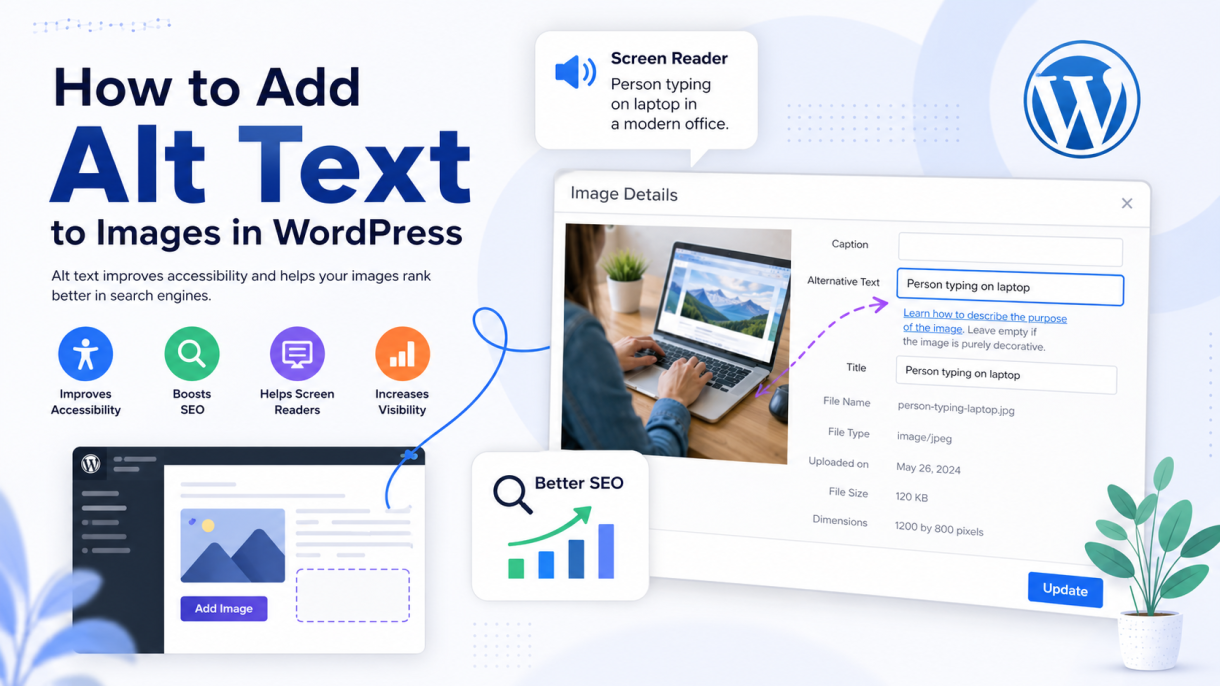

Adding alternative text (alt text) to images in WordPress is one of the most effective ways to improve your website’s accessibility, boost search engine visibility, and enhance overall user experience. While it takes only a few seconds per image, implementing a disciplined, keyword-aware image SEO strategy transforms how search engines index your media assets and ensures your site complies with global web accessibility standards.
Every image uploaded to a modern web application carries metadata that communicates directly with screen readers for visually impaired users and web crawlers like Googlebot. When executed properly, image alt text acts as a bridge between technical accessibility and image search optimization, helping your content rank in Google Images and driving high-intent organic traffic back to your domain.
Whether you are managing media assets inside the modern WordPress Block Editor (Gutenberg), organizing files inside the Media Library, editing layouts using visual builders like Elementor, or architecting custom web systems—such as our Full-Stack WordPress and React Architectures or Automated Automotive Marketplace APIs—this guide covers every technical and strategic aspect of WordPress alt text optimization.
Table of Contents
- What Is Image Alt Text and Why Does It Matter?
- How to Add Alt Text in the WordPress Media Library
- Adding Alt Text Directly Inside the Block Editor (Gutenberg)
- Inserting Alt Text in Page Builders (Elementor and Custom Layouts)
- The Difference Between Alt Text, Image Title, Caption, and Description
- Strategic Image SEO: Writing Alt Text for Accessibility and Rankings
- How to Audit and Fix Missing Alt Text Across Your Site
- Handling Decorative Images, Background Graphics, and SVGs
- Advanced Image Optimization: WebP Conversion, File Names, and Lazy Loading
- Checklist for Perfect WordPress Image Accessibility and SEO
1. What Is Image Alt Text and Why Does It Matter?
Alternative text (often referred to as alt tag, alt attribute, or alt description) is an HTML attribute added to an image tag. In raw web code, the alt attribute provides a text description of the image whenever the visual asset fails to render or when the page is being read by assistive technology.
The Two Core Pillars of Alt Text:
1. Web Accessibility (WCAG Compliance)
Screen readers rely heavily on alt text to describe visual assets to users with vision impairments. According to the Web Content Accessibility Guidelines (WCAG), all non-text content provided on a web application must have a text alternative that serves an equivalent purpose. Without proper alt text, screen readers skip over critical visual context or simply read out raw file names like IMG_00294.jpg.
2. Search Engine Optimization (Image SEO)
Search engine bots are highly intelligent, but they still rely on text metadata to understand the precise context and meaning of an image. Alt text helps algorithms categorize visual content, index relevant images in Google Image Search, and understand the surrounding topic of a page—much like strategic internal linking outlined in our guide on How to Add a Link in WordPress.
2. How to Add Alt Text in the WordPress Media Library
The WordPress Media Library allows you to assign global alt text to an image immediately after uploading or retroactively across your media database.
Step-by-Step Instructions:
- Log into your WordPress administrative dashboard.
- Go to Media > Library from the left navigation menu.
- Click on the target image you wish to edit to open the Attachment Details modal window.
- Locate the Alternative Text field on the right-hand panel.
- Type a descriptive, concise text phrase describing the visual asset.
- Click anywhere outside the input box or press
Tab. WordPress automatically saves your changes to the database.
Pro Tip: Adding alt text inside the Media Library assigns that text to the image globally. When you insert that image into future blog posts or pages, WordPress will automatically pull the alt text saved in the Media Library.
3. Adding Alt Text Directly Inside the Block Editor (Gutenberg)
If you insert an image directly into a post or page while writing inside the Gutenberg editor, you can add or modify alt text on the fly without navigating back to the Media Library.
Step 1: Click on the Target Image Block
Open your post inside the Gutenberg Block Editor and click directly on the image block you want to edit.
Step 2: Open the Block Settings Panel
In the right-hand sidebar menu, ensure the Block tab is selected. If the sidebar panel is hidden, click the gear icon in the top-right corner of the editor toolbar.
Step 3: Enter Your Description in the Alternative Text Box
Scroll down to the Image Settings section. Locate the Alternative Text (Alt Text) text area.
Step 4: Add Contextual, Descriptive Text
Type your descriptive text into the field. If the image needs specific context unique to this post, you can override the global Media Library alt text right here.
When updating existing posts or restructuring layouts, managing media assets efficiently keeps site rendering fast and clean. For broader site planning, review our guide on How Much Does WordPress Cost in 2026?.
4. Inserting Alt Text in Page Builders (Elementor and Custom Layouts)
Visual drag-and-drop page builders like Elementor allow you to set alt text during layout construction.
Adding Alt Text in Elementor:
- Open your page inside the Elementor editor interface.
- Click on the Image Widget you want to customize.
- In the left panel under the Content tab, click on the image thumbnail box.
- The WordPress Media Library overlay will pop up. Highlight your target image.
- In the right-hand Attachment Details column, enter your phrase into the Alt Text box.
- Click Select or Insert Media at the bottom right.
- Click Update to save your page layout.
When building complex page layouts with visual builders, maintaining clean code standards and lightweight DOM structures is essential. Read our full breakdown on Maintaining Performance in Elementor Page Builders.
5. The Difference Between Alt Text, Image Title, Caption, and Description
WordPress provides four distinct metadata fields for every uploaded image. Understanding how each field functions prevents duplication and improves layout structure:
| Metadata Field | Visible on Frontend Page? | Primary Function | Ideal Use Case |
| Alt Text | No (Unless image fails to load) | Describes visual content for screen readers and search bots. | Mandatory for all informative and functional images. |
| Caption | Yes (Displayed beneath image) | Provides visible explanation or attribution to all readers. | Displaying image credits, chart summaries, or photo context. |
| Title | Tooltip on mouse hover | Displays extra info when a user hovers over the image. | Optional additional context; generally ignored by SEO bots. |
| Description | On Attachment Page | Deep detail or story stored inside the Media Library. | Internal team notes or public attachment page archives. |
6. Strategic Image SEO: Writing Alt Text for Accessibility and Rankings
Writing effective alt text requires striking a balance between natural human description and targeted search engine optimization.
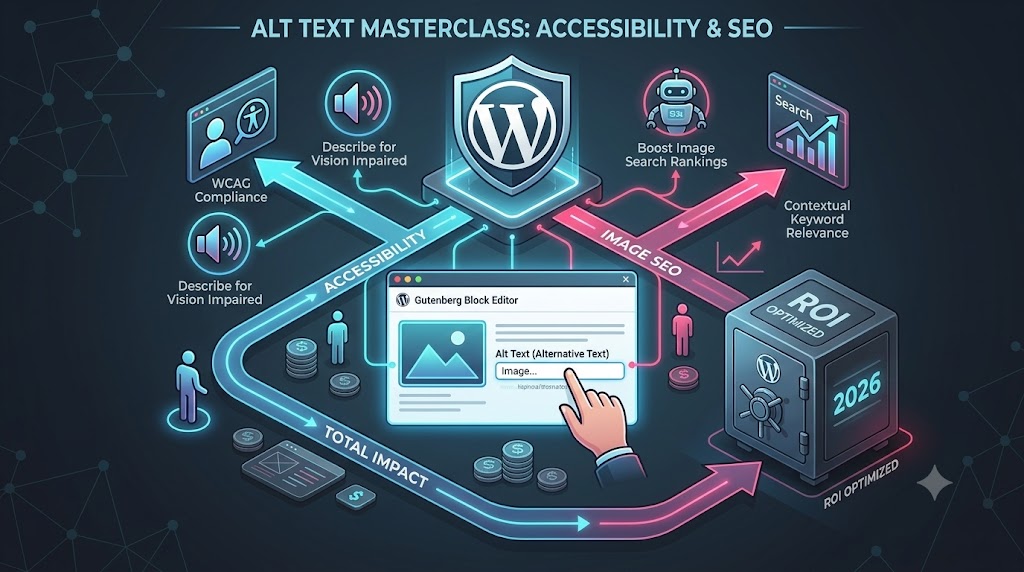
1. Be Specific and Descriptive
Describe what is actually shown in the visual. Instead of writing "car", write "red vintage sports car parked on a cobblestone street".
2. Keep It Under 125 Characters
Most screen readers stop reading alt text around 125 characters. Keep your descriptions concise, clear, and focused.
3. Include Target Keywords Naturally
Integrate relevant primary or secondary keywords where contextually appropriate. Avoid keyword stuffing (e.g., "wordpress alt text image seo best alt text wordpress tag"), as search engine algorithms penalize unnatural keyword repetition.
4. Omit Redundant Words
Do not begin your text with phrases like "image of..." or "picture showing...". Screen readers and search engine crawlers already recognize the element as an image. Jump straight into the description.
7. How to Audit and Fix Missing Alt Text Across Your Site
As a website grows, untracked media assets without alt text naturally accumulate. Auditing your media database identifies missing alt attributes and ensures site-wide accessibility compliance.
Recommended Auditing Methods:
- SEO Crawling Tools: Run a site-wide desktop crawl using tools like Screaming Frog SEO Spider or Ahrefs. Filter by Images > Missing Alt Text to generate a complete list of unoptimized media URLs.
- WordPress Accessibility Plugins: Install audit plugins to identify unassigned images inside your database.
- Manual Inspection: Right-click any image in your web browser, select Inspect Element, and check the raw image tag for the
alt=""attribute.
Regularly auditing your site media ensures clean infrastructure. For ongoing maintenance workflows, explore our guide on How to Backup Your WordPress Site.
8. Handling Decorative Images, Background Graphics, and SVGs
Not every image on a web page requires an alt text description. Misusing alt text on purely decorative graphics can clutter the experience for screen reader users.
Decorative Images
If an image is purely decorative (e.g., visual divider lines, subtle background patterns, or abstract accent shapes), leave the alt text attribute empty (alt=""). This tells screen readers to skip the asset entirely.
CSS Background Images
Images loaded via CSS rules (background-image: url(...)) cannot accept standard HTML alt attributes. If a background image carries informative content, convert it into an inline image tag or ensure equivalent text is provided in surrounding HTML elements.
If you are evaluating custom migrations or headless frontends where asset rendering is decoupled, check out our analysis on Next.js to WordPress Migration Strategies.
9. Advanced Image Optimization: WebP Conversion, File Names, and Lazy Loading
Alt text is one component of a holistic image performance strategy. To achieve top Google PageSpeed Insights scores, optimize the entire image pipeline:
- Optimize File Names Before Uploading: Rename image files on your computer using clear, hyphenated keywords (e.g.,
wordpress-alt-text-editor-settings.jpg) instead of default camera names (DCIM_9201.jpg). - Convert to Next-Gen Image Formats: Use next-generation image formats like WebP or AVIF to reduce file sizes by 30% to 50% without sacrificing visual quality.
- Enable Native Lazy Loading: Ensure
loading="lazy"is enabled across your image templates so below-the-fold media assets only load as the user scrolls down the page.
10. Checklist for Perfect WordPress Image Accessibility and SEO
Before publishing your next blog post or landing page, run through this quick image optimization checklist:
- [ ] Descriptive Text: Does every informative image have a clear, descriptive alt text attribute?
- [ ] No Redundant Words: Have phrases like
"image of"or"photo of"been removed? - [ ] Concise Length: Is the alt text kept under 125 characters?
- [ ] Natural Keyword Placement: Are relevant keywords integrated naturally without keyword stuffing?
- [ ] Empty Alt for Decorative Graphics: Are decorative graphics assigned an empty
alt=""attribute? - [ ] Optimized File Names: Are raw image file names descriptive and hyphenated?
- [ ] Next-Gen Formatting: Are images compressed and converted to WebP or AVIF?
Explore Our Engineering Guides and Site Sections
Continue exploring our technical tutorials and main portfolio sections:
- Main Homepage
- Blog Hub and Insights
- How to Add a Link in WordPress Guide
- How Much Does WordPress Cost in 2026? Complete Guide
- How to Backup Your WordPress Site Blueprint
- WordPress and React Full-Stack Architecture Standards
- Automated Automotive Marketplace API Synchronization
- Clean Code in Elementor Performance Guide
- Next.js to WordPress Migration Roadmap
Jump directly to core anchor sections on our homepage:
- Key Features Overview Section
- Portfolio Case Studies Section
- Work History and Resume Section
- Client Testimonials Section
- Direct Contact Section
Need help with this topic?
Send us your details and we will contact you.