
1. Introduction: Why Web Backups Are Your Digital Insurance Policy
Operating a web application or running a publishing channel without an active, isolated backup system is equivalent to driving at top speed on a mountain road without brakes. Every single day, thousands of WordPress websites experience critical failures, malware injections, database corruptions, or server crashes that lead to permanent data destruction. Whether you manage an e-commerce platform processing hundreds of transactions hourly or maintain a high-authority content blog, losing your site’s files and database can result in catastrophic financial, operational, and SEO penalties.
In search engine optimization (SEO), continuity is paramount. When Google’s web crawler attempts to index your site and encounters recurring 500 Internal Server Errors, database connection drops (503 Service Unavailable), or malicious redirects caused by unresolved hacks, your rankings deteriorate rapidly. A comprehensive backup strategy ensures zero prolonged downtime, allowing you to execute instant disaster recovery and protect your hard-earned domain authority and organic search positioning.
If you are building complex client sites, managing high-traffic e-commerce operations, or maintaining personal portfolio hubs (such as our in-depth guides on WordPress Performance & Speed Optimization and Custom Plugin Architecture), backing up your database and file tree is the foundation upon which site maintenance relies.
Crucial Insight: A web host’s internal backup is never a substitute for your own offsite backup. Hosting providers can experience server-wide hardware failure, billing disputes, or account suspensions that render host-managed backups completely inaccessible. Always store independent copies in remote cloud storage.
2. Anatomy of a WordPress Site: What Actually Needs Backing Up?
To properly backup a WordPress application, you must understand its dual architecture. A WordPress site does not exist as a single monolithic entity. Instead, it is divided into two major components: static/dynamic core files and the MySQL/MariaDB database.
Component 1: The WordPress File System
The file system resides on your web server’s file directory (typically under public_html/ or /var/www/html/). It consists of three primary areas:
- WordPress Core Files: Standard framework software including
wp-config.php,.htaccess,index.php, and thewp-admin/andwp-includes/system directories. - wp-content Directory: The single most vital file folder. It contains:
/themes/: Your active and inactive theme files, template layouts, and custom PHP hooks./plugins/: All installed plugin code modules./uploads/: All media assets including images, PDFs, videos, and document attachments organized by year/month./languages/: Translation dictionaries and localization files.
- Configuration Files: Files like
wp-config.phpstore critical database credentials, secret security keys (salts), and table prefix definitions.
Component 2: The MySQL / MariaDB Database
The database holds all dynamic data generated by your users, editors, and background automated processes. Without the database, your site is an empty shell. Key tables include:
| Table Name | Stored Information & Content | SEO & Operational Impact |
|---|---|---|
wp_posts | Blog articles, landing pages, custom post types, revision histories. | Critical. Contains all core indexable content. |
wp_postmeta | SEO titles, meta descriptions, page builder structures, custom fields. | Vital. Stores RankMath/Yoast meta tags and Schema structures. |
wp_users & wp_usermeta | User accounts, admin profiles, hashed passwords, capabilities. | High. Protects administrative ownership and user access. |
wp_options | Site URLs, active themes, plugin configurations, widget settings. | Critical. Determines site loading parameters and global options. |
wp_comments & wp_termmeta | User comments, taxonomy categories, tags, sub-category hierarchy. | Moderate-High. Maintains site link topology and dynamic discussion. |
3. Essential Pre-Backup Checklist & Hygiene
Before initiating a complete backup process, completing a brief system hygiene routine reduces backup file size, prevents timeouts, and ensures clean database dumps.
- Clean Out Unused Revisions and Transients: Post revisions can bloat the
wp_poststable exponentially. Run a database clean-up using tools like WP-Optimize or Advanced Database Cleaner to purge expired transients and spam comments. - Delete Unused Themes & Plugins: Remove inactive themes (keep one default core theme such as Twenty Twenty-Four for debugging) and decommissioned plugins to reduce overall file package size.
- Exclude Unnecessary Directories: Exclude server cache directories (e.g.,
wp-content/cache/) and staging directories from file backup routines. - Audit Disk Space: Ensure your hosting account has at least double the current disk usage available in free space if creating zip archives locally before remote transmission.
4. Method 1: Automated Backups via Top WordPress Plugins
For non-technical site owners, web agency account managers, or daily operational workflows, plugin-based automated backups provide high efficiency and reliable cloud integrations.
1. UpdraftPlus (Best Free & Freemium Solution)
UpdraftPlus is one of the most widely used backup plugins in the WordPress ecosystem. It allows direct scheduling to external cloud vendors such as Google Drive, Dropbox, Amazon S3, and SFTP endpoints.
Step-by-Step Setup Guide:
- Log into your WordPress Dashboard and navigate to Plugins > Add New.
- Search for UpdraftPlus WordPress Backup Plugin, click Install Now, and then Activate.
- Navigate to Settings > UpdraftPlus Backups and click on the Settings tab.
- Configure the Files backup schedule (e.g., Daily or Weekly) and Database backup schedule (e.g., Daily). Set the retention threshold to at least 7–14 instances.
- Select your preferred cloud storage provider (e.g., Google Drive or Amazon S3). Follow the authentication link to authorize access to your isolated folder.
- Scroll down and verify that
wp-content/plugins,wp-content/themes, andwp-content/uploadsare selected. - Click Save Changes, then navigate back to the Backup / Restore tab and click Backup Now to execute your first immediate archive.
2. BlogVault & Duplicator Pro (Best for Complex Enterprise Sites)
For large e-commerce applications running WooCommerce, real-time incremental backups are mandatory. Standard backups can cause server load spikes and miss purchases made between backup windows. Services like BlogVault or Duplicator Pro offload the compression process to dedicated external servers, eliminating performance drops during peak traffic hours.
5. Method 2: Manual Backup via cPanel, phpMyAdmin & FTP/SFTP
When a site is locked, compromised, or experiencing fatal PHP memory limit errors, plugin solutions are unusable. Developers and administrators must master manual file and database extraction.
Step A: Backing Up Files via SFTP / FileZilla
- Download and launch an SFTP client such as FileZilla or Cyberduck.
- Connect using your server’s SSH/SFTP credentials (Host, Port 22, User, Password/Key).
- Navigate to your web root folder (commonly
/public_html/). - Select all directories (
wp-admin,wp-includes,wp-content) and root configuration files (.htaccess,wp-config.php). - Download these files directly to an encrypted local directory on your machine.
Step B: Exporting the MySQL Database via phpMyAdmin
Once files are saved, export your raw database:
- Log into your hosting dashboard (cPanel, DirectAdmin, or custom panel) and open phpMyAdmin.
- Select your WordPress database from the left sidebar panel (check your
wp-config.phpfile for the exactDB_NAMEif multiple databases exist). - Click on the Export tab in the top navigation bar.
- Choose the Quick export method and set the format to SQL. For very large databases, choose Custom and select
gzippedorzippedcompression to prevent browser timeout. - Click Go to save the
.sqlor.sql.gzfile to your computer.
Bash
# Example: Verification of extracted database tables via command line
tar -ztvf wordpress_db_backup.sql.gz
6. Method 3: Command Line (WP-CLI) & SSH Backups for Developers
For systems developers, server architects, and agency engineers handling large deployments, terminal access using WP-CLI (WordPress Command Line Interface) and SSH provides fast performance without browser latency or timeouts.
Creating an Instant Database Backup via WP-CLI
Connect to your server via SSH and execute the following command in your WordPress root directory:
Bash
# Navigate to WordPress web root
cd /var/www/html/

# Export database with timestamped filename
wp db export backup-$(date +%Y-%m-%d-%H-%M-%S).sql --allow-root

# Output success verification
# Success: Exported to 'backup-2026-07-22-16-00-00.sql'.
Archiving the Complete File System via Command Line
Combine files and database into a compressed tape archive (tar.gz):
Bash
# Create compressed archive of public_html excluding cache directories
tar --exclude='public_html/wp-content/cache' -czvf full-site-backup-$(date +%F).tar.gz /var/www/html/

# Secure permissions on the backup archive
chmod 600 full-site-backup-$(date +%F).tar.gz
For high-performance automated site management, engineers can script these commands into a cron job or integrate them into deployment workflows. Check out our guide on Enterprise WordPress API Integrations for deeper technical system architecture.
7. Method 4: Server-Level & Hosting Managed Auto-Backups
Managed WordPress hosting platforms like Kinsta, WP Engine, Cloudways, and SiteGround offer server-level snapshots.
- Snapshots vs. File Backups: Managed hosts create whole-system volume snapshots. They cover OS parameters, PHP configurations, system dependencies, and MySQL states simultaneously.
- One-Click Staging Restores: These platforms allow administrators to push production site backups directly to staging environments with one click, enabling safe updates and code testing.
- Retention Windows: Standard plans typically retain 14 to 30 days of automated daily snapshots. Ensure your hosting plan matches your retention policy requirements.
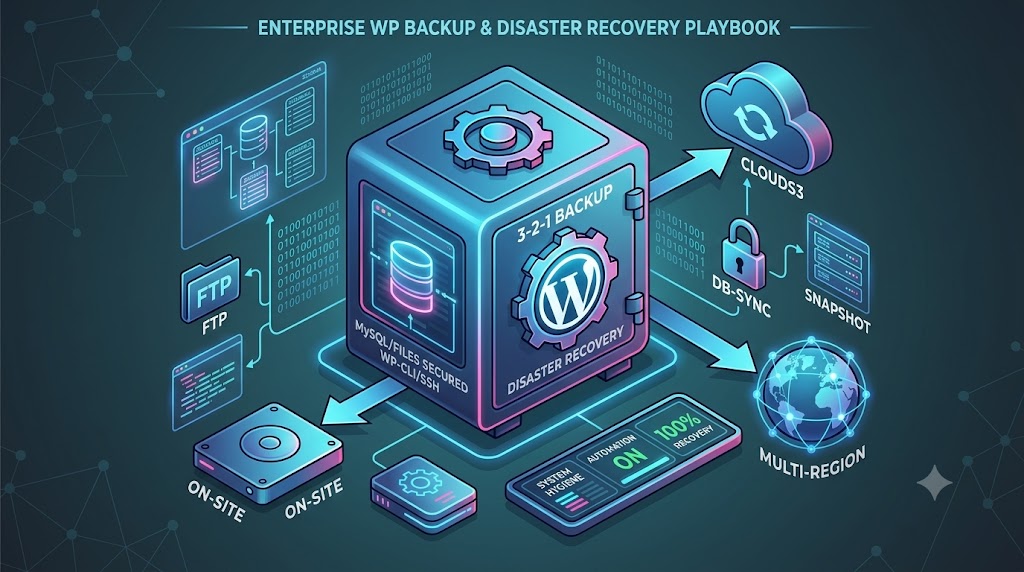
8. The 3-2-1 Backup Strategy for WordPress Hardening
To make your backup infrastructure resilient against all failure modes (including cloud vendor outages, credential compromises, and ransomware attacks), follow the industry-standard 3-2-1 Backup Rule:
The 3-2-1 Architecture Standard:
- 3 Copies of Data: Maintain your primary live site plus 2 separate backup copies.
- 2 Different Media Types: Store backups across different mediums or cloud protocols (e.g., AWS S3 bucket + local encrypted hard drive).
- 1 Offsite Remote Storage: Keep at least 1 backup completely offsite, isolated from your primary web host environment.
Combining this architecture with strict access policies ensures complete data resilience. Refer to official security standards provided by the WordPress Official Documentation on Backups to align with core community security benchmarks.
9. Step-by-Step WordPress Disaster Recovery & Restoration Routine
A backup is useless if it cannot be restored quickly when disaster strikes. Follow this recovery protocol to bring a crashed or corrupted site back online:
Disaster Recovery Flowchart
- Activate Maintenance Mode / Lock Site: Prevent incoming traffic from encountering broken scripts or submitting transaction data that will be overwritten.
- Clean Out Corrupted Files: Delete all infected or broken core files in your target directory. Do not leave compromised PHP scripts on the server.
- Extract Backup File Package: Upload and unzip your clean site files (
wp-content, core files, and assets) into your web root. - Restore Database Dump: Open phpMyAdmin, drop all existing corrupted tables, click Import, and upload your clean
.sqlbackup dump file. - Verify Config Parameters: Open
wp-config.phpand confirm that database name, username, host, and password match your server database configuration. - Flush Caches & Permalinks: Log into your restored WordPress admin area, clear object caches (Redis/Memcached), go to Settings > Permalinks, and click Save Changes to rewrite the
.htaccessfile.
10. Testing, Verification & Common Backup Failures
Many developers and site administrators make the dangerous mistake of assuming that because a backup plugin reports “Success,” the backup file is fully functional.
Common Causes of Corrupted Backups:
- PHP Execution Timeout Limits: Large file zipping operations often exceed default server
max_execution_timevalues (e.g., 30 seconds), creating incomplete zip archives. - Database Truncation: Memory exhaustion during large SQL queries can truncate the database export mid-table, missing critical data like user accounts or options.
- Permission Lockouts: Incorrect file permissions (e.g.,
0444or restrictive ownership) can prevent backup plugins from reading key directories.
The Routine Testing Procedure:
Set up a recurring monthly check to download your latest full backup package and restore it to a local development environment (using Local, XAMPP, or Docker) or an isolated cloud staging environment. Verify that all internal links, database assets, and admin user logins function as expected without PHP error logs.
11. Conclusion & Recommended Security Workflows
Data resilience is a fundamental component of professional web management and search optimization. Downtime damages user trust, reduces conversion metrics, and drops organic search rankings on Google. By implementing automated daily backups via plugins, keeping offsite cloud archives using the 3-2-1 strategy, and knowing how to execute manual command-line backups and restorations, you ensure your digital assets remain fully protected.
Take action today: Audit your backup configuration, confirm that your SQL database and media files are stored offsite, and run a test recovery on a local development setup. For further guidance on web development standards, technical SEO, and custom WordPress architecture, visit our comprehensive technical guides on SEO First Page Ranking Strategies and Modern Web Development Standards.
PDF & HTML Downloads
The PDF document and standalone HTML file containing this complete guide are available in the attachments above (How_To_Backup_WordPress_Site_SEO_Guide.pdf).
What would you like to build or refine next?
Generate internal linking schema & metadata tags
Need help with this topic?
Send us your details and we will contact you.